

Club Management
Whether you are starting a new chess club or bringing an established one online, TournaChess gives you the tools to manage your club, invite members, collect fees, and run tournaments all from one place. This guide walks you through setting up your club and managing it day to day.
Creating a Club
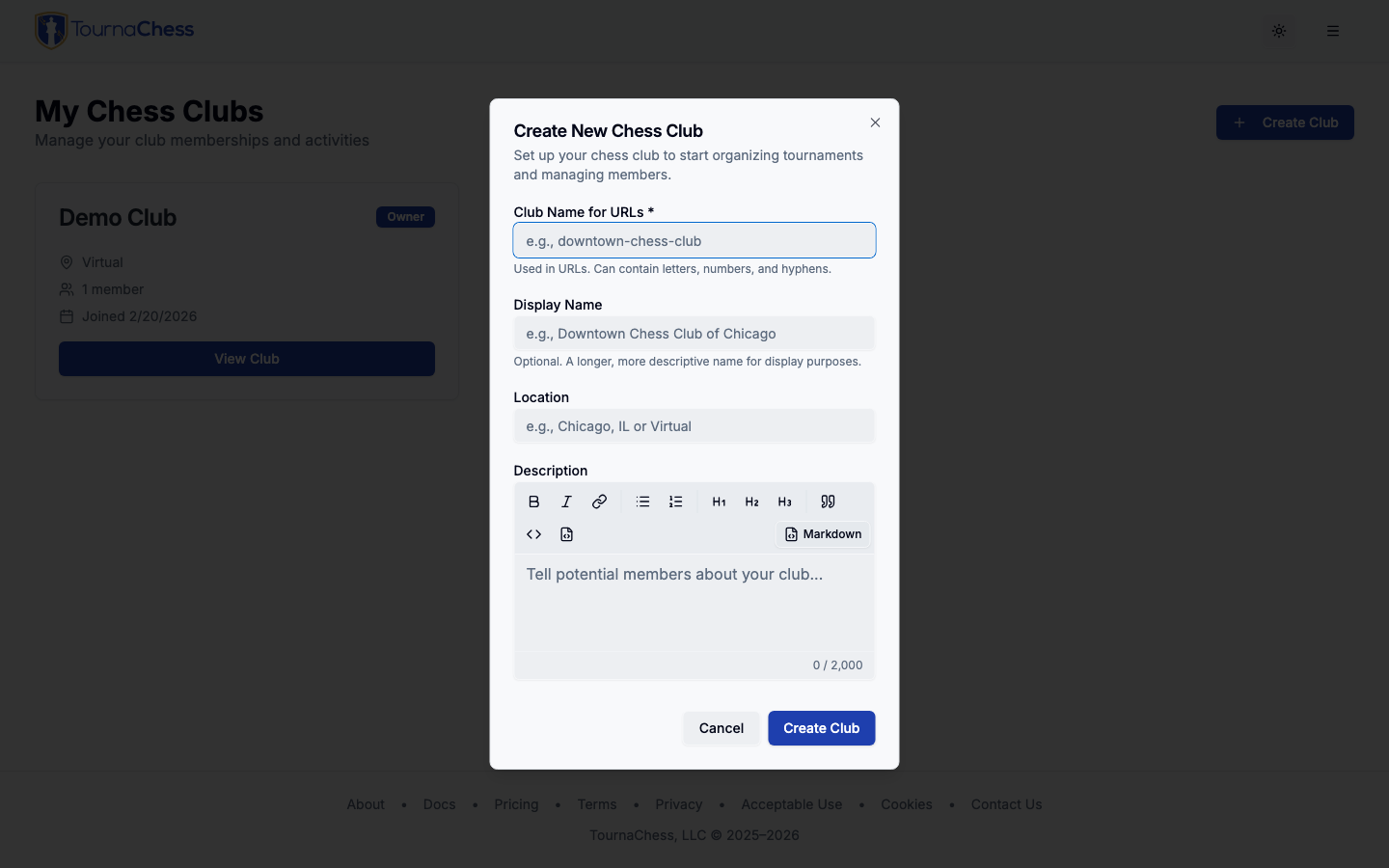
Any authenticated user with a verified email address can create a club on TournaChess. Creating a club takes just a few minutes and makes you the club Owner with full administrative permissions.
Club Name
Your club name is a unique identifier that becomes part of your club's URL. For example, if you choose the name lincoln-chess-club, your club page will be available at tournachess.com/clubs/lincoln-chess-club.
Club names follow these rules:
- Must be globally unique across all of TournaChess
- Can only contain letters, numbers, and hyphens
- Minimum 3 characters, converted to lowercase automatically
- Cannot be changed to a name already in use by another club
Choose your club name carefully since it becomes your permanent web address. If your club has a common name, consider adding your city or region to make it unique (for example, chicago-chess-club or westside-chess).
Display Name
The display name is optional and controls how your club appears to members throughout the platform. If you leave it blank, TournaChess uses the club name as the display name. Unlike the club name, the display name can include spaces, capitalization, and special characters, so you can use your club's official name exactly as it appears in real life.
For example, you might set the club name to st-louis-chess-club and the display name to St. Louis Chess Club.
Description
The club description supports rich text with headers, links, bold and italic text, and lists. Use this space to tell potential members about your club: when you meet, what events you run, and how to get involved.
Location
Enter the city where your club meets, or choose Virtual if your club operates entirely online.
What Happens Next
When you create a club, you are automatically assigned the Owner role with full permissions over every aspect of the club. You can immediately begin inviting members, configuring settings, and creating tournaments.
Club Dashboard
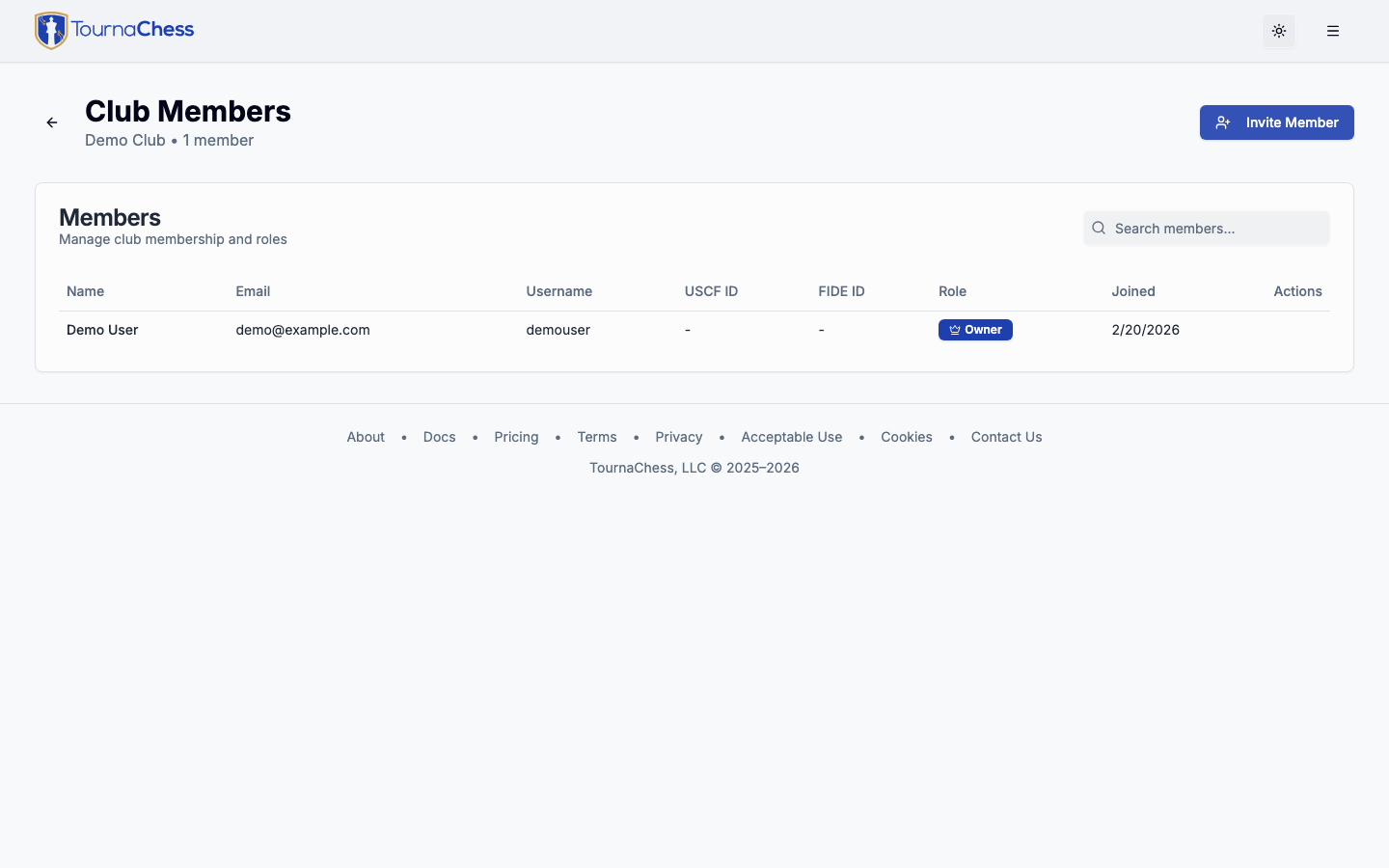
Club Owners and Admins see a private dashboard at the top of the club page. It shows the total number of tournaments, non-draft tournaments starting in the next 90 days, and registrations from the last seven calendar days in the club's timezone. Charts show registrations on each of the last 14 club-local days and the number of draft, active, and complete tournaments. The recent-registration list shows dates in the club's timezone and links to each player's tournament. If the club has no timezone set, the dashboard uses Eastern Time. Withdrawn registrations are excluded from registration counts and the recent list; draft tournaments are included in the total and status chart but not the upcoming count. Tournament Directors, Members, and visitors do not see this dashboard.
Club Settings
After creating your club, you can fine-tune its configuration from the club settings page. Settings are organized into several categories.
Basic Information
You can update your club's core details at any time:
- Club name: Your URL-friendly identifier (must remain unique)
- Display name: The human-readable name shown to members
- Description: Markdown-formatted club description
- Location: City name or Virtual
- Contact email: Where replies from players go
Tip: You can change the display name, description, and location at any time. The club name (URL slug) can also be changed, as long as the new name is not already in use by another club.
Registration confirmations and pairing notifications are sent by TournaChess, but they reply to your club's contact email, so a player asking about their section, their entry fee, or where to show up reaches you rather than TournaChess support. Leave it blank and those replies go to TournaChess support instead.
The contact email is also the default reply-to address when a director emails a tournament's players (see Running Tournaments). There it falls back to the club owner's address rather than to TournaChess support, and a director can override it for a single message.
Managing Members
Add TournaChess members to your club is not necessary to allow players to participate in tournaments. Adding club members is required for:
- Granting elevated permissions to manage the club and run tournaments
- Allowing members to view and register for tournaments marked as private to club members only
Inviting Members
The way to add members is by sending in-app invitations:
- Navigate to your club's member management page
- Click Invite Member
- Enter the email address of the person you want to invite (they must already have a TournaChess account)
- Select a role for the new member (Admin, Tournament Director, or Member)
- Optionally set a display name for them
- Click Send Invitation
The invitation appears on the invitee's home page the next time they sign in. From there, they can accept or decline. Pending invitations are also visible on your club's member management page, where you can withdraw them if needed.
Only club Owners and Admins can send invitations. Tournament Directors and regular Members cannot invite others.
Note: The invitee must have an existing TournaChess account registered with the email address you enter. If they do not have an account yet, ask them to create one first, then send the invitation.
Tip: When inviting someone to be a Tournament Director, you can include their name as the display name so it appears correctly in your member list right away.
Viewing the Member List
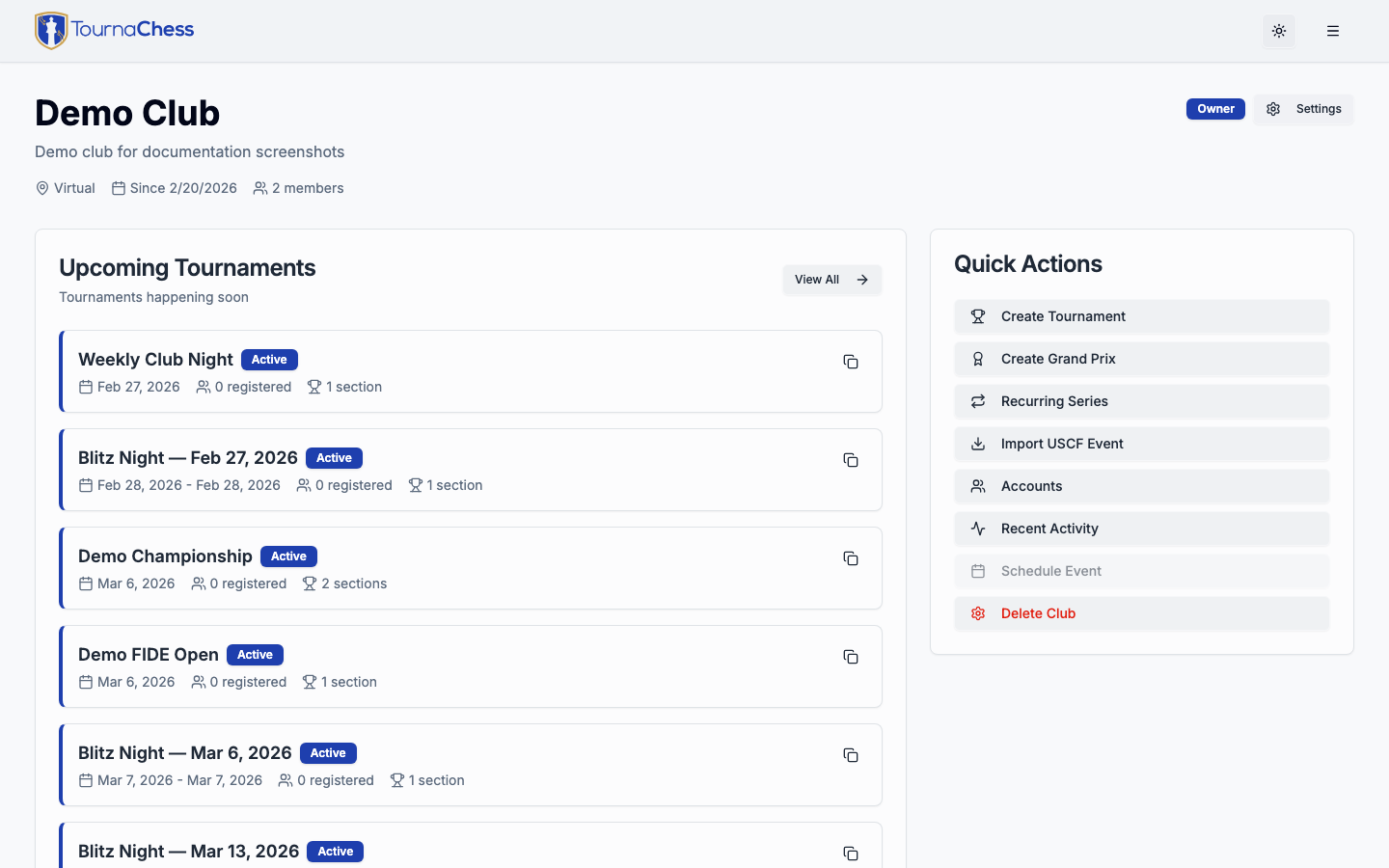
The member list shows everyone in your club with key details:
| Column | Description |
|---|---|
| Name | Member's display name |
| Role | Owner, Admin, Tournament Director, or Member |
| Joined | Date the member joined the club |
| Chess IDs | Linked USCF and FIDE identifiers, if available |
You can sort and filter the list by role to quickly find your tournament directors or administrators.
Viewing Club Followers
Owners, Admins, and Tournament Directors can open Accounts in the club page’s Quick Actions. A Followers section below the member list shows everyone following the club, with their name, email, and the date they followed. This includes followers who are also members. Following does not grant a membership or role; members retain their existing permissions.
The follower list is available only to staff of that club. Regular members and public visitors cannot view it.
Removing Members
Owners and Admins can remove members from the club. Removing a member revokes their access to club management features and future tournament creation, but does not delete their tournament history. Past tournament results remain intact for rating integrity.
Note: See Roles & Permissions for details on the role hierarchy.
Prize Reports
Club owners and admins can open Prize Reports from the club page's Quick Actions. Choose a year or enter a date range to see cash prizes marked Paid across the club. The paid-prize ledger is ordered by tournament end date, which is the report's Date Paid convention (or its start date when no end date is set); it does not record the actual day money changed hands. Dates use each tournament's timezone. Each row combines a player's cash awards in one payout scope, showing Winnings (calculated prizes) and Net Payment (the amount actually entered at payout, or winnings if none was entered). Section and tournament-wide payouts remain separate. Unpaid prizes, trophies without a cash payment, and historical tournament copies are excluded. A paid amount remains in the ledger even if a later recalculation removes its award.
The player summary counts distinct tournaments and shows net payments, ordered by total calculated winnings. Use Export CSV on the ledger for an accountant-friendly file matching the selected period.
Player Records
The member list covers people who joined your club. Player Records covers everyone who has played in it: each person who has registered for any of your club's tournaments, listed once no matter how many events they have entered. Open it from Player Records in the Quick Actions panel on your club page. It is available to tournament directors and above.
Because the list is built from registrations rather than from one you maintain, it stays current on its own. A player who enters their first event appears the next time you open the page, and a returning player updates in place instead of appearing twice.
What the records show
Each row carries the player's most recent details, filling in from their earlier registrations where the latest event did not ask for something -- a phone number given last season still shows even if the newest entry form skipped it:
| Field | Description | Shown by default |
|---|---|---|
| Name | Their name, as it stands on their most recent entry | Always |
| Email and phone | Contact details from their most recent registration | Yes |
| USCF / FIDE / NWSRS | Their ID in each rating system | Yes |
| Events | How many of your club's tournaments they have entered | Yes |
| First / Last event | Their earliest and most recent event, by tournament date | Yes |
| Last tournament | The name of that most recent event | Yes |
| Gender | Their answer to the Gender registration field, or a federation's record | No |
| Team | The team on their most recent entry that named one | No |
| Grade | The grade on their most recent entry that named one | No |
A tournament that has not happened yet counts the same as a past one: the roster is built from registrations, so a player who has signed up for next month's event appears with that event as their last one.
Every column sorts. The list scrolls with the page rather than in a window of its own, so a long one reads by scrolling as usual.
Ratings and club membership are deliberately absent. They describe a player as of one tournament and change from event to event, so they belong to that tournament's own registration export rather than to a standing record of who has played with your club. Team and grade change the same way, which is why they are off by default: when you do turn them on, the value is the one from the most recent entry that named one.
Choosing the fields
The fields button above the list picks what a row carries. Everything is optional except the name, and the export follows your choice exactly -- ticking Gender is all it takes to get a gender column into the CSV.
The starting selection is the middle column of the table above, minus the ID columns your club has no data for: a club that has never run a FIDE-rated event sees no FIDE column until it asks for one. Reset goes back to that. Your choice is remembered per club and kept in the page address, so a link you send opens with the same fields you were looking at.
A narrow window cannot show everything you tick. The fields are filled in from the top of the table above, and whatever is left over is a tap away in the player record -- the same one the phone and tablet layouts open.
Where a gender comes from
The Gender field shows the player's own answer to the built-in Gender registration field, taken from the most recent of your events that asked it. Someone who chose "prefer not to answer" is shown exactly that.
For a player who has never answered, the record USCF holds is shown instead, and FIDE's if USCF has none. A value that did not come from the player is marked with an asterisk and names its source, because it is a federation's record of them rather than their own answer.
Only registrations in a section that shows the field contribute, whichever the source. A section shows it when its own setting asks the question, when any of its payment options asks it -- in which case it shows for everyone in that section, not only the players who chose that option -- or when a Best Female Performance prize is configured for the section or the tournament, since gender then decides an award and you have to be able to see what it will be settled on. A player whose account records a gender still shows nothing here if no section of yours does any of that -- the same rule the registration list and a tournament's own export follow, so an event that neither asks nor awards on it really does keep it out of view.
In an export the asterisk becomes part of the value: a gender that came from a federation is written as Female (from USCF) rather than plain Female, so the file cannot be read years later as the player's own answer.
On a phone
Below tablet width the table gives way to one compact row per player -- their name, how many of your events they have entered, and when the most recent one was. Tap a player to open their full record: contact details, rating IDs, and their first and last event. Tapping an email address or phone number there starts a message or a call.
Two players who register under different USCF IDs stay separate rows even if they share a name, and one player who entered once from their account and once as a guest is merged into a single row when both entries carry the same rating ID. The same holds across a correction: if a player's USCF ID was fixed between events, they are still listed once.
An entry with no rating ID and no TournaChess account has only its name to go on, so it joins the player of that name -- the event that collected a USCF ID and the one that did not still produce a single row. Several such entries under one name are likewise one player.
The exception is a name that belongs to more than one player: if two John Smiths are on the list under different USCF IDs, an entry that names neither cannot be assigned to either, and stays a row of its own. Adding a USCF, FIDE, or NWSRS ID to that registration is what resolves it.
Searching and filtering
The search box matches names, email addresses, phone numbers, rating IDs, teams, grades, and the last tournament played. Team and grade are matched even though they are not columns, so searching a school name still finds the players who registered under it.
Beside it, the date filter narrows the list to the people who played between two dates, and the tournament filter to the people who played in particular events. Open it and you get every tournament someone on the list has entered, newest first, with its date and how many of your players were in it -- tick as many as you like. Picking several means any of them, so selecting a weekend's three sections gives you everyone who played that weekend, not only those who played all three. The picker has its own search box, which matters once a club has years of events: type part of a name to narrow the choices before ticking.
Either end of the date range can be left out, so "everyone since September" and "everyone who played before last season" are each one field. It is the event that has to fall in the range, not the player: someone who played in 2019 and again this year is not in a 2022 range. Dates are read in your club's timezone, so a Friday evening event counts as the Friday you ran it.
Using both at once asks them of the same event. Picking last spring's championship and a date range of this autumn gives nobody, rather than everyone who played that championship and happened to enter something else in the autumn.
Your choices are kept in the page address, so a filtered list can be bookmarked or sent to a co-organizer, and the count under the table always says how many players you are looking at out of the club's total.
Exporting the roster
Export CSV downloads the list as a spreadsheet file, in the same way as a tournament's registration export. Each player is one row, and the file carries exactly the fields you have ticked -- including the ones a narrow screen has no room for. Dates are written in your club's timezone.
When a search, a date range or a tournament filter is active, the export dialog offers to export only the players you are currently looking at, and the button says how many that is. Clear the filters first, or uncheck the box, to export everyone.
Viewing Your Club's Events
Your club's Events page offers two ways to look at your schedule. Use the List/Calendar toggle at the top of the page to switch between them:
- List view intersperses tournaments and simple Events in the same sortable tables, split into Live and Upcoming Events and Past Events. Both are ordered by date, and each entry identifies its type. The club homepage also shows both types together. Tournament cards offer Register now while self-registration is open; on phones, use the registration icon beside the tournament details.
- Calendar view lays your tournaments and club Events out on a month calendar, color-coded by status, so you can confirm everything lands on the right dates and spot gaps or clashes at a glance. On a wide enough screen each day lists its events' start times and names; on a phone they collapse to colored bars. Either way, tap a day to see the full details of everything scheduled on it. Directors see draft tournaments and draft Events; other viewers see only published Events and tournaments visible to them. Linked tournaments and their Event appear as separate entries. The projected future dates of a recurring series are on that series' own calendar, on the club's Recurring Series page.
When several events land on the same day, hovering a day -- or clicking it to open the day's details -- lists them in the order they start, with each start time shown next to the name. Events with per-round registration list each round on its own date and show that round's start time. Anything without a start time set is listed last.
Your choice of view is remembered between visits. For convenience, the main club page also has a Calendar shortcut that opens the Events page directly in calendar view.
Creating Club Events
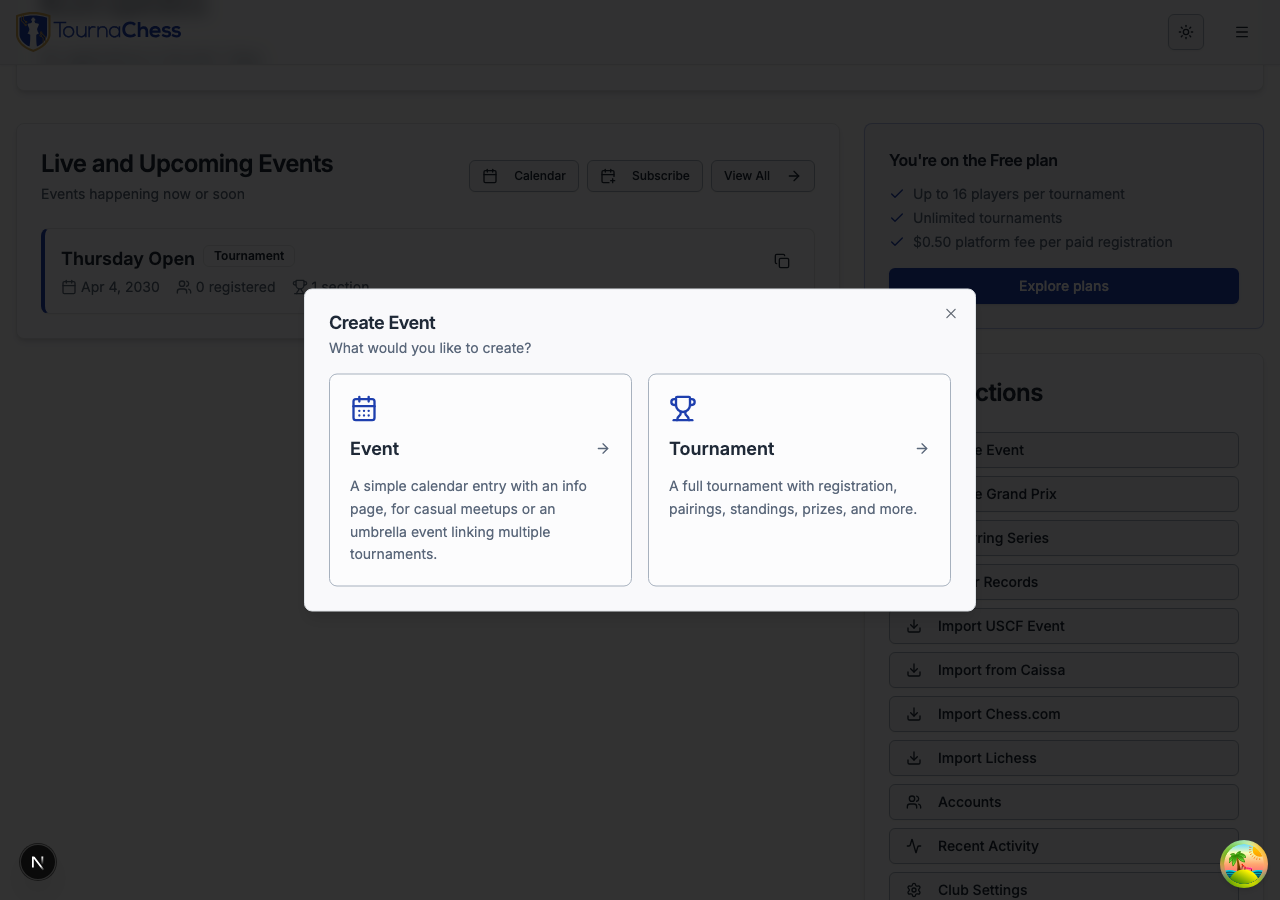
Club directors can choose Create Event on the Events page or in the club homepage’s quick actions. The first step offers two cards: Event, for a simple calendar entry with an info page or an umbrella page linking multiple tournaments; and Tournament, for full registration, pairings, standings, prizes, and more. Choose Event to continue.
The dialog asks for a title, start date and time, optional end date and time, timezone, location, and rich-text description. The timezone defaults to your club’s timezone, or your browser’s timezone if the club has none. Event times are entered and displayed in the selected timezone, and calendar subscriptions include the exact start and end times. An Event can stand alone or link to any number of the club's tournaments. Use the Linked tournaments dropdown to search by name and select multiple tournaments; Clear removes all selections. A tournament belongs to one Event at a time; remove it from its current Event before linking it to another. Save it as a draft to preview it privately, then select Make Public (Move out of Private Draft) when it is ready for visitors. Saving opens the new Event home page automatically. On Club and Pro plans, choose Actions → Edit Event there to upload a banner or icon; Free clubs do not have custom Event images. Directors can edit or delete Events from the Live and Upcoming Events and Past Events tables alongside tournaments. The page filter searches both tournaments and Events. Deleting an Event keeps its linked tournaments.
Show map displays an embedded Google Map on the Event home page when a location is set. Control it beside the location field when creating or editing an Event. It is on by default for new Events; existing Events keep it off until you enable it. Visitors can jump to the map from the location in Details or choose Open in Google Maps for directions. Turn it off to show only the location text.
On the Event home page, directors can choose Actions → Edit Event to update details, images, and linked tournaments. The Draft / Published status dropdown beside the breadcrumb publishes the Event or returns it to draft after confirmation. Changing the Event status does not change the status or visibility of its linked tournaments.
The Event home page gives visitors the event details and links to non-draft tournaments they can see: public tournaments for visitors, plus members-only tournaments for signed-in club members. The same tournament cards used on the club homepage show Register now (a registration icon on phones) only when that tournament accepts self-registration; director-managed tournaments remain viewable without a dead-end registration link. Players register through an individual tournament, not through the Event itself. The club calendar shows the Event and each linked tournament separately, so an Event date does not replace the tournament's own schedule.
Duplicating and repeating Events
Use Actions → Duplicate Event on an Event page, or the duplicate button beside an Event in the club's list, to make another copy. Choose its title, start time and optional end time. Changing the start automatically moves the end to preserve the current duration; you can also adjust or clear the end yourself. The new Event starts as a draft and copies the description, location, map preference, timezone, banner and icon. It has no tournament links and is independent of any recurring series; the original Event and its tournament links stay as they are.
For a regular meetup, select Event as the recurring target when creating a Recurring Series. Generated Events copy these same details on your schedule, without tournament links. Choose draft mode for review before publication, or turn it off to publish occurrences automatically.
Subscribing to Your Club's Calendar
Anyone can follow a club's schedule from their own calendar app. Click Subscribe -- next to the Calendar shortcut on the main club page, or beside the List/Calendar toggle when the Events page is in calendar view -- to get the club's calendar feed:
- Add to Google Calendar opens Google Calendar and asks you to confirm the new subscription. Once added, the club's tournaments appear alongside your other calendars, and Google refreshes the feed a few times a day.
- Copy URL copies the feed address for any other app that can subscribe to a calendar by URL -- Apple Calendar, Outlook, and most others. Open in my calendar app hands the feed straight to a desktop calendar app that handles
webcal:links.
The feed contains the club's published Events and published, public tournaments -- the same ones shown on the public club page -- and updates on its own as they are added, rescheduled, or removed. Each Event appears as its own timed calendar entry, with its start and optional end time, even when linked tournaments also appear. Your calendar app displays these times in its own timezone. Tournament entries use each tournament's name and description unless a calendar title or description has been set for it, and tournaments with Hide event in calendar view turned on are left out (see Calendar View Customization). Each tournament is one event from its start to its end. A tournament with per-round registration appears instead as one event per scheduled round, using each round's date and start time, so a weekly club night shows up week by week.
For a tournament to reach subscribers, then, it has to exist and be visible to the public: Active or Complete rather than Draft, Make tournament publicly viewable turned on, and Hide event in calendar view turned off. A recurring series is the common source of surprise here -- its future dates are only projections until the series generates them, and a series that creates its occurrences as drafts keeps them out of subscribers' calendars until you publish each Event or set each tournament Active. If members ask why next month's club nights are missing from their calendar, start with those.
The feed address is built from the club's ID rather than its name, so renaming the club or changing its URL slug never breaks a subscription someone has already added. Share that address (or the Subscribe button) freely -- it is the same public information as the club page, and there is nothing personal in it.
The feed is only available for public clubs. A club marked private has no Subscribe button, and its feed address returns nothing.
Stripe Connect Setup
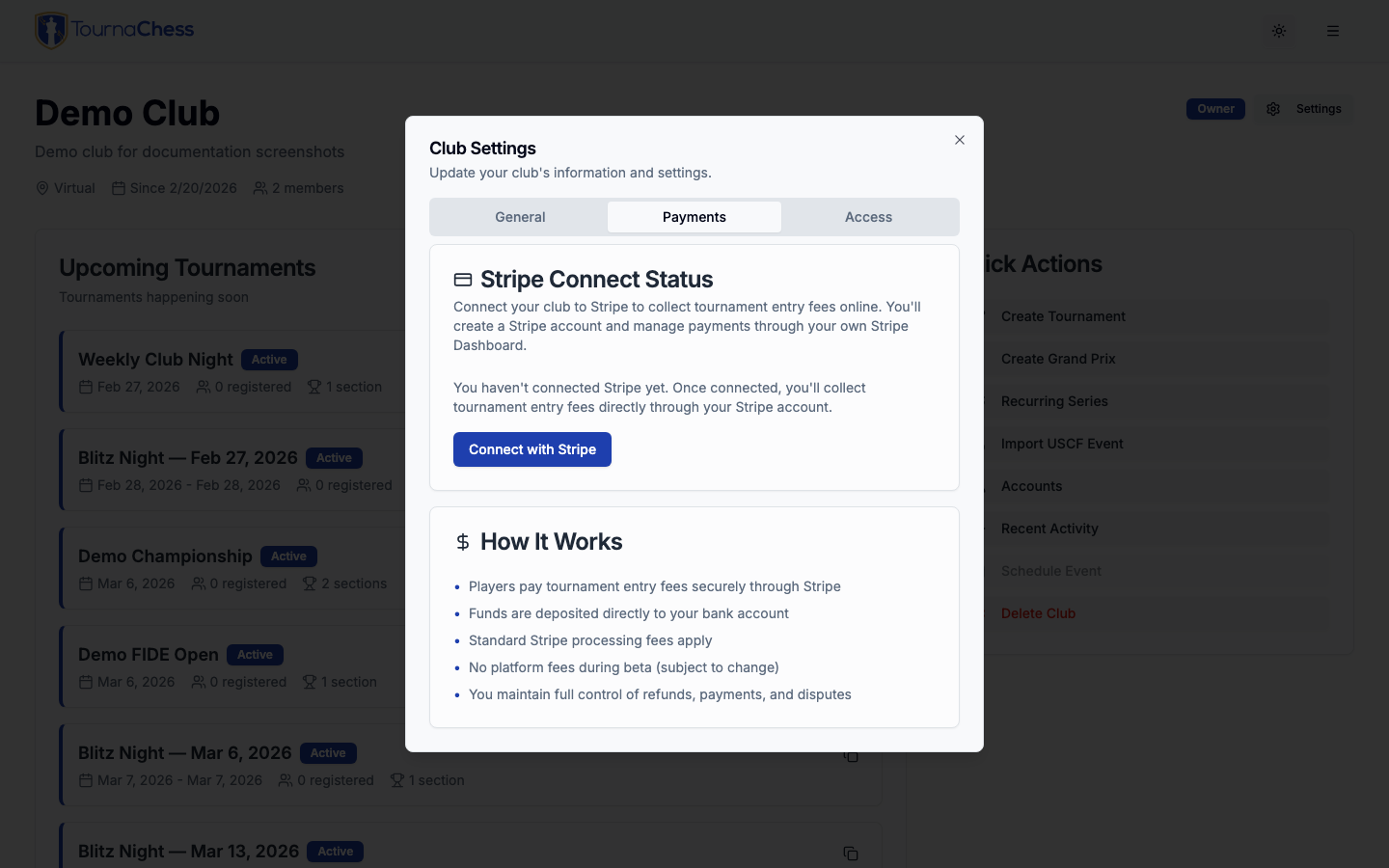
If you want to collect tournament entry fees online, you will need to connect a Stripe account to your club. TournaChess uses Stripe Connect to securely handle payment processing, so tournament fees go directly to your club's bank account, less Stripe's processing fee and a flat TournaChess platform fee per paid registration -- $0.50 on Free, $0.25 on Club, and none on Pro. See Pricing for the current plans and Registration and Payments for how the fees apply.
Getting Started
- Navigate to your club's settings page
- Find the Stripe Connect section
- Click Connect with Stripe to begin the onboarding process
You will be redirected to Stripe's onboarding flow, where you will provide your club's banking and identity information. This is a standard Stripe process and typically takes a few minutes to complete. The process is much quicker for those that already have a Stripe account.
What Stripe Enables
Once your Stripe account is connected and verified, you can:
- Set entry fees when creating new tournaments
- Accept online payments during player registration
- Track payment status for each registered player
- Manage in-person payment tracking for players who pay at the venue
Online and In-Person Payments
Players who register online can pay their entry fees during the registration process using a credit or debit card. For players who register in person (or prefer to pay with cash), tournament directors can manually mark payments as received.
Tip: You do not need Stripe Connect to run tournaments. If your club does not charge entry fees, or if you prefer to handle payments outside of TournaChess, you can skip this step entirely.
For a complete guide to managing registration fees and payment workflows, see Registration & Payments.
SMS Credits for Pairing Notifications
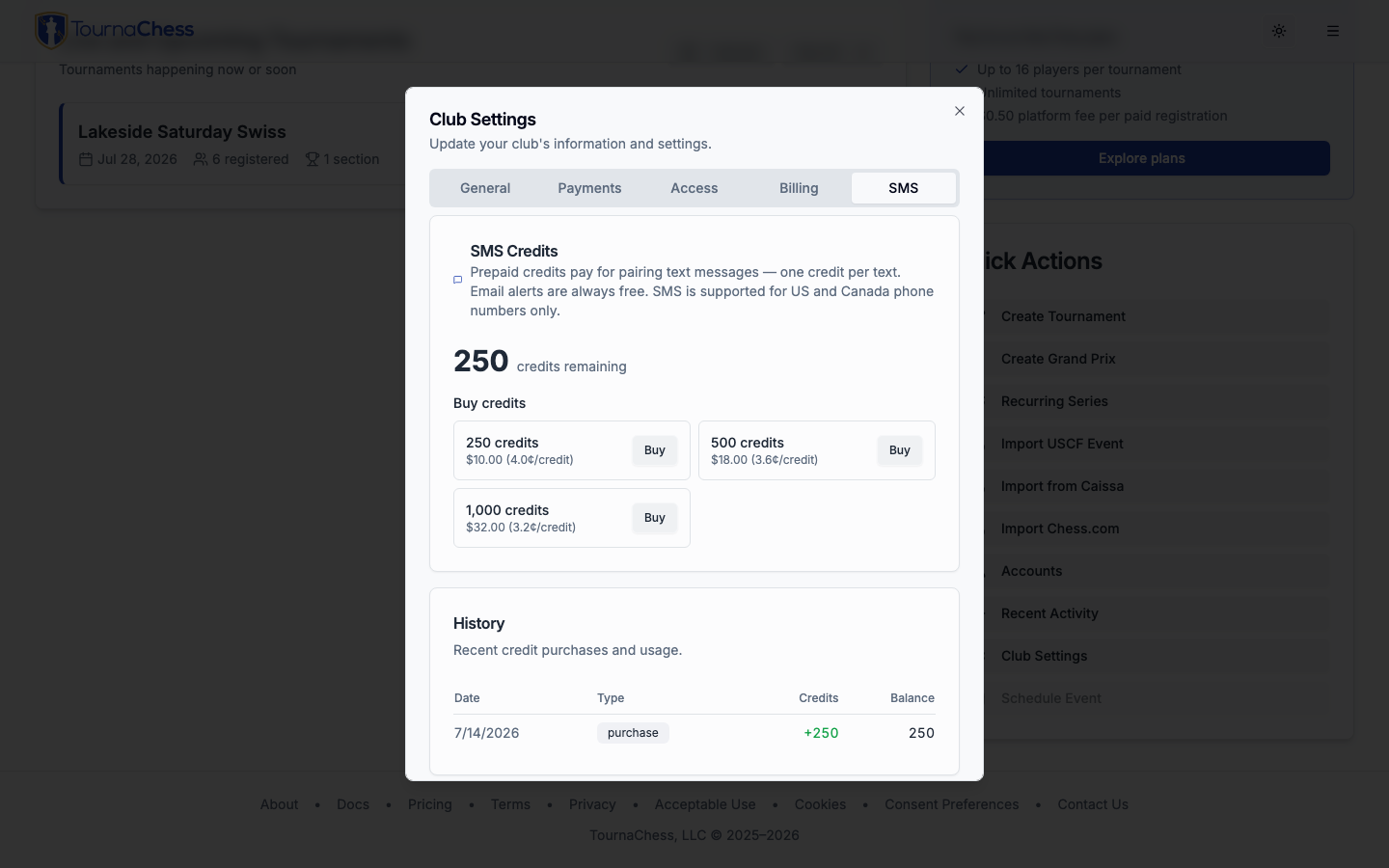
When a round's pairings are posted, TournaChess notifies every player who has opted in -- by email (always free) or by text message with their board, color, opponent, and rating. Texts run on prepaid SMS credits purchased by your club; each text sent costs one credit. Players sign up in their account notification settings or per tournament -- see the Player Guide for the player side.
Purchasing Credits
Only club Owners and Admins can purchase credits:
- Open your club page and go to Club Settings
- Select the SMS tab
- Choose a credit pack and pay with a credit or debit card
The SMS tab shows your current balance and a history of every purchase and text sent, so you can see exactly where credits are going. Credit purchases are paid directly to TournaChess -- you do not need Stripe Connect set up to buy them.
Controlling SMS Per Tournament
SMS pairing alerts are enabled by default for every tournament, but only actually offered to players when your club has credits available. You can turn SMS off for an individual event in Tournament Settings → Registration -- useful for casual club nights where texts are not worth the credits. Email notifications are unaffected either way.
Running Low
You do not have to watch the balance yourself:
- When the balance drops below 25 credits, club Owners (and the club contact email) receive a low-balance email.
- If the balance reaches zero, a second email lets you know that pairing texts have stopped. Players who opted in to email notifications still receive those for free.
- Buy more credits and texting resumes automatically with the next round paired -- no settings to flip.
A few details worth knowing:
- Texts that fail to send are automatically refunded to your balance.
- SMS is supported for US and Canadian phone numbers.
- Players can reply STOP to any message to opt out; opted-out numbers are never texted (or billed) again unless the player replies START.
Tip: The pairing text always names the player it is about, so one parent's phone can follow several kids across your scholastic events.
Club Lifecycle
Over the life of your club, you may need to shut things down permanently. TournaChess provides an option for this.
Deleting a Club
If you need to permanently remove your club from TournaChess, you can delete it from the club settings page. Deletion is a drastic and irreversible action.
Warning: Club deletion cannot be undone. All tournament data, member records, and settings are permanently removed.
When you delete a club:
- All tournaments and their results are permanently removed
- All member records are deleted
- All club settings and activity history are erased
- The club name becomes available for others to use
- Stripe Connect association is removed
Next Steps
Now that your club is set up, here are some guides to help you get the most out of TournaChess:
- Creating Tournaments -- Set up your first tournament with sections, time controls, and registration settings
- Roles & Permissions -- Understand the full role hierarchy and learn how to delegate responsibilities
- Registration & Payments -- Configure online registration and entry fee collection
- Recurring Series -- Automate your weekly or monthly tournament schedule
- Grand Prix -- Create a multi-tournament series with cumulative standings
Still have questions? Visit our Contact page to get in touch with TournaChess support.