

Grand Prix User Guide
A Grand Prix is a series of chess tournaments where players accumulate points across multiple events to compete for overall standings. This guide explains how to create and manage a Grand Prix series in your club.
Table of Contents
- Creating a Grand Prix
- Scoring Settings
- Adding Tournaments to a Grand Prix
- Player Identification
- Standings Modes
- Managing Manual Sections
- Understanding Standings
- Bonus Points
- Tiebreak Rules
Creating a Grand Prix
Club owners, administrators, and tournament directors can create a Grand Prix series using a personal account with a verified email address. The shared Guest TD account cannot create a series.
Steps to Create
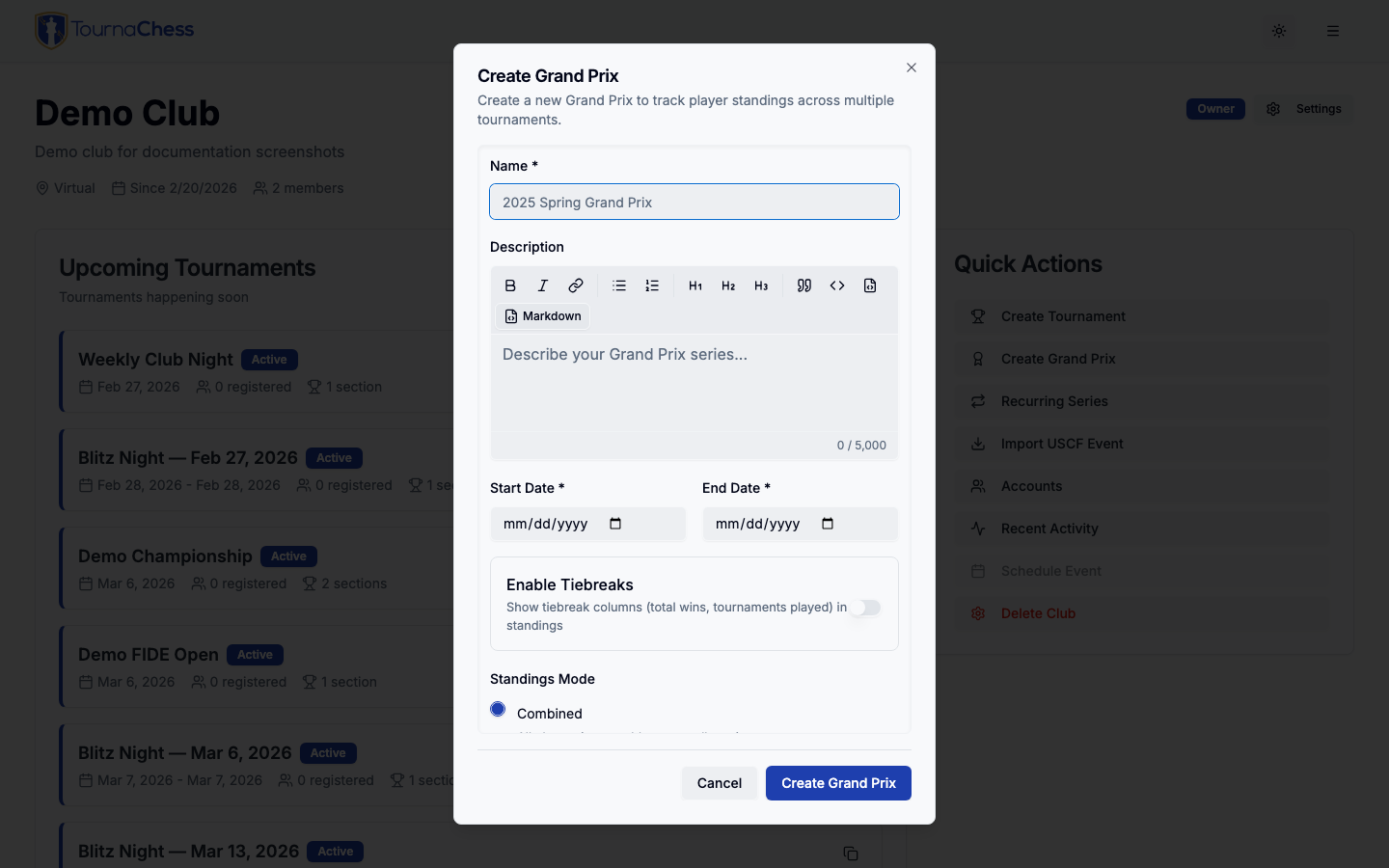
- Navigate to your club's management page
- Select Grand Prix from the navigation menu
- Click Create New Grand Prix
- Fill in the required information:
- Name: A descriptive name for your series (e.g., "2024 Spring Grand Prix")
- Description (optional): Additional details about the series
- Start Date: When the series begins
- End Date: When the series concludes
Grand Prix Settings
When creating or editing a Grand Prix, you can configure several options:
- Status: Active (accepting tournaments) or Completed
- Date Range: Defines which tournaments can be included
- Enable Tiebreaks: Show tiebreak columns (total wins, tournaments played) in standings
- Standings Mode: Choose how standings are displayed (see Standings Modes)
Scoring Settings
Grand Prix offers optional automatic scoring bonuses that reward participation and placement. These are separate from manually-awarded bonus points.
Award Participation Point
When enabled, every player automatically receives 1 bonus point for each tournament they complete. This encourages consistent participation throughout the series.
Example: A player who participates in 5 tournaments would receive 5 participation points in addition to their tournament scores.
Place Bonuses
You can configure automatic bonus points for top finishers in each tournament:
| Setting | Description |
|---|---|
| 1st Place Bonus | Points awarded to tournament/section winner(s) |
| 2nd Place Bonus | Points awarded to second place finisher(s) |
| 3rd Place Bonus | Points awarded to third place finisher(s) |
Leave any bonus field empty to disable that particular bonus.
Tie Handling for Place Bonuses
Place bonuses follow standard tie-handling rules:
- Three or more tied for 1st: All tied players receive the 1st place bonus. No 2nd or 3rd place bonuses are awarded.
- Two tied for 1st: Both players receive the 1st place bonus. The next player(s) receive the 3rd place bonus (2nd place is skipped).
- Two tied for 2nd: Both players receive the 2nd place bonus. No 3rd place bonus is awarded.
- Normal case: 1st, 2nd, and 3rd place bonuses are awarded to respective positions.
Example with 3 pts for 1st, 2 pts for 2nd, 1 pt for 3rd:
- If players A and B tie for 1st with 5 points, and player C has 4.5 points:
- A gets 3 pts (1st place bonus)
- B gets 3 pts (1st place bonus)
- C gets 1 pt (3rd place bonus - 2nd is skipped)
Behavior by Standings Mode
- Combined mode: Place bonuses are calculated across all players in the single standings table.
- Per Section mode: Place bonuses are calculated per section. Each section has its own 1st, 2nd, and 3rd place awards based on that section's standings.
- Manual Sections mode: Place bonuses are not awarded. Only participation points and manual bonus points apply.
Viewing Scoring Bonuses
In the standings table, expand any player's row to see their tournament details. When scoring settings are enabled, you'll see additional columns:
- Play: Participation points earned for that tournament
- Place: Place bonus points earned for that tournament
Adding Tournaments to a Grand Prix
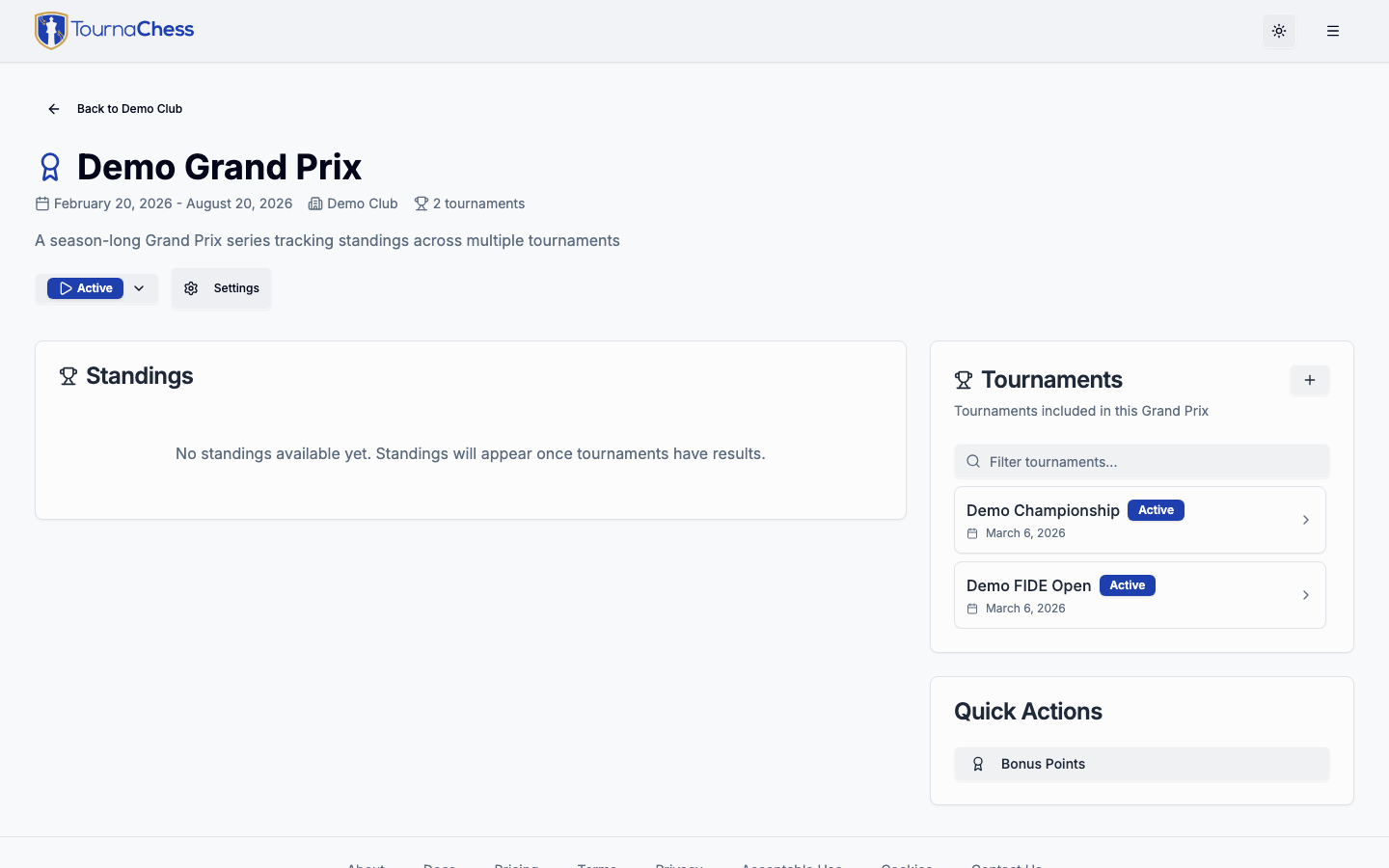
Once you've created a Grand Prix, you can associate existing tournaments with it.
From the Grand Prix Page
- Open your Grand Prix
- Click Add Tournament
- Select from eligible tournaments within your club
From a Tournament Page
- Open any tournament in your club
- Go to Tournament Settings
- Under Grand Prix Association, select the Grand Prix series
- Save your changes
Tournament Eligibility
A tournament can be added to a Grand Prix if:
- It belongs to the same club as the Grand Prix
- Its dates fall within the Grand Prix date range
- A tournament can only belong to one Grand Prix at a time
What Visitors See
Adding a tournament to a public Grand Prix does not publish that tournament. Each event keeps its own visibility, set by Make tournament publicly viewable on the tournament's General settings tab, and a tournament that is not publicly viewable -- or that is still in Draft status -- is left out of everything a visitor outside your club sees:
- It is not listed among the Grand Prix tournaments, and is not included in the tournament count
- Its scores, participation points, and place bonuses are not added to the public standings
- Bonus points you awarded against that tournament are not shown and not counted
- A player who appears only in that tournament does not appear in the public standings at all
Bonus points awarded to the series as a whole, rather than to a specific tournament, are always shown publicly -- including in a series whose tournaments are all still private.
Club members see the full series when signed in, so the standings you use to run the Grand Prix always include every associated tournament. Make a tournament publicly viewable, or move it out of Draft, and its results join the public standings and totals immediately.
Player Identification
The Grand Prix system automatically identifies and tracks players across multiple tournaments, even when they register differently.
How Players Are Matched
Players are identified using a priority-based matching system:
- USCF ID (Primary): If a player has a USCF ID on their profile, this is the most reliable identifier
- User Account: Registered users are tracked by their account across all tournaments
- Guest Player Matching: Guest players without accounts are matched by:
- USCF ID (if provided)
- Name matching (first and last name combination)
Best Practices for Accurate Tracking
- Encourage players to create accounts and link their USCF ID
- When registering guest players, always include their USCF ID if available
- Use consistent name spelling for guest players across tournaments
Viewing Player History
From the Grand Prix standings page, click on any player to see:
- All tournaments they participated in
- Points earned in each tournament
- Bonus points received
- Their progression throughout the series
Standings Modes
Grand Prix supports three different ways to display standings, which you can configure when creating or editing a Grand Prix.
Combined Mode (Default)
In Combined mode, all players from all tournaments are shown in a single standings table, regardless of which section they played in. This is ideal for:
- Grand Prix where sections are roughly equivalent in strength
- Series where you want to compare all participants directly
- Casual club series with a single leaderboard
Players who participate in multiple tournaments have their points summed across all events. Participation points, place bonuses, and manual bonus points are all included.
Per Section Mode
In Per Section mode, standings are automatically displayed as separate tables for each section. Sections are grouped by name across all tournaments — for example, all "Open" section participants across different tournaments are combined into one "Open" standings table.
This mode is ideal for:
- Grand Prix with distinct skill-level sections (e.g., Open, U1800, U1400)
- Series where you want section-specific championships
- Clubs with rating-based divisions
How Section Matching Works:
- Sections are matched by their exact name across tournaments
- If Tournament A has an "Open" section and Tournament B also has an "Open" section, all players from both are combined in the "Open" standings
- Sections with unique names get their own separate standings table
Place bonuses are calculated per section — each section has its own 1st, 2nd, and 3rd place awards based on that section's standings. Participation points and manual bonus points are also included.
A player who holds bonus points but has played in none of the series' tournaments belongs to no section, so they appear in an Unassigned table shown after the named sections. Visitors outside your club see that table too when the bonus is a series-level one — see What Visitors See.
Manual Sections Mode
In Manual Sections mode, you create custom sections and manually assign players to them. This gives you full control over how players are grouped, independent of which tournament sections they played in.
This mode is ideal for:
- Grand Prix where players move between sections across tournaments
- Series with custom groupings (e.g., by age, school, or team)
- Situations where automatic section matching doesn't fit your needs
Key differences from Per Section mode:
- You define the sections (not derived from tournament section names)
- Players are manually assigned to sections via a management interface
- Place bonuses are not awarded — only participation points and manual bonus points apply
- Unassigned players appear in an "Unassigned" group until you place them
See Managing Manual Sections for setup instructions.
Managing Manual Sections
When using Manual Sections mode, you have two management tools available from the Grand Prix page.
Creating Sections
- Open your Grand Prix
- Click Manage Sections
- Click Add Section and provide a name
- Repeat for each section you need
- Use the sort order to control display order
You can edit section names and delete sections at any time. Deleting a section removes all player assignments for that section.
Assigning Players
- Open your Grand Prix
- Click Manage Player Assignments
- Browse or search the list of available players (drawn from tournament registrations and club members)
- Filter by section or view only unassigned players
- Select one or more players and assign them to a section
- You can also reassign individual players via the dropdown next to their name
Players can only belong to one section per Grand Prix. Reassigning a player moves them from their current section to the new one.
Understanding Standings
Grand Prix standings show cumulative performance across all associated tournaments. Visitors outside your club see a reduced version that leaves out private and draft events -- see What Visitors See.
Points Calculation
For each tournament, players earn points based on their final score. The points earned in each tournament are added to their grand prix total.
Standings Display
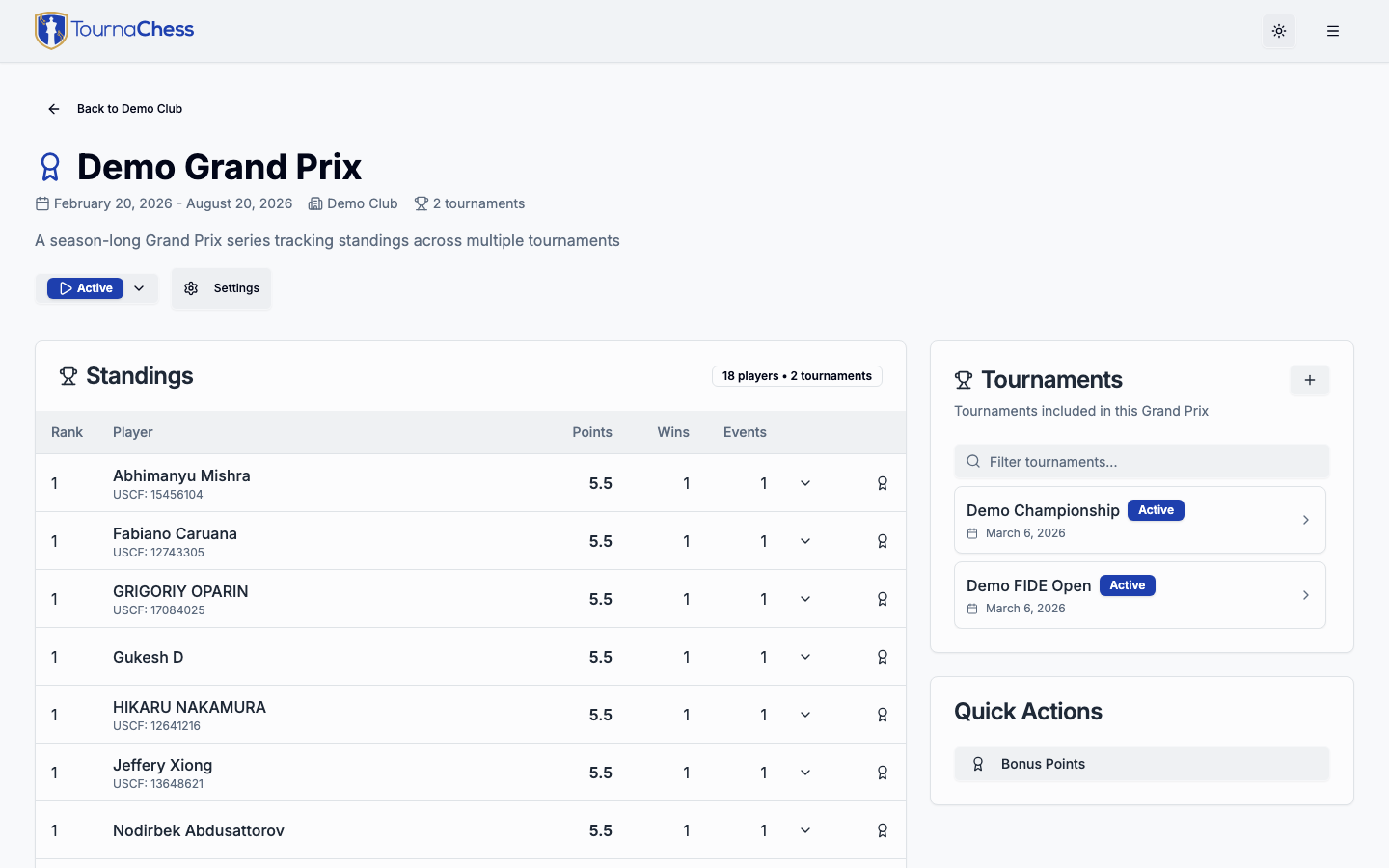
The standings table shows:
| Column | Description |
|---|---|
| Rank | Overall position in the Grand Prix |
| Player | Player name, with the player's USCF ID beneath it when at least one tournament in the series is USCF rated |
| Points | Sum of all Grand Prix points earned (including bonuses) |
| Wins | Total wins across all tournaments (shown when tiebreaks enabled) |
| Events | Number of tournaments participated in (shown when tiebreaks enabled) |
Click on any player row to expand their tournament-by-tournament breakdown, including participation points and place bonuses earned in each event.
Bonus Points
In addition to automatic scoring bonuses (participation points and place bonuses configured in scoring settings), tournament directors can manually award bonus points to recognize specific achievements.
Use a personal Owner, Admin, or Tournament Director account for bonus-point management, not Guest TD, even if its controls are available. Disabling Guest TD access deletes the shared account and any manual bonus-point awards it created, which can change Grand Prix standings. See Guest TD Accounts.
Awarding Bonus Points
- Open the Grand Prix page
- Click Manage Bonus Points
- Search for the player by name or USCF ID
- Enter a point value (positive or negative, up to 100)
- Add a description explaining the award (e.g., "Perfect score bonus", "Best game award")
- Optionally associate the bonus with a specific tournament
- Save
Bonus points are free-form — you decide what to award and how many points each achievement is worth. Common examples include bonuses for perfect scores, biggest upsets, or best games.
Bonus Point Rules
- Bonus points are added to the player's Grand Prix total
- Bonus points appear separately in the player's expanded tournament breakdown
- You can award negative points to apply penalties if needed
Tiebreak Rules
When players have equal Grand Prix points, tiebreaks determine final rankings. Tiebreaks can be enabled or disabled in the Grand Prix settings via the Enable Tiebreaks toggle.
Tiebreak Order
When tiebreaks are enabled, ties are broken in this order:
- Total Wins: More wins across all tournaments ranks higher
- Number of Tournaments: More tournaments played ranks higher
- Alphabetical: Players still tied are ordered alphabetically by name
Tiebreak Display
When tiebreaks are enabled, the standings table shows two additional columns — Wins and Events — so players can see the tiebreak values at a glance.
Frequently Asked Questions
Can a player join mid-series?
Yes! Players can join at any tournament. Their standings will reflect only the tournaments they've participated in.
What happens if a player withdraws from a tournament?
Withdrawn players receive no points for that tournament, but their other tournament results remain in the standings.
Can I edit a tournament's Grand Prix points after it ends?
Yes. Tournament directors can award or change manual bonus points at any time, and changing the scoring settings applies to every tournament in the series, finished ones included. Standings recalculate automatically. There is no per-tournament point multiplier or weighting: each tournament contributes the player's score in it, plus any bonuses.
How do I handle a player with multiple accounts?
Contact the player to consolidate their accounts, then reach out to support to merge their Grand Prix history.
Can I run multiple Grand Prix series simultaneously?
Yes, a club can have multiple active Grand Prix series. Each tournament can only belong to one series at a time.
Need Help?
If you have questions about the Grand Prix feature:
- Check the tournament settings for configuration options
- Review this guide for feature explanations
- Contact your club administrator for club-specific questions
Still have questions? Visit our Contact page to get in touch with TournaChess support.