

Registration & Payments
Whether you are running a free club night or a paid weekend Swiss, TournaChess gives you flexible tools to manage how players sign up and how you collect entry fees. This guide covers tournament registration -- from public sign-up pages and custom fields to Stripe-powered payment processing and notification preferences.
Registration Flow Overview
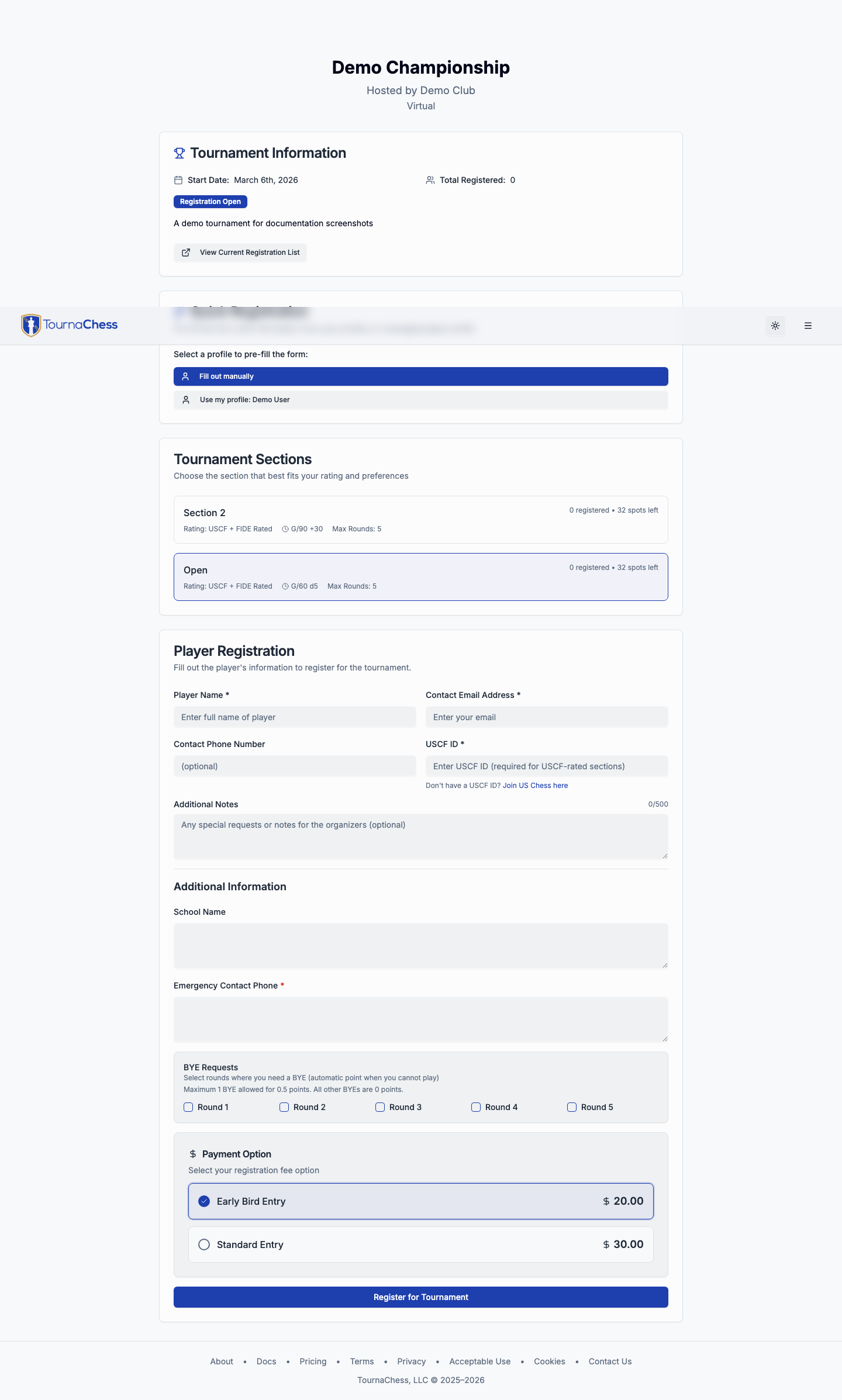
When a player visits your tournament's registration page, they walk through a streamlined multi-step process designed to get them signed up quickly with minimal friction.
The steps are:
- Section selection -- The player chooses which section to play in (for example, Open, U1800, or Scholastic).
- Player information -- Name, email, and optional USCF or FIDE ID. Logged-in users have this pre-filled from their account. A player who signed in with Chess.com without sharing an email address has none on file, so the form asks them for a contact address; it is saved on that registration and used for the confirmation.
- Custom fields -- Any additional questions you have configured for the tournament, such as emergency contact or t-shirt size.
- Payment -- If the section has an entry fee, the player proceeds to a secure Stripe checkout page. Free tournaments skip this step entirely.
- Confirmation -- The player sees a confirmation screen and receives an email with their registration details and a link back to the tournament page.
Directors can optionally enable Registration Name Normalization in a tournament's Registration settings. It is off by default. When enabled, a new online registration with a USCF, FIDE, or NWSRS ID matching a registration in a previously completed tournament at the same club uses that prior registration's name, even if the player typed a different name. When a name is changed, the registration's Notes field keeps the provided and saved names in a system note after any notes the player entered. It does not change the account or child profile. A player who intentionally changed their name must contact the club to update their registration.
Both account holders and guests can register. Guest registration means using the public registration form without creating or signing in to a TournaChess account, so a player can follow your link and sign up immediately.
This describes a tournament open to anyone, which is the default. Each tournament's Who Can Register setting can narrow that to club members only, or close self-registration entirely so directors add every player.
Tip: Share your tournament's short link (for example,
tournachess.com/t/abc123) on flyers, social media, or group chats. It takes players directly to the registration page.
Public Registration
Public registration is the default mode for tournaments on TournaChess. A tournament that is not marked as private, and whose Who Can Register setting is left at Anyone, lets players find and register for it through the tournament's public page. The other two modes are covered under Private Registration below.
How it works
- Guest registration -- no account required. Players can use the public form without creating or signing in to a TournaChess account. They enter their name, email, and section preference, making it easy to sign up on the spot, even from a phone.
- USCF and FIDE ID validation. When a player provides a USCF ID or FIDE ID during registration, TournaChess automatically looks up their rating and verifies the ID. The player's official name, rating, and title (if applicable) are pulled in and displayed in the registration list. Titles are the one field worth a second look: USCF's awards record is missing for some members, and FIDE publishes a newly awarded title weeks after the event that earned it. A tournament director can set a player's title by hand from their registration details, and a title set that way survives every later rating refresh -- see Correcting a Title.
- Email confirmation. After completing registration, every player receives a confirmation email that includes the tournament name, section, date, location, and a link to the tournament page. In a Per Round tournament it names the date and time of each round the player signed up for instead of the tournament's start date.
Previewing a completed registration page
After a tournament is completed, its public registration link remains closed. To review what the sign-up page looked like, open the tournament management Registration tab and use Preview registration page (or the open-link button beside a public registration link). Club owners, admins, and tournament directors see a clearly marked preview with the form; players and other visitors cannot open that preview, even if they have its URL. The preview cannot submit registrations or start payment. A TD managed event still has no self-registration form to preview.
Controlling who can register
The Who Can Register setting on your tournament's Registration tab offers three choices:
- Anyone -- the default. Anyone with the tournament link can sign up, with or without a TournaChess account.
- Club members only -- only signed-in members of your club can register themselves. Guests are turned away.
- TD managed -- nobody can register themselves, club members included. TDs add every player by hand.
You can change this at any time, including after the tournament starts. Switching to TD managed and back returns you to whichever of the other two settings you had before.
Note: Club members only still lets any logged-in club member sign themselves up. If you need a roster that only TDs control, choose TD managed instead.
Who Can Register applies to the whole tournament. To close a single section while the rest stays open -- an Under section held back until the top section has filled, say -- use the section's own Close this section to online registration switch instead. See Closing a Section to Online Registration.
Who can register vs. who can watch
These are two separate settings, and turning one off does not turn off the other:
- Who Can Register (Registration tab) decides who may sign up.
- Make tournament publicly viewable (General tab, under Public Tournament View) decides who may follow the standings and pairings without signing in.
So a club running an event for children can turn public viewing off -- keeping the pairings and results page behind a club login -- and still leave Who Can Register at Anyone, so parents can sign their child up from the registration link. Registration works normally on such an event: everyone who follows the link gets the full form -- custom fields, promo codes and all -- whether or not they are signed in or belong to your club. Only the public pairings and standings pages are restricted.
Private Registration
Some events are meant for a specific group of players rather than the general public. TournaChess supports private registration for members-only events and TD-managed sign-ups.
Members-only events
Setting Who Can Register to Club members only means just that: only members of your club can register. Players must be logged in to a TournaChess account that is associated with your club. This is useful for club championships and internal leagues.
TD-managed events
Some events -- scholastic finals, camp tournaments, qualifiers -- should have no self-registration at all. Setting Who Can Register to TD managed closes the door to everyone, including your own club members, so a TD manual add is the only way onto the roster.
While a tournament is TD managed:
- The registration page explains that the directors add the players and points would-be entrants at the club, instead of showing a sign-up form.
- The Register button disappears from the tournament page.
- The tournament stays publicly visible. Players, parents, and spectators can still follow pairings, results, and standings.
- Players who registered before you closed registration stay registered. Closing registration blocks new sign-ups only; whether players can withdraw themselves is still governed by the separate Player self-withdrawal setting.
- TDs can keep adding players at any point, including after rounds have started.
- In per-round tournaments, players who are already registered cannot add themselves to further rounds either. Adding a round is a sign-up like any other, so you add each player to each round.
- A player who was already partway through paying when you closed registration can still finish that payment and appear on the roster, for up to 30 minutes. Their checkout started while registration was open, so TournaChess honors it rather than taking their money and turning them away. This matches how a registration deadline behaves. Withdraw them from the Registrations tab if you would rather they did not play.
Duplicating a TD-managed tournament produces another TD-managed tournament, so a copied event never quietly reopens to the public.
Adding players yourself
TDs can add players directly through the tournament management interface in any mode, not just TD managed. Open the tournament's Registrations tab and use the Add Player button to search for club members or enter new player details. This works well for invitational events, team matches, or situations where you are collecting registration information in person.
TDs can also delete a registration that has not played a game. A registration with only BYEs can be deleted because it has no opponent history; once the player has participated in a real game, withdraw the player instead so tournament history remains intact.
Importing a roster from a spreadsheet
If your players are already in a spreadsheet -- a sign-up sheet, a Google Form's responses, last season's export -- you can import the whole list at once instead of typing it in. Choose Actions → Import → Import Registrations from any tab of the tournament page, and upload a CSV file.
Getting a CSV. TournaChess reads .csv files. Every spreadsheet program
exports one in a single step:
| Program | Steps |
|---|---|
| Excel | File → Save As → CSV UTF-8 (Comma delimited) |
| Google Sheets | File → Download → Comma-separated values (.csv) |
| Numbers | File → Export To → CSV |
In Excel, pick CSV UTF-8 rather than the plain CSV option. The plain one
saves in an older format that mangles accented names -- Nikolić comes back as
Nikoli?. If you upload a .xlsx file by mistake, the dialog shows these same
steps rather than simply refusing it, and the Help button on the upload step
brings them up at any time.
Start from the template. The Download template (.csv) button gives you a file whose columns already match this tournament -- the right rating columns for your sections, your custom fields, and a Section column if you have more than one section. It includes one example row for you to delete.
Your own column names are fine. You do not have to rename anything. The
import recognizes common spellings -- Player Name, USCF, Sec, School,
Grd and many others. Anything it cannot place with confidence it asks about,
showing you a few values from that column and a dropdown to say what it holds or
to ignore it. Columns the export writes but an import does not fill (Registered
At, payment columns) are ignored automatically, which is what lets you re-import
a file you exported from another event.
If your file has a Name column and First Name / Last Name columns, the split pair is used only where both halves are filled in; a row with just one of them keeps whatever the Name column says.
Names written surname-first are turned around for you. Lovelace, Ada is
imported as Ada Lovelace, and you are not asked which way round your file is --
each name is read on its own, so a list that mixes the two conventions still
comes out right. A name whose comma introduces a suffix keeps its order:
Sammy Davis, Jr. is imported as Sammy Davis Jr. Every name is shown in the
review step before anything is saved, and you can correct any of them there.
What you can import. Section, Name (or First Name and Last Name), Email, Phone, USCF/FIDE/NWSRS ID and rating, Chess.com and Lichess usernames, Team, Grade, Gender, Notes, and your custom fields. Payment information and BYE requests are not imported.
Each username column names its own site, so a roster carrying both comes back with both. They are imported for every player, whether or not their section collects the field -- the same asymmetry the Gender column has, and for the same reason: exporting withholds from a section that never asked, while importing is you entering information about your own event. What a section's Chess.com and Lichess settings decide is where a username is shown and exported afterwards, and which columns the downloaded template offers. A username the file spells in a way neither site allows is reported in the review step and left blank rather than blocking the row.
A Status column is read but never written -- every imported player is registered. It is used only to flag people your file records as no longer active, so re-importing last season's export does not quietly bring back everyone who withdrew.
Review before anything is saved. Nothing is written until you press Import. The review step shows every row with its section, any problems, and what will actually be stored:
- Ready rows import as shown.
- Warnings import too, with a note -- a rating that differs from the official one, a value that could not be understood and was left blank.
- Errors must be fixed or unticked before you can import. Click a cell to correct it in place -- including custom field answers, which you reach by clicking a row's number to open its full detail. A row with an error never blocks the rest of the file.
- Already registered rows are recognized and skipped. A player is recognized by their linked account, by a USCF, FIDE or NWSRS ID, or by name and email together -- so a roster that carries only FIDE IDs is matched just as well as one that carries names. A FIDE ID found on a player's USCF record counts here too, so a USCF roster still recognizes someone a FIDE roster already entered. Nothing is overwritten, so re-importing an updated list adds only the people who are missing. A player part-way through paying is skipped too, and the reason says so: their checkout still holds a seat, and entering them again would leave them registered twice once the payment lands. Finish or cancel that checkout and re-import the row. A checkout somebody started and abandoned is settled as part of the import, so it does not keep their row out -- if it turns out to have been paid after all, the player is simply already registered.
- Players who left are flagged. If your file has a Status column -- as a
TournaChess export does -- anyone recorded as withdrawn, a no-show, waitlisted
or awaiting payment is noted and left unticked, because an import always
creates an active registration. Tick them if you do want them in this event.
A blank Status, or
N/A, says nothing about the player and flags nobody.
If a section name in your file does not match one of yours, you get a dropdown to say which section it means, and every row using that name is fixed at once. The same dropdown appears when a name matches two of your sections -- section names do not have to be unique, and TournaChess will not guess which one you meant. Sections are never created automatically, so a typo cannot produce a stray section. To move a single player instead of everyone sharing a section name, click that row's number and pick a section in the row's own detail panel.
Ratings. If a player's USCF, FIDE or NWSRS ID matches a rated player, that
official rating is used and the review step tells you when it differs from what
your file said. A rating in your file is used only when no ID looks the player up
-- which is what unrated and brand-new players need. Ratings must be whole
numbers; unrated, new, NR, a zero and a blank all mean no rating, and a
provisional spelling like 1234P12 is understood.
Grades. A grade is stored as one of Pre-K, K, 1 through 12, or Adult, and
the import reads the usual ways a roster writes each of those. Capitalization
and the separator you used never matter -- PRE_K, Pre-K and pre k are the
same value -- so in practice you can leave the column as your sign-up sheet
wrote it:
| Stored as | Your file can say |
|---|---|
| Pre-K | Pre-K, PreK, PK, Pre-Kindergarten, Preschool, 4K, K4 |
| K | K, KG, Kinder, Kindergarten, K5, 5K |
| 1 through 12 | 5, 05, 5th, Fifth, Five, Grade 5, Grade Five, 5th Grade, Fifth Grade, Gr 5, G5, Year 5 -- and the same shapes for every grade from 1 to 12 |
| Adult | Adult, A |
4K and K5 are the pre-kindergarten and kindergarten spellings Wisconsin
schools use, so a digit beside a K is read as one of those two rather than as
a numbered grade.
A column your spreadsheet formatted as a number is fine too: 1.0 is first
grade, not tenth.
A value that does not name exactly one of those grades is an error on that row
rather than a guess, because a wrong grade quietly misplaces a player in
scholastic prize calculations. A range or a pair like K-12, 9-12 or 1/2,
a threshold like 5+, an age like 10 years, a school level like
Middle School, a US high-school year like Freshman, and a number outside
1-12 all stop the row until you
correct it -- which you can do in the review step, without going back to your
spreadsheet. The one range-looking value that is not an error is K-5, which
is the kindergarten spelling above with a hyphen in it. A blank cell, or N/A,
simply leaves the grade unset.
Teams. A team name that matches one already in the tournament, apart from
capitalization or spacing, is stored under the spelling already in use rather
than as a second team -- so a file that writes LINCOLN ELEMENTARY joins the
players registered under Lincoln Elementary instead of splitting the team
standings in two. The same holds within a file: whichever spelling the first row
uses becomes the team's, and later rows follow it. The review step says so on
every row it applies to, and you can still set a different name there if the two
really are separate teams. Anything beyond capitalization and spacing --
Lincoln Elem against Lincoln Elementary, say -- is left as written, because
only you can say whether those are one team; the Teams tab's Roster view
flags them and merges them in bulk afterwards.
Known players are linked, not duplicated. A row matching a club member's account or a managed profile -- by USCF ID or email -- registers that person rather than creating a new guest record, and the review step shows you the match. A managed profile matches by email only when the row's name is the profile's too: a family roster puts one parent's address beside each child's name, so the name is what says which of them a row means. If two of your members are recorded with the same USCF ID, TournaChess will not guess between them: the row is an error until you fix the duplicate, or reject the match and import that row as a guest. If a match is wrong -- a child on a parent's email address is the everyday case -- click not this person on the row and it is registered under its own name instead. That works even when the match made the row show as already registered, which is exactly what happens when the parent is already playing.
After the import, you get a count of what was imported and skipped, plus a downloadable report listing every row and what happened to it. If some rows did not make it, fix those in your spreadsheet and import again -- the ones that already landed will be skipped.
If the import stops part-way -- a dropped connection, say -- it tells you so rather than reporting a clean failure, because rows it had already sent may have been recorded. Check the registration list before importing those again. Anyone carrying a USCF, FIDE or NWSRS ID, or a name and email, is recognized and skipped on the second run; a player with none of those cannot be told apart from a new entry, and would be added twice.
Note: Custom field answers import too. A field limited to one section fills only rows in that section; a field attached to a payment option cannot be imported at all, since an import does not select a payment option. Required custom fields are not enforced on import -- the row imports with a warning naming the field, so you can collect the missing answers afterwards rather than being blocked by them. A column for a payment-option field is read but never imported, and the review step tells you which columns those were.
N/Ameans the field was left blank, not that the answer is the literal text -- so a roster that uses it for missing data imports cleanly rather than erroring, and nothing storesN/Aas a phone number or a team. The one exception is a pick list that offersN/Aas a choice: there it is the answer you picked, because that is what choosing it means.A date field takes
YYYY-MM-DD, orMM/DD/YYYYread as month/day/year, which the review step says out loud so you can check it read your file the way you meant. A spelled-out month works too, either way round --March 4, 2026or4 March 2026, full names or the usual abbreviations. A date that does not exist --02/31/2026, or February 29th in a year that has no leap day -- is an error rather than being nudged into the next month, whichever way it is spelled.A checkbox field reads
YesorNo-- which is what an export writes -- and also acceptstrue/false,Y/N,1/0andx. Anything else is an error rather than a quiet No. A pick list accepts any choice the field offers, matched regardless of capitalization and stored with the choice's own spelling; a value that is not on the list is an error naming the choices. Leaving either blank leaves the question unanswered.
Tip: For recurring club events, consider using the Recurring Series feature. It generates new tournaments automatically with your preferred settings, and members who played in previous events can re-register quickly.
Built-in Registration Fields
Alongside the name, email, and rating fields every player fills in, each section chooses how much else it collects. Open the section's Registration tab and set each selector to Required, Optional, or Off:
- Team / School Field
- Grade Field
- Chess.com Username Field
- Lichess Username Field
- Phone Number Field
- Gender Field
A field set to Off is not part of that section: players never see it on the registration form, and it is left out of the registration details a TD opens from the Registrations tab. Turning a field off hides it even for players who already have that information on file -- for example, a Chess.com username saved on their TournaChess profile. A section with the Chess.com and Lichess fields off shows no username rows and no Chess.com or Lichess ratings cards, so an online identity the event does not collect stays out of the player's registration details entirely.
Because these selectors are per section, one tournament can collect Lichess usernames for an online section while leaving them off for its over-the-board sections.
A section that asks for either username gets a Chess.com Username or Lichess Username column at the end of the registrations CSV export, filled in for the players in that section. The columns are appended after the existing ones so a spreadsheet you already import this export into keeps working, and the roster import reads them back -- so exporting last season's event and importing it into this year's keeps everyone's online accounts. A section that asks for neither exports neither, even for players who have a username saved on their TournaChess account.
Every selector starts at Optional except Lichess Username and Gender, which start at Off. Turning the Gender field on is a decision about collecting personal information, so no event asks for it unless you choose to.
One exception: in an Online-rated section, a site named in the section's rating sources has its username field switched on automatically and cannot be set to Off while it stays on that list. The section has no other way to look those ratings up. It is set to Optional so a player with only one of the two accounts can still register, and you can raise it to Required.
Asking more of one entry type
Sometimes a question only applies to some of the players in a section. A payment option can therefore carry its own settings for the same six fields: open a payment option for editing and set any of them under Built-in Registration Fields.
Each selector there offers Section default, Optional, or Required. A field left at Section default behaves exactly as the section says. Set it to Optional or Required and it applies on top, to the players who choose that option -- so a "Bus from School" entry can require a phone number, or a "Girls' Entry" can ask the Gender question, without changing anything for the rest of the section.
Where a section and a payment option both have an opinion about a field, whichever asks for more is the one that applies: Required beats Optional, and Optional beats Off. That is why a payment option has no Off setting. Switching a question off is the section's decision, and no entry type can quietly opt out of one the section decided to ask.
| Section setting | Payment option setting | What the player sees |
|---|---|---|
| Off | Section default | Not asked |
| Off | Required | Must be answered |
| Optional | Required | Must be answered |
| Required | Optional | Must be answered |
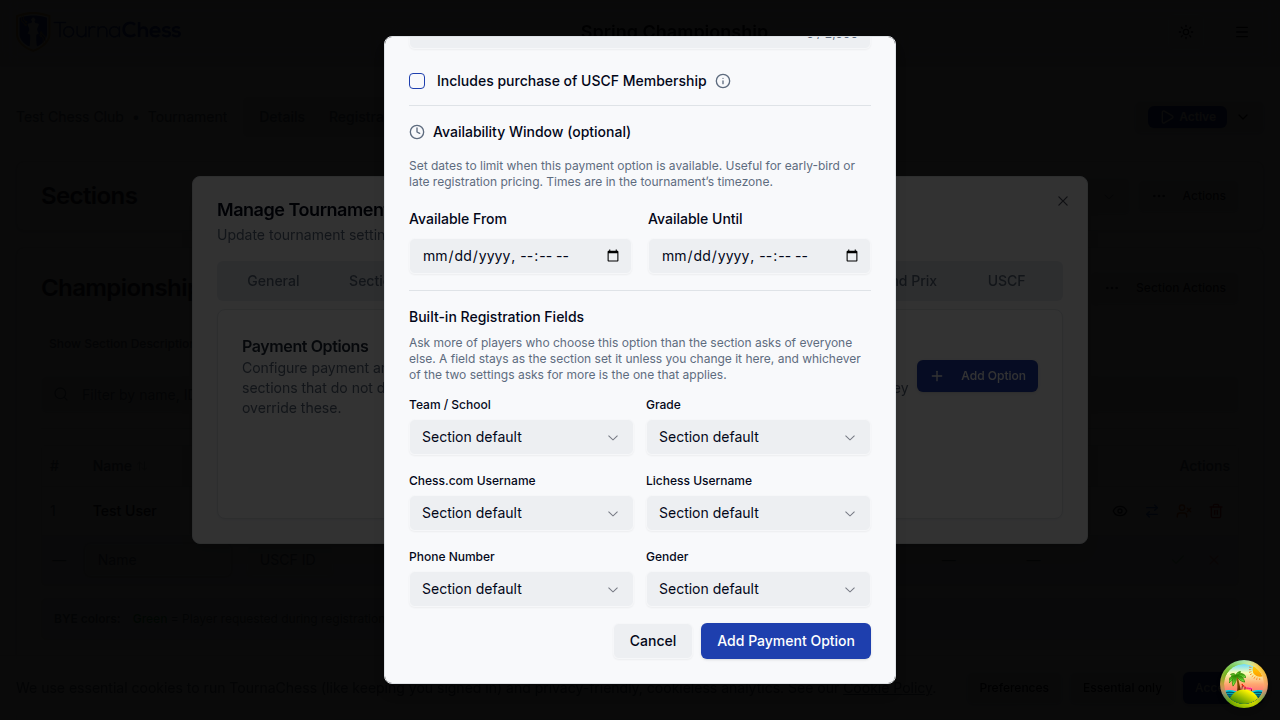
If a player leaves a field blank that only their payment option requires, the message says the field is required for the selected payment option rather than for the section, so they know which choice brought the question up.
Because tournament-level payment options apply to every section that does not define its own, settings on one of those reach the whole event.
A field one payment option asks is in use for the whole section. Once any option in a section asks a question, that section's registrations show, export and count it for prizes for every player in it -- including one who chose an entry type that did not ask, and who therefore never saw the question on their own form. What appears for such a player is whatever the registration already holds: an answer they saved on their TournaChess account or profile, or for Gender the rating bodies' record of them.
That is deliberate, so a director looking down a list of registrations sees one consistent column rather than a question answered on some rows and blank on others. If you would rather a question reach only the players who choose a particular entry type, put it on that option in a section of its own.
Gender has one further reason to appear: configuring a Best Female Performance prize for a section shows the field throughout that section, and configuring one for the tournament shows it across the whole event -- whatever the registration-field settings say. Gender decides that award, so a director settling it has to see what it will be settled on.
A payment option sets how much a field is asked for and nothing else, so the field's player-facing wording still belongs to the section. The Customize Team / School and Customize Gender panels therefore stay available on a section whose own selector is Off while one of its payment options asks the question, and the label and help text you set there are what those registrants see.
Gender
Some events need to know a player's gender -- state and national membership paperwork asks for it, and it is what decides eligibility for a gender-restricted prize such as Best Female Performance. Turn the Gender Field selector on for a section -- or for a single payment option, as described above -- and players are offered three answers:
- Male
- Female
- Prefer not to answer
Prefer not to answer is a real answer, not a blank. That means a Required Gender field asks the question without demanding an answer to it: a player can satisfy the field and still decline. It also means you can tell "asked and declined" apart from "never asked" when you look at a registration. A player who declined is not eligible for a female-restricted prize, and unlike a blank answer they are not subject to the federation fallback described below either.
Beneath the field, players see a short explanation of why it is asked. The default wording is:
This is sometimes required for membership purposes or prize eligibility.
To change it, expand Customize Gender beneath the selector grid and enter your own help text. The panel is there whenever the question is asked, including when only a payment option asks it. Leaving it blank restores the default -- the field is never shown without saying why it is being asked.
Players with a TournaChess account can save their answer once on their Settings page, and managed player profiles carry their own answer. Whichever is saved prefills the registration form, so a returning player does not answer again. Registering for an event never writes an answer back onto an account: what a player types on one club's form stays on that registration.
When nobody answered
A player who never answered leaves the registration's Gender blank, and for membership paperwork a blank is not much use. So when a section shows the field and the registration has no answer, the registration details fall back to what the rating bodies hold for that player -- USCF's member record first, then FIDE's -- and label what it shows:
* Gender from USCF record
The label matters. That value is what a federation recorded about the player, not what the player told you, so it is never written to the registration and never fills the field in -- but it is what a Best Female Performance prize falls back to when the player gave no answer, so that the prize awards on the same thing the registration shows you.
Two things the fallback never does:
- Override an answer. A player who answered Male is not made eligible by a federation record saying otherwise, and vice versa.
- Overrule a decline. A player who chose Prefer not to answer has answered, and the fallback does not apply to them -- awarding on a federation record there would rest on exactly the disclosure they withheld.
A federation value that is neither a clear male nor a clear female record counts as nothing rather than being guessed at, so it neither displays nor confers eligibility.
Correcting the field yourself replaces the fallback with your entry, which then counts as the registration's answer like any other.
Who can see it
The answer is visible only to tournament directors and above, and so is the USCF fallback above. Club members below TD do not receive it, and it appears on no public page -- not standings, not pairings, not the projector display, and not the public API. TDs see it on the registration details a player's row opens from the Registrations tab, can correct it there, and get a Gender column in the registrations CSV export for any event that shows it. In a mixed event the column is filled in only for players in a section that shows the field: one whose own setting asks the question, one where any of its payment options asks it, or one covered by a Best Female Performance prize. A player can have an answer saved on their account, and it is not disclosed by a section doing none of those.
Importing a roster works the other way round: a Gender column is imported for every player, whether or not their section collects the field. Exporting withholds an answer a player gave elsewhere from a section that never asked; importing is you entering information about your own event, the same thing you can already do one player at a time on the registration details. Be aware that it counts: for a player who gave no answer of their own, an imported value decides Best Female Performance eligibility, so it can change who wins that prize.
Turning the field back off stops players being asked. It does not withdraw answers already on file, and it does not affect a Best Female Performance prize: that is open to everyone in the scope you defined it for, on whatever gender can be determined for them, so the prize keeps the field on screen for the sections it covers. See prize calculation.
Awarding a Best Female Performance prize does of course reveal the winner's answer. That is the prize doing it, and it is your decision to configure one.
Team or School Information
TournaChess includes a built-in team field that can support pairing avoidance and team standings. Configure it separately for each section from the section's Registration tab. First choose whether the field is hidden, optional, or required alongside the other registration-field selectors. When it is in use -- through the section's own selector or through one of its payment options -- expand Customize Team / School beneath the selector grid to configure its player-facing copy:
- Set the player-facing label, such as Team, School, or Club.
- Add optional inline help text explaining what players should enter and how the information will be used.
An optional field tells players to leave it blank if they have no team or school, which prevents entries such as "None" from becoming selectable teams. A required field uses your custom label in its validation message. These display settings are preserved when sections or tournaments are duplicated.
Use this built-in field instead of a custom registration field when the answer should affect team pairing or team standings. A custom field can collect information, but it does not assign the player to a team.
A player's team or school and grade appear together beneath their name in the registrations list, so you can tell same-named players apart and spot section mistakes at a glance. This holds on a phone as well as a desktop: when the screen is too narrow for the full table, the list switches to one card per player and those cards still carry the team and grade line.
Players sometimes enter a team that already exists under a slightly different spelling. Spaces before or after the name are removed as it is saved, so a stray space at the end no longer creates a second copy of a school that is otherwise spelled identically. For the differences that are real, the registration form suggests existing teams as players type, and the Roster view on the tournament's Teams tab lets a TD rename, merge, or clear teams in bulk afterwards -- see Running Tournaments.
Custom Registration Fields
Beyond the standard name, section, and rating fields, you can add your own custom questions to the registration form. Custom fields let you collect any additional information you need from players when they sign up.
Adding custom fields
From the tournament creation or editing page, scroll to the Custom Registration Fields section and click Add Field. For each field, you configure:
- Field name -- The label players will see (for example, "Emergency Contact Phone" or "School Name").
- Field type -- The kind of input to display. Available types include:
- Text -- A single-line input for names, short answers, and other brief responses.
- Long Text -- A multi-line box for paragraph answers such as dietary restrictions or notes to the tournament director.
- Number -- A numeric input for ages, counts, or other numerical data.
- Date -- A date picker for birthdays or other date-based information.
- Checkbox -- A single box players tick or leave clear, for yes/no questions such as "I will be using an electronic notation device." A box left clear counts as No.
- Pick List -- A dropdown players choose one answer from, such as a t-shirt size or a meal choice.
- Character limit -- For Text and Long Text fields only. Leave it blank for the default of 1000 characters, or lower it to keep answers short.
- Choices -- For Pick List fields only. Enter one choice per line, in the order players should see them. Renaming or removing a choice later leaves answers already given as they were, so a report of past events stays accurate.
- Required or optional -- Mark a field as required to ensure every player fills it in before completing registration. Optional fields are shown but can be left blank. A required checkbox must be ticked, which suits acknowledgments ("I have read the club rules") rather than questions where No is a real answer.
Custom fields appear in the registration form between the player information step and the payment step. Responses are saved with the registration and visible to TDs on the tournament management page.
Common use cases
Custom fields are flexible enough to handle a wide range of scenarios:
- Emergency contact information -- Name and phone number for a parent or guardian, especially important for scholastic events.
- School name -- For scholastic tournaments where you need to track which school each player represents.
- T-shirt size -- If your event includes merchandise or swag bags; a pick list keeps the answers to sizes you actually order.
- Dietary restrictions -- For tournaments that include meals or refreshments.
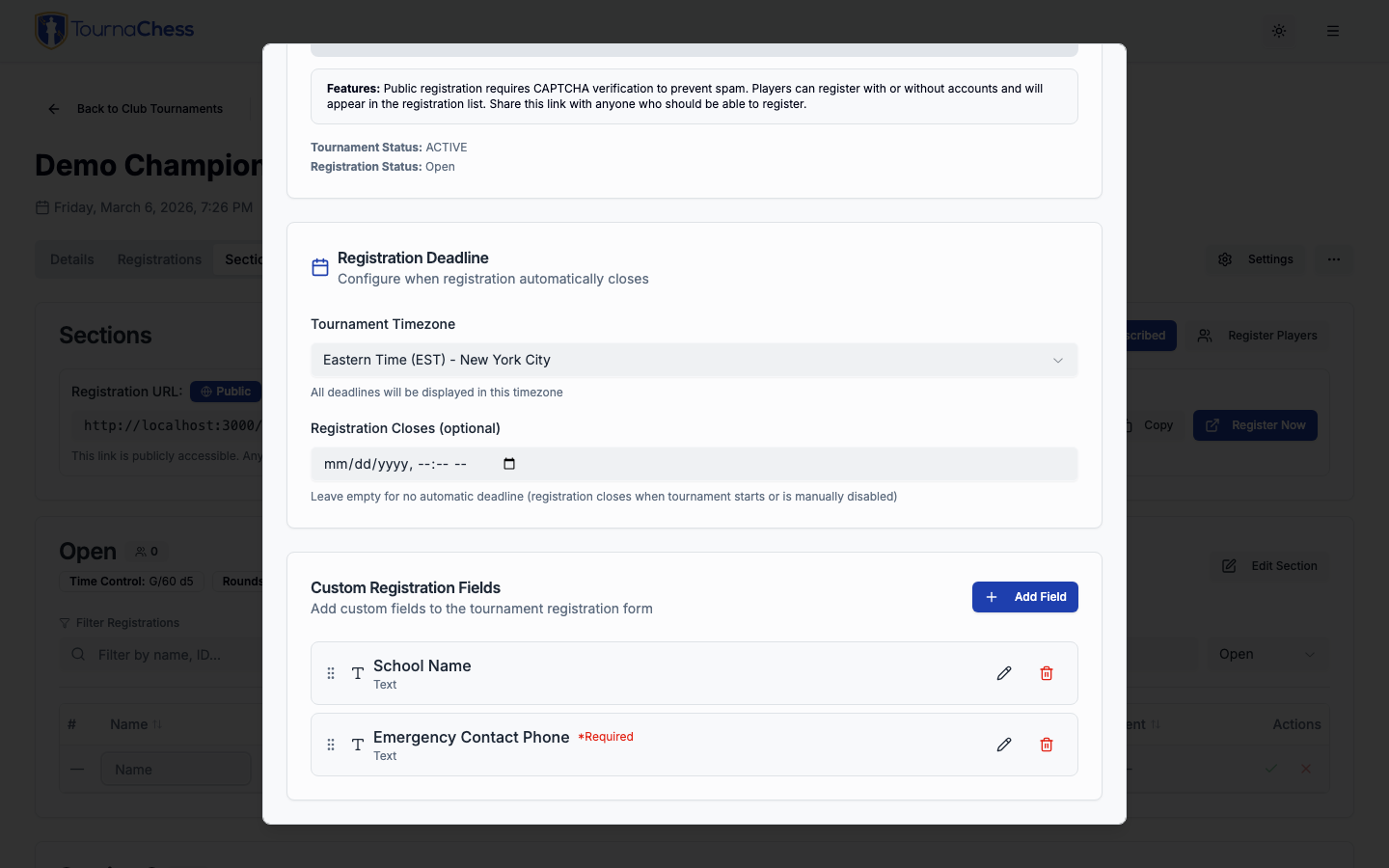
Note: Custom field responses are included when you export registration data, so you can use them for planning and logistics outside of TournaChess. They can be imported too, so answers collected on a paper form or a Google Form can come in with the rest of the roster.
Payment Processing with Stripe
TournaChess integrates with Stripe to let you collect entry fees online as part of the registration process. Players pay securely through Stripe's checkout page, and funds are deposited directly into your club's connected Stripe account.
What you receive
Two amounts come out of each paid registration before it reaches your bank account:
- Stripe's processing fee -- charged by Stripe on every transaction, at the rates in your Stripe account.
- The TournaChess platform fee -- a flat amount per paid registration, set by your club's plan: $0.50 on Free, $0.25 on Club, and none on Pro. When players register and pay by the round, the fee applies to each round they pay for. See Pricing for the current plans.
The platform fee applies only to registrations a player actually pays for. Free registrations, $0.00 payment options, and payments you record manually as in-person are never charged a platform fee.
It is also waived outright on any payment too small to carry it alongside Stripe's processing fee -- roughly, entry fees of a dollar or less. You are never charged a partial fee: for a given registration it is either the full amount for your plan or nothing.
Prerequisites
Before you can collect payments, your club must have Stripe Connect set up. This is a one-time process where a club owner or admin connects a Stripe account to your club through the club settings page. For detailed setup instructions, see Club Management.
Once Stripe Connect is active, you will see payment options available when creating or editing tournaments.
Setting entry fees with payment options
Entry fees in TournaChess are configured through payment options. A payment option is a named pricing tier with an amount and an optional time window. You can create payment options at the tournament level or at the section level. Section-level options override tournament-level options for players registering in that section; tournament-level options act as a fallback only for a section that does not define its own. If a section defines options but none are currently active, registration for that section is unavailable rather than falling back to tournament pricing. This lets you set a default price for the tournament and only customize pricing for the sections that need it.
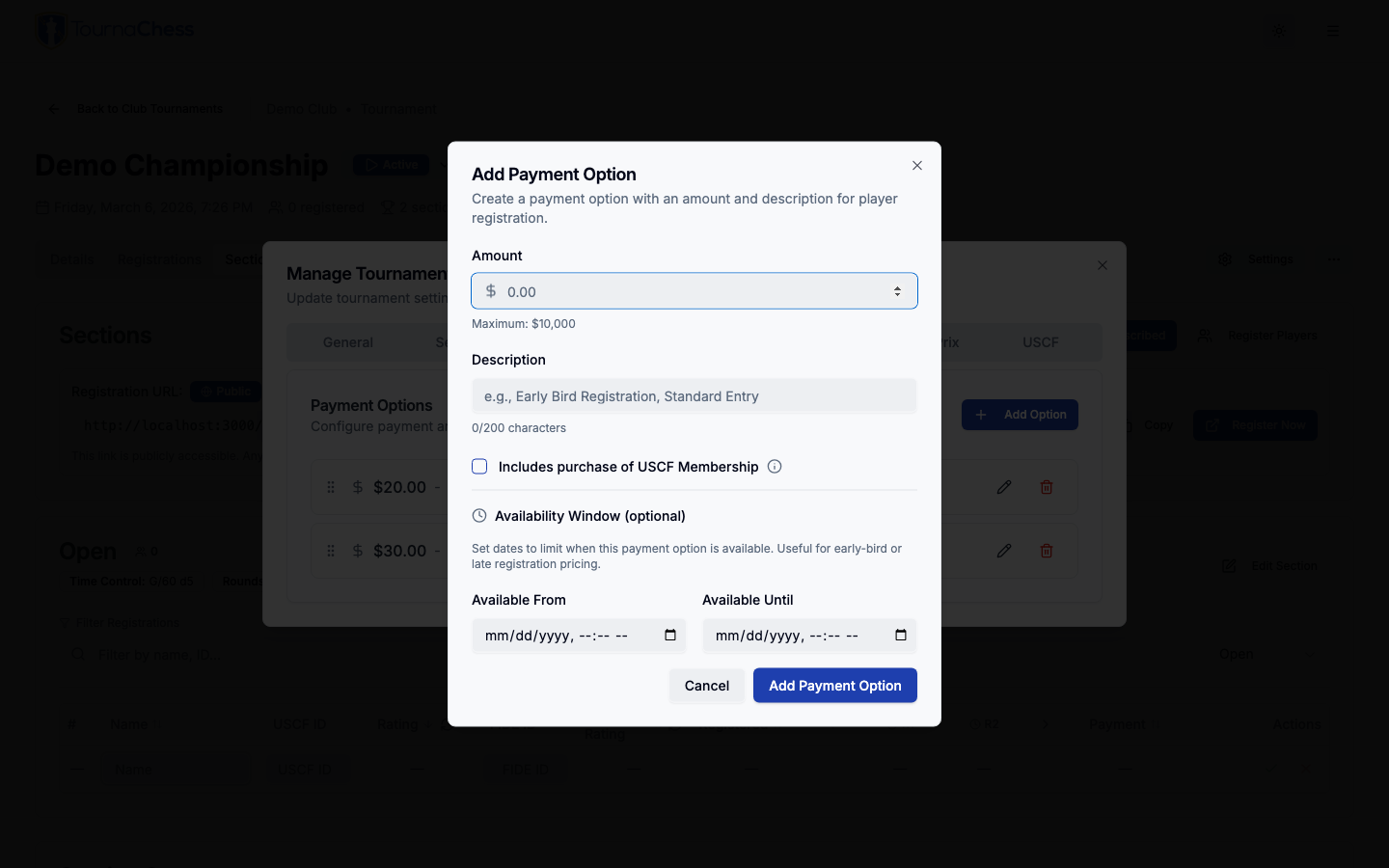
Each payment option includes:
- Description -- A label players will see, such as "Early Bird Entry" or "Standard Entry Fee."
- Amount -- The price in dollars. Set the amount to $0.00 to create a free registration option (useful when you want to offer both paid and free tiers).
- Available from / Available until -- Optional date range that controls when this pricing tier is active.
- Built-in registration fields -- Ask more of the players who choose this option than the section asks of everyone else. See Asking more of one entry type.
- Registration fields for this option -- Custom questions asked only of the players who choose it.
Multiple pricing tiers
You can create multiple payment options with different date ranges to implement tiered pricing. For example:
| Payment Option | Amount | Available From | Available Until |
|---|---|---|---|
| Early Bird | $20.00 | Tournament created | February 1 |
| Standard Entry | $30.00 | February 2 | Day of tournament |
| At-the-Door | $40.00 | Day of tournament | End of day |
When a player registers, they will only see payment options that are currently active based on the date. This means early registrants automatically get the lower price without any manual intervention on your part.
The payment option a player selected is recorded with their registration and shown as the Payment Type in the registration details. This is useful when two options share the same amount -- for example a "First Time Player" option that bundles a free USCF membership priced the same as a "Standard Entry" option -- where the amount paid alone would not tell you which one the player chose.
What players see
After filling in their registration details and any custom fields, players who need to pay are redirected to a Stripe-powered checkout page. This page is hosted by Stripe, so card details are handled securely and never touch TournaChess servers. Players can pay with credit cards, debit cards, and other payment methods enabled on your Stripe account.
Once payment is confirmed, the player is redirected back to the tournament page with a confirmation message, and their registration status is updated to Registered.
Tip: If a player starts the checkout process but does not complete payment, their registration is held in a Pending Payment state for up to 30 minutes. This prevents their spot from being taken while they complete payment. After 30 minutes, the hold expires and their pending registration is automatically cleaned up.
Tip: The hold is held for that player, not against them. A player whose card was declined, or who closed the tab, can come straight back and register again -- even for the last spot in a full section, and even if they now have a promo code that covers the whole fee. Their new registration replaces the held one, and any payment they had started is cancelled. Only somebody else is turned away while the hold stands.
If you change an entry fee while someone has the payment window open, they are never charged the figure they were looking at. The price is worked out again the moment they press Pay, and if it has moved the window says so -- naming the old total and the new one -- and waits for them to press Pay a second time. Nothing is charged until they do.
Free tournaments
If your tournament does not charge entry fees, you do not need to set up Stripe at all. Simply leave the payment options empty or create a $0.00 payment option. Players will complete registration without seeing a payment step.
Promo Codes
Promo codes let you hand out a discount without publishing a second price. A player types the code on the registration form, sees the reduced total before paying, and the code they used is recorded on their registration.
Codes are managed per tournament on the Payment tab of tournament management, below the payment options. Owners, admins, and tournament directors create them and can see how often each code has been used.
The Promo Code box is only shown to players once the tournament has a code they could use. Create your first code and it appears; a tournament with none, or whose only codes are switched off or past their end time, shows no box at all, so players are never asked for a discount code that does not exist. A code whose start time is still ahead does keep the box, so anyone you handed it to early is told it is not available yet rather than finding nowhere to type it.
What a code covers
A code belongs to one tournament. It is not club-wide: if you run the same discount across two events, create it in each of them, and the two keep separate redemption counts. Within its tournament a code works for every section and every entry option, and a redemption limit counts every use across the whole event rather than per section.
There is one shortcut. Duplicating a tournament copies its codes, and a recurring series carries them onto each occurrence -- so a code you use every week only has to be set up once, on the template.
Creating a code
Each promo code has:
- Code -- What players type, such as
EARLYBIRDorCLUB-MEMBER. Letters, numbers, dashes and underscores only. Players may type it in any case;earlybirdmatchesEARLYBIRD. - Discount type and amount -- Either a percentage off (up to 100%) or a fixed dollar amount off. A discount larger than the entry fee simply makes the entry free rather than producing a credit.
- Note -- An optional reminder of what the code is for. Everyone who can manage the tournament -- owners, admins and tournament directors -- can read it. Players never do.
- Redemption limit -- Optional cap on how many registrations may use the code in total. Leave it blank for unlimited.
- Availability window -- Optional start and end times, in the tournament's timezone, outside which the code does not work.
- Active -- Turn a code off to stop new redemptions while keeping its history.
How the discount is applied
A code applies to whichever payment option the player selected, so the same code is worth more against a $40 entry than a $20 one. For per-round tournaments, the discount applies to the whole selection -- if a player picks three rounds at $10 each, a 25% code takes $7.50 off the $30 total.
Two rules are worth knowing:
- A code that covers the whole fee skips payment entirely. A 100%-off code -- or a fixed discount at least as large as the entry fee -- registers the player immediately with no card step. Their registration is recorded as $0.00 paid, with the code and the waived amount stored alongside it.
- A leftover balance too small to charge is waived. Card networks will not process a charge under $0.50, so a discount that would leave only a few cents owing makes the entry free instead of failing at the payment step. Players see the $0.00 total before they submit.
The discount comes off your entry fee. TournaChess's per-registration platform fee is unchanged and is still deducted from a discounted payment as usual -- unless the discount leaves a payment too small to carry the fee, in which case the fee is waived and you keep the whole of what the player paid.
Where redemptions show up
- The promo codes list shows a used N times count for each code, including registrations that are mid-checkout.
- A registration's details panel shows a Promo Code row with the code and the amount it took off, next to the amount paid.
- The registrations CSV export gains Promo Code and Discount columns at the end of each row, so Amount Paid plus Discount reconciles against the payment option's list price. They are appended rather than placed next to Amount Paid so that a spreadsheet you already import this export into keeps working.
Payment details, including promo codes, are visible to tournament directors and above -- not to ordinary club members.
Limits worth knowing
- A code applies at initial registration. In per-round tournaments, a returning player adding more rounds later pays the normal per-round price; the code they used when they first signed up is not applied again.
- A code that has been used cannot be deleted or renamed, so a code you have already handed out keeps working for the players holding it. Deactivate it instead, or create a new code. Renaming would not rewrite history in any case: each registration records the code as it was named when that player applied it.
- A player may not stack two codes on one registration.
- A percentage too small to take off even a cent at the selected price is refused when the player applies it, rather than consuming one of the code's redemptions for nothing.
- Changing a code's discount while somebody is part-way through checkout with it stops that attempt rather than charging either figure. They are told the discount changed and asked to apply the code again, which prices it afresh. Nothing is charged.
- Codes belong to a single tournament. Duplicating a tournament -- or generating the next occurrence of a recurring series -- copies its codes along with its payment options, with the redemption count starting over and any availability window shifted by the same number of days as the start date.
Managing Payments
Once registrations start coming in, you can track and manage payment status from the tournament management page.
The Registrations tab starts with the most recently registered players at the top, so newly added players are easy to find and edit. You can choose a different order using the table column headers; adding a player does not reset your chosen sort or clear your filter.
Payment status tracking
The registrations list on your tournament management page shows the payment status for each player. You can quickly see:
- Amount paid -- A completed or manually recorded payment appears as a green badge showing the recorded amount, such as $25.00, so you can compare entry rates directly from the registrations list.
- Pending Payment -- The player started checkout but has not completed it yet. The system holds their spot for up to 30 minutes. The player can retry checkout at any point in that window; their new attempt takes over the same spot rather than needing a second one.
- Unpaid -- No payment has been recorded. This applies to players added manually or registered for free events.
Sort the Payment column to group paid registrations by their recorded amount; paid amounts are ordered numerically within the paid group.
In-person payments
Not every player will pay online. For players who prefer to pay at the venue with cash or check, you can handle this through manual payment tracking:
- When the player registers (or when you add them manually), leave their payment as unpaid.
- When they arrive and pay in person, open their registration from the tournament management page.
- Mark the payment as received and optionally add a note (for example, "Paid cash at door").
This updates their status so you have an accurate record of who has paid without requiring every player to go through the online checkout.
Payment reporting
The tournament management page provides a summary of collected fees for each tournament. You can see:
- Total fees collected -- The sum of all payments received through Stripe and marked manually.
- Outstanding payments -- Registrations that are still unpaid or pending.
- Payment breakdown by section -- How fees are distributed across sections if you have section-specific pricing.
Note: Stripe processes payouts to your connected bank account on its own schedule, typically within 2 business days. You can check payout status and details in your Stripe dashboard.
Registration Notifications
TournaChess keeps both players and tournament directors informed throughout the registration process with automatic email notifications.
Automatic player confirmation
Every player who registers -- whether they have a TournaChess account or are registering as a guest -- receives a confirmation email immediately after completing registration. The email includes:
- Tournament name and club name
- Section they registered for
- Tournament date and location -- or, in a Per Round tournament, the date and time of each round they signed up for
- A link to the tournament page where they can view pairings and standings
- A confirmation number for their records
- A Withdraw from this tournament button the player can use to cancel their own registration (when self-withdrawal is enabled)
This works for both free and paid registrations. For paid registrations, the confirmation is sent after payment is successfully processed.
TD notifications
As a tournament director, you may want to know the moment someone signs up for your event. TournaChess supports per-registration email alerts that notify subscribed TDs each time a new player registers.
When a new registration comes in, subscribed TDs receive an email that includes:
- The player's name
- Their contact email and phone number
- Their USCF ID, FIDE ID, and NWSRS ID
- Their Chess.com, Lichess, and ChessKid usernames
- Their team/school, grade, and gender answer
- The section they registered for
- The entry type they chose and the amount paid
- Their answers to your custom registration fields, and any notes they added
- The current total number of registrations
- A direct link to the tournament's registrations page
Fields the player left blank are simply left out of the email, so notifications for events that don't collect team/school or grade look exactly as they did before. If you renamed the team field for a section (for example to "School"), the email uses your custom label.
The email follows the same rules as the registrations table about which fields it may show. Phone number, Chess.com and Lichess usernames, and the gender answer appear only when the section (or one of its entry types) asks for that field -- a section that leaves a field off never has it reported, even for a player whose TournaChess account happens to carry a value.
This is especially useful in the days leading up to an event, so you can monitor sign-ups without checking the management page repeatedly.
Configuring notification preferences
Registration notification subscriptions are configured per tournament. To enable or disable notifications:
- Open the tournament's management page.
- Switch to the Registrations tab.
- Look for the Subscribe toggle (labeled with a bell or notification icon).
- Enable it to start receiving email alerts for new registrations, or disable it to stop.
Each TD manages their own subscription independently. One TD can receive notifications while another opts out, so there is no conflict between team members with different preferences.
Every notification email includes an unsubscribe link at the bottom, so you can quickly opt out if your inbox gets busy as registration picks up.
Notifications also stop on their own if someone loses tournament director access -- their role in the club is lowered, they leave the club, or their account is disabled. Registration emails carry player contact details, so each one is checked against the recipient's current role as it is sent. Their subscription is kept rather than deleted: restore the role and the notifications resume without them having to subscribe again.
Tip: Enable registration notifications early when you first create the tournament. This way you will know immediately when your first players start signing up, and you can gauge interest well before the event date.
Player self-withdrawal
Each registration confirmation email includes a Withdraw from this tournament button that lets the player cancel their own registration without TD intervention -- no account or sign-in required. This is controlled per tournament by the Allow self-withdrawal setting on the Registrations tab of the management page, which is on by default. Turn it off for events where withdrawals should go through a director.
When a player withdraws themselves, any TDs subscribed to registration notifications receive an email letting them know. Self-withdrawal removes the player from future pairings just like a TD-initiated withdrawal; if an entry fee was paid and a refund is due, process it through your Stripe dashboard.
Frequently Asked Questions
Can a player register for multiple sections?
Yes. TournaChess allows this as sometimes different sections occur at different times. Tournament rules may say otherwise. A TD can withdraw players from a section if necessary.
What happens if a player registers but does not pay?
If payment is required, the player's registration is held in a Pending Payment state for up to 30 minutes. If they do not complete checkout within that window, the hold expires and their registration is removed. If you are expecting the player to pay in person, you can add them manually and mark payment when they arrive. It is best to offer a 0-cost payment option to allow a player to explicitly choose the in-person payment option.
Can I offer refunds through TournaChess?
Refunds are managed through your Stripe dashboard. TournaChess records the original payment information, but refund processing happens directly in Stripe where you have full control over partial or full refund amounts.
Do guests receive the same registration experience as account holders?
Yes. The registration form, payment flow, and confirmation email are the same regardless of whether the player has a TournaChess account. The main difference is that account holders have their information pre-filled and can view their registration history across tournaments from their profile. One exception: a player who signed in with Chess.com without sharing an email address has nothing to pre-fill, so the form asks for a contact address the same way it does for a guest.
Can I change entry fees after players have already registered?
You can add, edit, or remove payment options at any time. Changes only affect future registrations. Players who already registered and paid are not affected by price changes, and existing payments are not modified.
How do I handle a player who registered for the wrong tournament?
A TD can withdraw the player from the incorrect tournament through the registrations management page. The player can then register for the correct event. If payment was involved, process a refund through your Stripe dashboard.
Still have questions? Visit our Contact page to get in touch with TournaChess support.