

Creating Tournaments
Creating a tournament on TournaChess involves setting up the event details, adding one or more sections, configuring registration, and optionally setting entry fees. This guide walks through every step, from the initial form to advanced settings.
You must have the Tournament Director, Admin, or Owner role in a club to create tournaments. See Roles & Permissions for details on what each role can do.
Tournament Basics
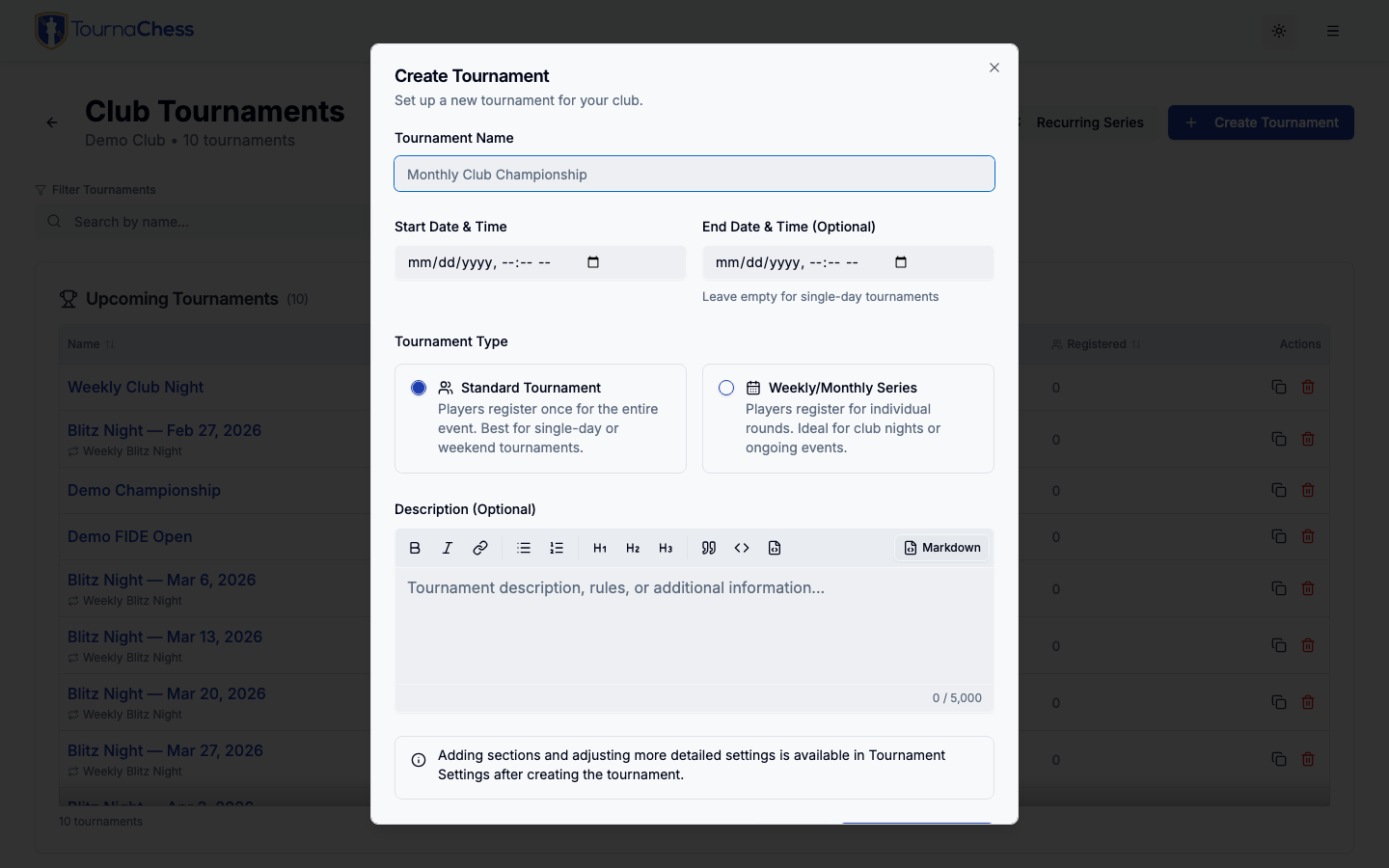
To create a tournament, navigate to your club's page and click Create Event, then choose the Tournament card. You can also start from Create Event on the club’s Events page. The creation form asks for a handful of essential details that define your event.
Name and Description
Give your tournament a clear, descriptive name. Good names include the date or season and the format -- for example, "Spring Open 2026" or "Thursday Night Blitz - March". You can also add an optional description with additional details such as prize information, parking instructions, or special rules.
Date and Time
Set the start date for your tournament. This is when the first round is scheduled to begin. You can optionally set an end date for multi-day events. For single-day tournaments, the end date can be left blank.
TournaChess supports two registration modes: Standard (Full Tournament) where players register once for the entire event, and Per Round (Weekly/Monthly) where players register for individual rounds. For a detailed comparison and setup guide, see Tournament Registration Types.
Location
Optionally enter a location for the event -- a venue name and address, such as "Community Center, 123 Main St, Springfield". The location is shown under the dates on the tournament details page and on the public registration page, so players know where to show up. You can set it when creating the tournament and edit it later from the management General tab.
Show map -- when a location is set, TournaChess can display an embedded Google Map of it. On the management General tab, next to the location field, the Show map toggle controls this. It is on by default for new tournaments. On the public registration page the map appears as a section under the tournament details. On the details tab of the tournament page it appears near the bottom of the tab, just above the registration link, and the location text near the top becomes a link that jumps down to it. Turn it off if you would rather show only the location text. Tournaments created before this feature was added have the map off by default; turn it on from the General tab whenever you like.
Calendar View Customization
By default, the club calendar view and the club's calendar feed show each tournament under its name. When the name is long, includes a date the calendar already shows, or the full description is not what you want in someone's Google Calendar, set a Calendar title and Calendar description under the Calendar View Customization heading on the management General tab.
- The calendar title replaces the tournament name on the calendar view and as the event title in subscribed calendars. Per-round tournaments still get the round number appended.
- The calendar description is a short plain-text blurb. It appears when a day is opened on the calendar view and becomes the event description in subscribed calendars, in place of the full tournament description.
Leave either field blank to keep using the tournament name or description.
Hide event in calendar view -- off by default. Turn it on to leave the tournament off the club calendar view entirely and out of the calendar feed, for example for a private side event or an administrative placeholder. The tournament still appears in the Events list and on its own page.
All three settings are copied when you duplicate a tournament and by recurring series when they generate new tournaments.
Setting Up Sections
Every tournament has at least one section. Sections let you divide players into groups, typically by skill level, age, or format. Players choose which section to register for when they sign up.
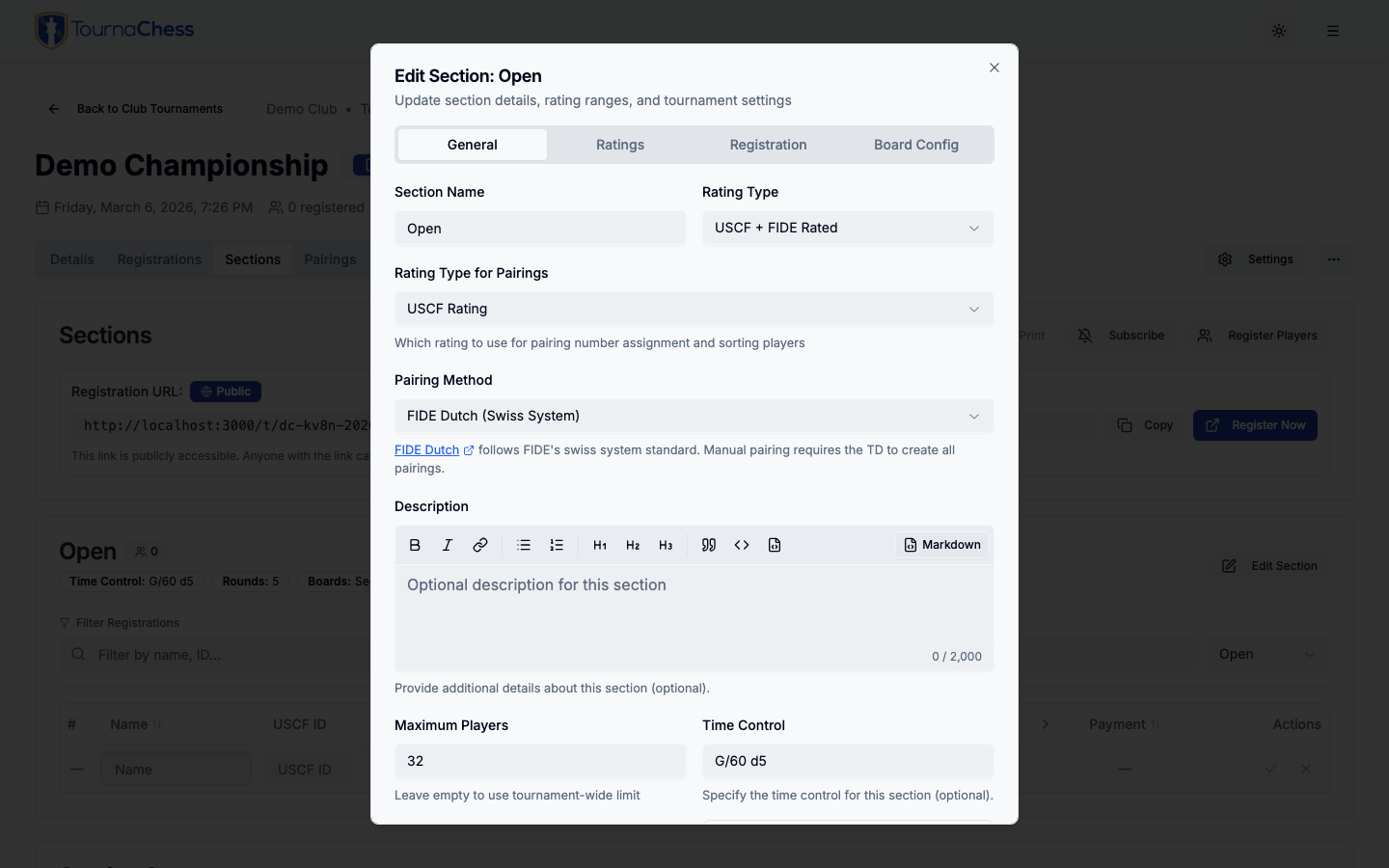
When you create a tournament, it starts with a default Open section. You can edit this section and add more sections from the tournament management page.
Section Name
Choose a name that clearly communicates the section's purpose. Common examples include "Open", "Under 1800", "Under 1200", "Scholastic K-5", or "Blitz". The name appears on the registration page, pairings, and standings.
Number of Rounds
Each section has its own round count. This means you can run an Open section with 5 rounds alongside a Scholastic section with 4 rounds in the same tournament. The minimum is 1 round, and the maximum is 50.
Time Control
The time control is a free-text field. Use standard notation that players will understand:
- G/60;d5 -- Game in 60 minutes with a 5-second delay
- G/30;+10 -- Game in 30 minutes with a 10-second increment
- G/90;+30 -- Game in 90 minutes with a 30-second increment
- G/5;+3 -- Blitz: 5 minutes with a 3-second increment
This value is displayed on the registration page and in tournament details.
Rating Type
Each section has a rating type that determines whether games are rated and with which federation:
| Rating Type | Description |
|---|---|
| Unrated | Games are not submitted for rating. No federation IDs required. |
| USCF Rated | Games are submitted to the US Chess Federation for official rating. Players need a USCF ID. |
| FIDE Rated | Games are submitted to FIDE for international rating. Players need a FIDE ID. |
| USCF+FIDE Dual Rated | Games can be submitted to both USCF and FIDE. Players need both IDs. See compliance details. |
| NWSRS Rated | Games are submitted to the Northwest Scholastic Rating System. Players need an NWSRS ID. |
| USCF+NWSRS Dual Rated | Games can be submitted to both USCF and NWSRS. Players need both IDs. |
| Online Rated | Pairings use players' Chess.com and Lichess.org ratings. Not submitted for official rating. See Online Ratings. |
For USCF-rated sections, you can also configure additional USCF-specific settings such as the rating system type (Regular, Dual, Quick, or Blitz) and the section chief TD's USCF ID. Online-rated sections instead ask you for an ordered list of rating sources. See the Ratings Overview for full details on rated event setup.
Rating Eligibility Range
You can optionally set a minimum and/or maximum rating to restrict which players can register for a section. For example, an "Under 1800" section might set a maximum rating of 1799. A "Premier" section might set a minimum rating of 1800.
These limits are informational and do not prevent players from registering if they exceed the limits, but they are clearly displayed on the registration page to guide players to the appropriate section. Tournament Directors have the ability to move players between sections after registration if needed.
Entry Fee
Entry fee settings are inherited by default from the tournament-level payment options, but you can override them at the section level if there are section-specific pricing needs. For example, the Open section might have a $30 entry fee while the Scholastic section charges $15. See the Entry Fee Configuration section below for details on pricing tiers and date-based pricing.
Section-Specific Settings
Each section is independently configurable. This means different sections within the same tournament can have different round counts, time controls, rating types, entry fees, and BYE policies. This flexibility lets you run a multi-section event where each section is tailored to its audience.
Converting a Section to Quads
If you would rather group players into small rating-based brackets than run one large Swiss, you can split a section into quads. From the section's actions on the tournament management page, choose Convert Section to Quads before the first round is paired. TournaChess sorts the section's players by rating and divides them into separate Swiss sections, highest-rated first.
Groups default to 4 players (a standard quad), but you can set any size -- for example, 8 for a kids' night. With at least two full groups, the number of groups is the section's player count divided by the group size, and the lowest-rated section absorbs any remainder. With only one full group, the leftover players form a smaller final section instead -- for example, 15 players with a group size of 8 split into sections of 8 and 7. You need at least one full group plus two more players to split. The original section is reused as the top group. Conversion is only available before the section's first round is paired.
Registration Settings
Registration settings control who can sign up, when registration closes, and what information you collect from players.
Who Can Register
The Who Can Register setting on the Registration tab decides who may sign themselves up:
-
Anyone: Enables public registration through the tournament's shareable URL and short code. Anyone with the link can register as a guest without creating or signing in to a TournaChess account, even if they are not a club member. Post the link on social media, send it directly, or print it on flyers.
-
Club members only: Only signed-in members of your club can register. Useful for members-only events and club championships.
-
TD managed: Nobody can register themselves -- not guests, not club members. TDs add every player by hand. Useful for scholastic finals, camp tournaments, qualifiers, and any event with a fixed invited field. The tournament page stays public so players and parents can still follow pairings and standings. See TD-managed events for the full details.
Tip: With Anyone selected, you can still restrict sections by rating. This gives you the best of both worlds: anyone can find and view your tournament, but only eligible players can sign up for rating-restricted sections.
Registration Deadline
Set an optional registration deadline to automatically stop accepting registrations at a specific date and time. This is helpful when you need a final player count before the event, want to cut off online registration the night before, or need to finalize pairings in advance.
The deadline is configured with a timezone so players see the correct cutoff time regardless of where they are. After the deadline passes, the registration form is no longer available to players. As a tournament director, you can still add players manually after the deadline through the TD management interface.
Closing a Section to Online Registration
Sometimes a section should exist on the schedule before it is open to players. A state championship with a small venue, for example, may hold the Under section shut until the higher-rated players have had first claim on the seats.
Each section's Registration tab has a Close this section to online registration switch for exactly that. While it is on:
- Players cannot select the section on the registration page. It is still listed, greyed out, and marked Closed, so nobody has to guess whether the section exists.
- The section's own description is still shown, which is the natural place to say when it opens: "Opens July 1, after the Championship section fills."
- Tournament directors keep full control of the section. You can add players to it, move players into it from another section, and run it exactly as usual.
- The switch is not a schedule. Turn it off when the section should open, and players can register immediately.
Turning the switch on reveals a second one, Hide the section completely, for the case where even naming the section invites questions you would rather not field yet. A hidden section is left off the registration page entirely instead of being shown as closed. It is still visible to you on the tournament management page, where it is marked Hidden.
Both settings only affect who may sign themselves up from now on. Players who registered for the section before you closed it stay registered, and the section keeps appearing everywhere else -- the tournament page, pairings, and standings.
Tip: Closing a single section leaves the rest of the tournament open. To stop self-registration for the whole event, use the TD managed option under Who Can Register instead.
Team / School Field
Each section's Registration tab controls whether its built-in team field is hidden, optional, or required. The Team / School selector appears alongside the other registration-field selectors. A single payment option can also ask for the team from the players who choose it, leaving the rest of the section alone -- see Asking more of one entry type. Whenever the field is in use, by either route, expand Customize Team / School beneath the selector grid to change the label or add optional help text for that section. For example, a scholastic section might use School, while an open club event might use Team and explain that family members or close friends should enter the same team to reduce the chance of being paired together.
The registration form displays the help text inline beneath the field. Optional fields prompt players to leave the field blank when they have no team or school; they should not enter "None." Team assignments can be used by team pairing and team standings when those features are enabled.
Gender Field
Each section's Registration tab also has a Gender selector, offering Male, Female, and Prefer not to answer. It starts at Off, so no event collects it unless you turn it on: some clubs need it for state or national membership paperwork, and it is how players answer for themselves where a Best Female Performance prize is offered. That prize does not depend on the field being on -- it is open to everyone in the scope you define it for, falling back to the rating bodies' record of a player who never answered -- so turning the field on is about getting players' own answers rather than about making the prize awardable. See Best female performance prizes.
A single payment option can also turn the question on for the players who choose it, leaving the rest of the section alone -- see Asking more of one entry type.
Players see a short note explaining why they are being asked. Expand Customize Gender beneath the selector grid to reword it for a section -- the panel is there whenever the question is asked, including when only a payment option asks it; leave it blank to keep the default. The answer is visible only to tournament directors and above, appears on no public page, and is included in the registrations CSV export for events that collect it. See Gender for the full details.
Custom Registration Fields
Beyond the standard registration information (name, section, USCF/FIDE ID), you can add custom fields to collect additional data from players during registration.
Available field types:
| Field Type | Use Case |
|---|---|
| Text | Emergency contact name, school name, club affiliation |
| Long Text | Dietary restrictions, accessibility needs, notes to the TD |
| Number | Age, grade level |
| Date | Date of birth |
| Checkbox | "I will be using an electronic notation device", "First visit to us" |
| Pick List | T-shirt size, meal choice, anything with a fixed set of answers |
Text shows a single-line box sized for short answers. Long Text shows a multi-line box for paragraph answers. Both accept up to 1000 characters by default, and you can lower that with the Character Limit setting — for example 30 characters for a t-shirt size — to keep answers tidy.
Checkbox shows a single box players tick or leave clear, for yes/no questions. A blank box means No, so it answers "is this true of you?" rather than a question you need players to answer either way.
Pick List shows a dropdown of choices you define. Enter the Choices one per line, in the order players should see them. Renaming or removing a choice later leaves answers already given exactly as they were.
Each custom field can be marked as required or optional. Required fields must be filled in before a player can complete registration. Optional fields are shown on the form but can be left blank. A required checkbox must be ticked — use it for acknowledgments such as agreeing to club rules, not for questions where No is a valid answer.
Common use cases for custom fields:
- Emergency contact information for scholastic events
- School name for inter-school competitions
- Dietary restrictions for events that include meals
- T-shirt size for events with merchandise
Custom fields appear on the registration form in the order you arrange them. You can reorder fields at any time from the tournament settings, and the registration form updates immediately.
BYE Request Configuration
Each section can be configured to accept BYE requests during registration. When enabled, players can indicate which rounds they need a BYE for when they register. This is common in multi-day events where a player might not be able to make a Friday evening round but wants to play Saturday and Sunday.
You can configure:
- Whether BYE requests are accepted at all for each section
- Maximum number of BYE requests a player can make (e.g., limit to 2 out of 5 rounds)
- BYE point value for requested byes (see the Advanced Settings section for details)
- Round restrictions to block BYE requests for specific rounds (e.g., disallow byes in the last round)
These settings govern what players can ask for when they register. They do not limit you. A tournament director can still assign a BYE of any value, or mark a player unpaired, for any round from the Registrations tab -- including a round you have restricted. So you can disallow last-round bye requests and still record a zero-point bye for the player who tells you on Sunday morning that they have to leave early.
TD Notifications
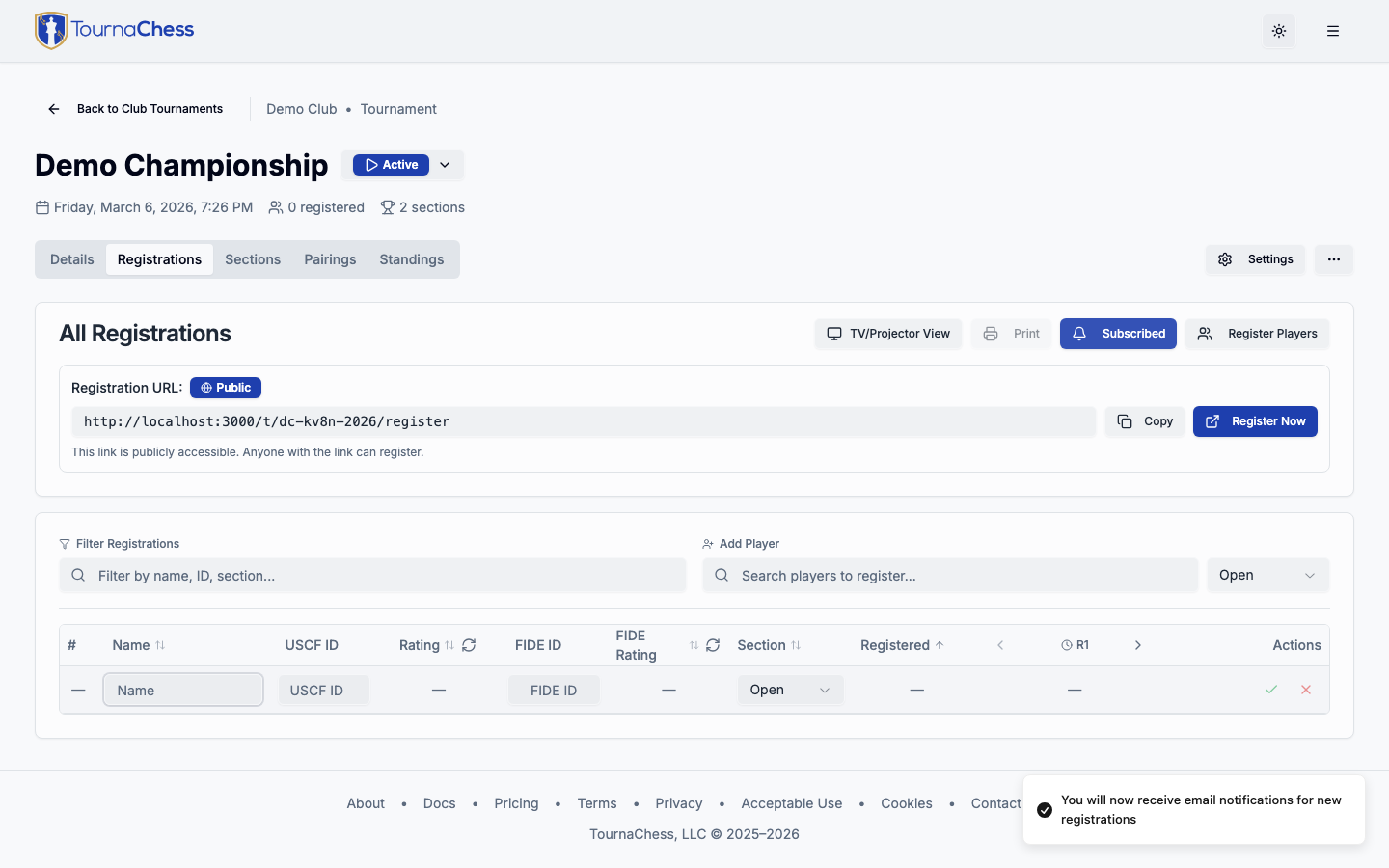
Tournament directors can subscribe to receive email notifications each time a player registers for the tournament. This is a per-user setting -- each TD on your team can independently choose whether to receive registration alerts.
To enable notifications, open the tournament management page and subscribe to registration updates. You will receive an email with the player's name, section, and registration details each time someone signs up. For an Online-rated section, the email also tells you when the player's online rating could not be fetched, so you can refresh it before pairing.
Entry Fee Configuration
If you want to charge entry fees for your tournament, your club needs to have Stripe Connect set up first. Stripe handles all payment processing, including credit card payments, and deposits funds directly into your club's connected bank account, less Stripe's processing fee and the TournaChess platform fee for your plan. See Club Management for instructions on connecting Stripe and Registration and Payments for what comes out of each paid registration.
Setting Fees Per Section
Entry fees are configured through payment options, which can be set at either the tournament level or the section level. Each payment option has an amount and a description, such as "$30 - Adult Entry" or "$15 - Scholastic Entry". You can create multiple payment options per section to offer different pricing tiers.
Multiple Entry Options with Date Ranges
Each payment option can have an available from and available until date. This lets you create time-based pricing tiers:
- Early bird pricing: Set a lower fee that is available from tournament creation until a cutoff date. For example, "$25 - Early Bird (before March 1)" available until March 1.
- Regular pricing: Set the standard fee that becomes available after the early bird period ends. For example, "$35 - Regular Entry" available from March 1 onward.
- Late registration: Optionally add a higher fee for last-minute registrations. For example, "$45 - Late Registration (day of event)" available only on the event date.
Players see only the payment options that are currently active based on the date. If multiple options are available at the same time, players choose which one to select. A section with its own payment options never falls back to tournament-level pricing. Registration for that section is unavailable during a gap when none of its options are active.
Tip: When you duplicate a tournament, all payment option date windows are automatically adjusted by the same offset as the tournament start date. If your original tournament started on January 15 and the duplicate starts on February 15, all early bird cutoffs and pricing windows shift forward by exactly one month.
In-Person Payment Tracking
TournaChess lets you mark players as paying at the venue. When a player registers and selects in-person payment (a payment option with an online price of 0), their registration is recorded but no online payment is collected. On tournament day, you can mark their payment as received from the registration management interface, giving you a clear picture of who has paid and who still owes.
For complete details on the registration and payment experience from both the player and TD perspectives, see Registration & Payments.
Advanced Settings
These settings give you fine-grained control over how your tournament operates. They are all optional and have sensible defaults, so you only need to adjust them if your event requires specific behavior.
Board Number Allocation
Each section assigns board numbers using one of two modes:
| Mode | How It Works | Best For |
|---|---|---|
| Sequential (default) | Boards are numbered automatically from a starting number. Each section starts at a sensible default (the first section at 101, the second at 201, and so on), and you can override the start for any section. | Most tournaments. Use the start number to offset sections (e.g., Open starts at board 101, U1800 starts at board 201). |
| Pool | The section draws its boards from a shared, tournament-wide board pool. Labels can be numbers, ranges (e.g., "5-10"), or non-numeric identifiers, so they can match the physical boards in your playing hall. | Venues with fixed, labeled boards, or multi-section events where you want stable, contiguous board assignments. |
The numbering mode is set per section, so a tournament can mix Sequential and Pool sections. For most events the default Sequential mode works well with no configuration needed.
Using the board pool
When any section uses Pool mode, you first define the tournament's board pool — an ordered list of boards — in the tournament's Board Numbers settings. Each board has a label (what prints on the scoresheet); you can reorder and relabel boards at any time, and games already assigned to a board keep their place.
Sections then draw from the pool:
- Reserved boards. A section can reserve specific boards from the pool (for example, to keep the Open section on your hall's top boards every round). Reserved boards are listed top board first, and a board can be reserved by at most one section.
- Shared boards. Beyond its reservations, a section takes the next available boards from the pool, top-down, in section order. As a section grows, it borrows additional boards and the sections below it shift down automatically.
- Active games are never overwritten. A new pairing is never placed on a board that still has a game in progress (in any section or round); the allocator skips that board and uses the next available one instead.
- Running out of boards. If the pool can't cover every pairing in a round, TournaChess assigns the boards that fit and prompts you to enter board numbers for the remaining pairings by hand, so a too-small pool never blocks pairing.
Board pool example
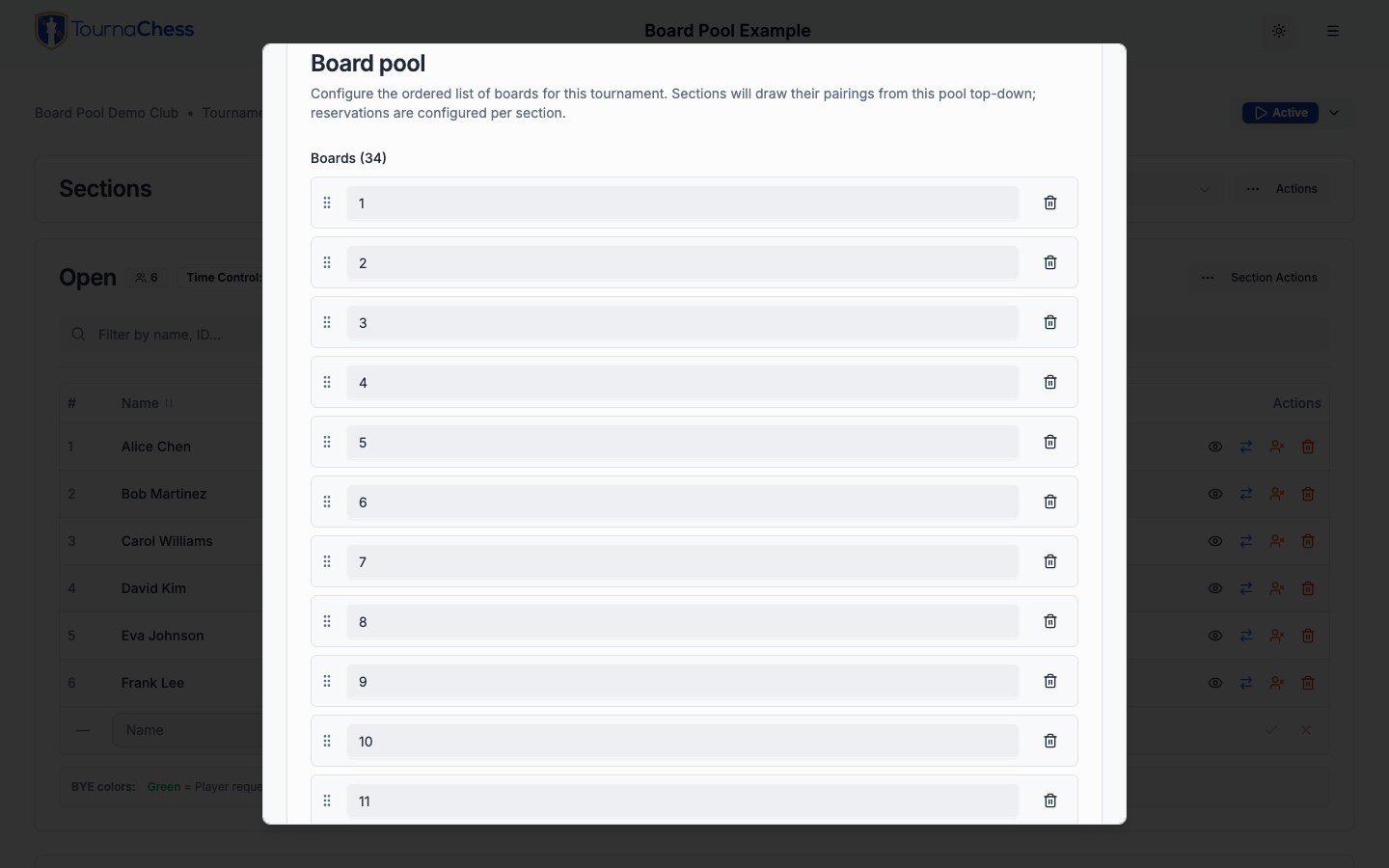
Suppose your tournament hall has 34 boards and you are running a three-section tournament. You want the top board of each section on a specific board so spectators always know where to find the leaders.
-
Add all your boards. In the Board Numbers tab, type the range
1-34into the range input.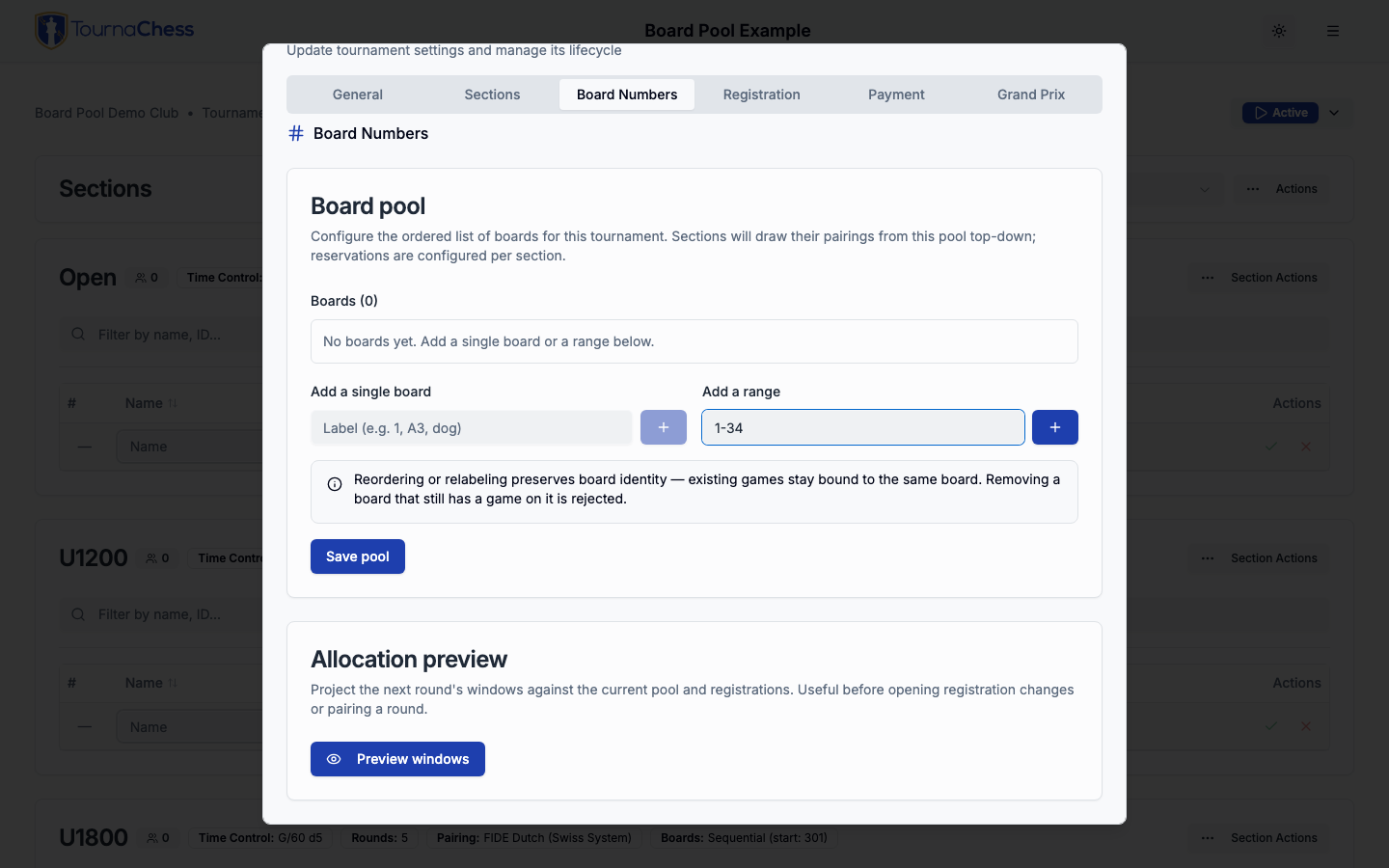
Click the + button to expand the range. The pool now has boards labeled 1 through 34.
-
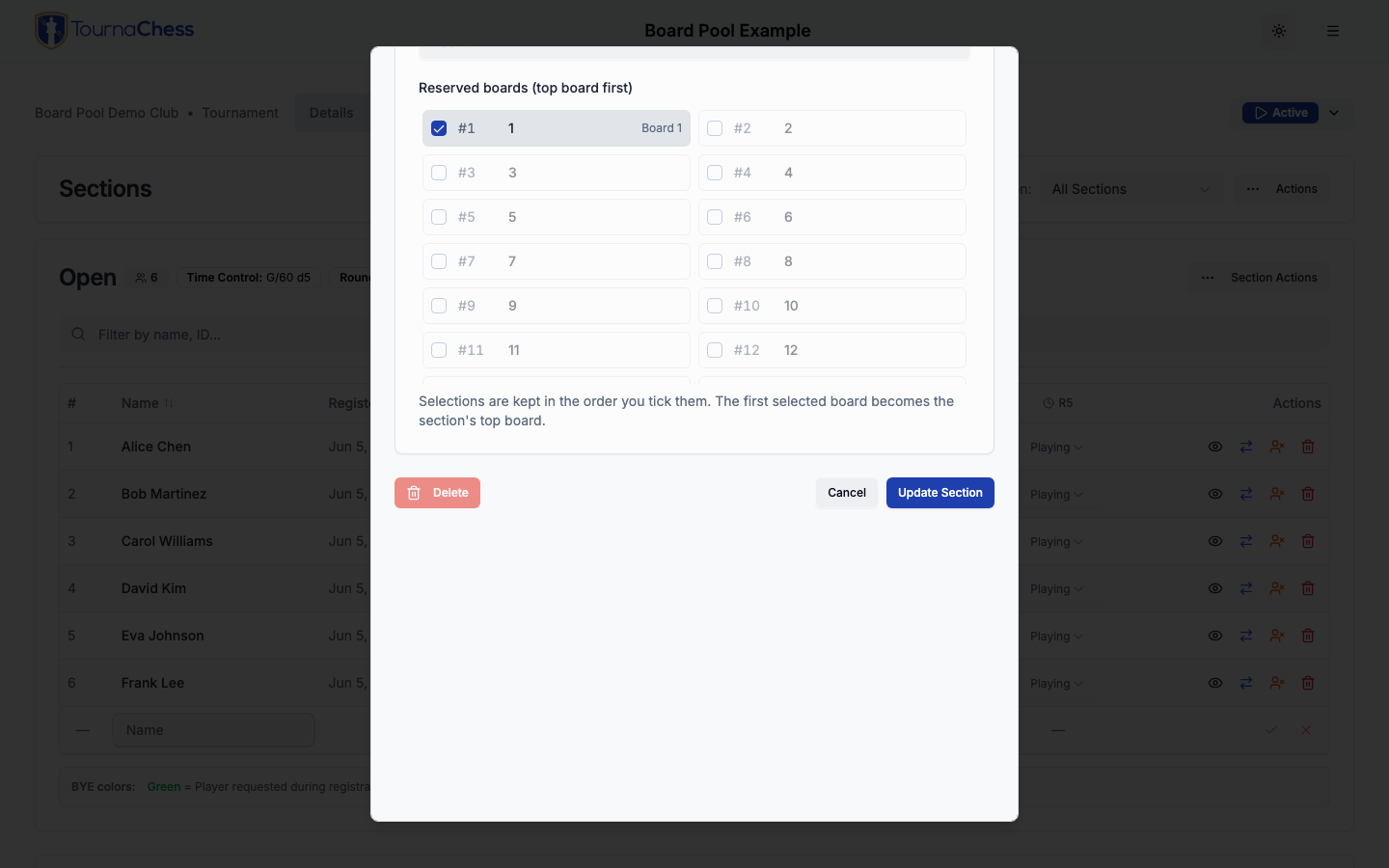
Set each section to Pool mode. Edit Section 1 (Open), change the numbering mode to Pool, and reserve board 1 as its top board.
-
Reserve top boards for the remaining sections. Edit Section 2 and reserve board 2. Edit Section 3 and reserve board 3.
-
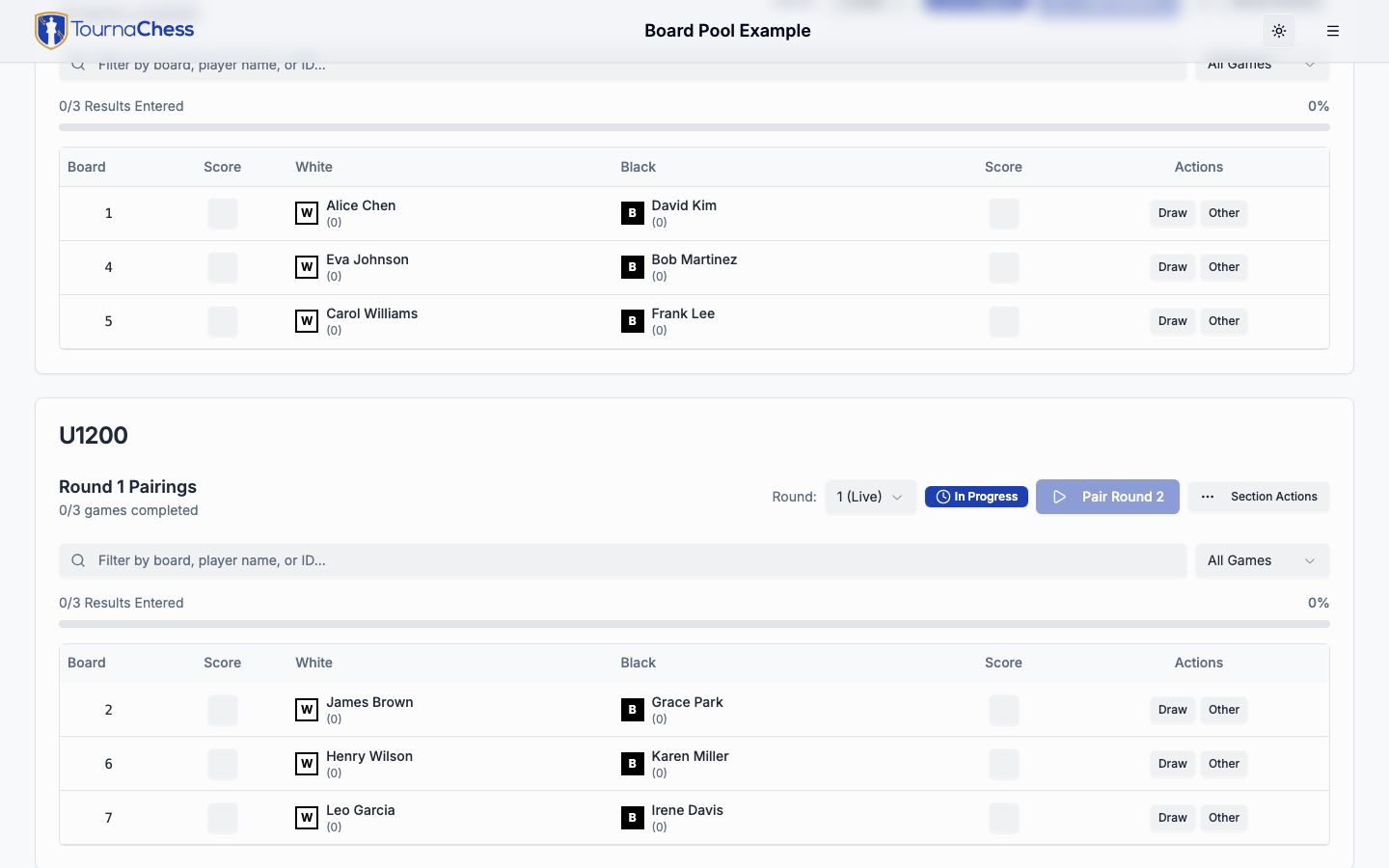
Pair the first round. TournaChess assigns boards top-down: the Open section starts on board 1, then uses the next available boards; Section 2 starts on board 2 and continues below the Open section; Section 3 starts on board 3 and continues below Section 2. Every section's top board is always the one you reserved.
Tie-Break Configuration
When players finish with the same score, tie-break methods determine their relative ranking in the standings. Tie-breaks are optional and off by default. When you enable them in a section's settings, you choose which methods to use and in what order.
TournaChess supports six computed tie-break methods plus a custom option:
| Method | Description |
|---|---|
| Modified Median | Opponents' scores, excluding the strongest and/or weakest opponents. For players above 50%, only the weakest is excluded. For players below 50%, only the strongest. Opponents' unplayed games count as 0.5 points. Based on USCF Rule 34E1. |
| Solkoff | Sum of all opponents' adjusted scores. Same as Modified Median but without discarding any opponents. Opponents' unplayed games count as 0.5 points. Based on USCF Rule 34E2. |
| Cumulative | Sum of the player's running score after each round. Rewards players who won early and faced tougher opposition for the rest of the event. Based on USCF Rule 34E3. |
| Cumulative of Opposition | Sum of each opponent's cumulative score. Rewards playing opponents who won early. Based on USCF Rule 34E9. |
| Buchholz | Sum of all opponents' raw final scores. Based on FIDE tiebreak rules. |
| Sonneborn-Berger | Points scored against each opponent multiplied by that opponent's final score. Rewards wins against stronger opponents. Based on USCF Rule 34E8. |
| Custom | Manually assigned values. The tournament director sets a value for each player directly in the standings table. Useful for sportsmanship points, attendance bonuses, or any other tie-break criteria not derived from game results. |
When you enable tie-breaks, the first four methods (the USCF recommended set) are selected by default, in the order listed above. You can add or remove methods and drag to reorder them. The order matters -- the first method is the primary tie-breaker, the second is used when the first is tied, and so on.
When you enable the Custom tie-break, you configure a name (shown in the standings legend), a short name (used as the column header), and an optional description (shown in the legend to explain what the values represent). All players start with a value of 0. You can edit each player's value directly in the standings table by clicking the cell -- negative values are allowed for penalty deductions.
The standings table shows one column per enabled method, in your configured order, and uses them to sort players with equal scores. When tie-breaks are disabled, players with the same score are sorted by rating.
BYE Values
When a player receives a BYE (either because of an odd number of players or by request), you can configure how many points that BYE is worth. The default is a full point, but you can set it to value of 0, 0.5, or 1:
- 1 point: Full-point BYEs. The player receives a full win. This is a common setting for requested byes in casual club events.
- 0.5 points: Half-point BYEs. Typically used for BYEs requested in advance, up to some limit of BYE requests.
- 0 points: Zero-point BYEs. The player receives no points. This is often used beyond the number of allowed BYE requests in advance.
Pairing Method
Each section uses a pairing algorithm to generate matchups for each round. TournaChess supports the following methods:
- USCF Swiss (default): The USCF Swiss pairing system, which follows the pairing rules defined in the USCF Official Rules of Chess. This is the default for new sections because its pairing criteria are more permissive and rarely reach a state where no valid pairing exists.
- FIDE Dutch (Swiss Pairings): The FIDE Dutch pairing system, widely used in Swiss tournaments. This uses the
bbpPairingsengine - a solid and highly performant pairing engine. It is the default for FIDE-rated and USCF+FIDE dual-rated sections, since those must use a FIDE-approved pairing algorithm. - USCF Double Swiss: A Swiss event where each pairing plays two games per round with colors reversed. This is commonly used for blitz tournaments. See Double Swiss below.
- Manual: No automatic pairings. You create all pairings by hand, useful for special formats.
Note: TournaChess lists the pairing method for each section on the registration page, as well as the sections tab of the tournament details page.
Double Swiss
A double Swiss runs on the USCF Swiss engine but plays each round twice: every pairing meets in two games, with the colors reversed for the second game (whoever had White in game 1 has Black in game 2). It is a good fit for blitz tournaments where the games are very short.
How it works in TournaChess:
- "Number of Rounds" means displayed rounds. If you set 4 rounds, each player plays 4 rounds × 2 games = 8 games. The whole app — pairings, standings, the registrations grid, and the public pages — shows one round per displayed round, never the underlying game numbers.
- Two games per board. When you pair a round, each board shows two games (Game 1 and Game 2) for the same two players with colors swapped. Enter a result for each game. Scores reflect both: winning both games in a round is 2.0, a split is 1.0, and a full-point bye covers both games (2.0 for the round).
- The next round can't be paired until both games of the current round have results. Confirming or rolling back a round applies to both games together.
- Editing pairings. You edit only Game 1; TournaChess automatically regenerates Game 2 as its mirror (same boards, colors reversed). Undo and reset to original work the same way, keeping the two games in sync.
- Byes and withdrawals apply to the whole displayed round — a bye or withdrawal sits the player out of both games.
Team Settings
A section has two team settings, and they are offered in different places because they do different jobs.
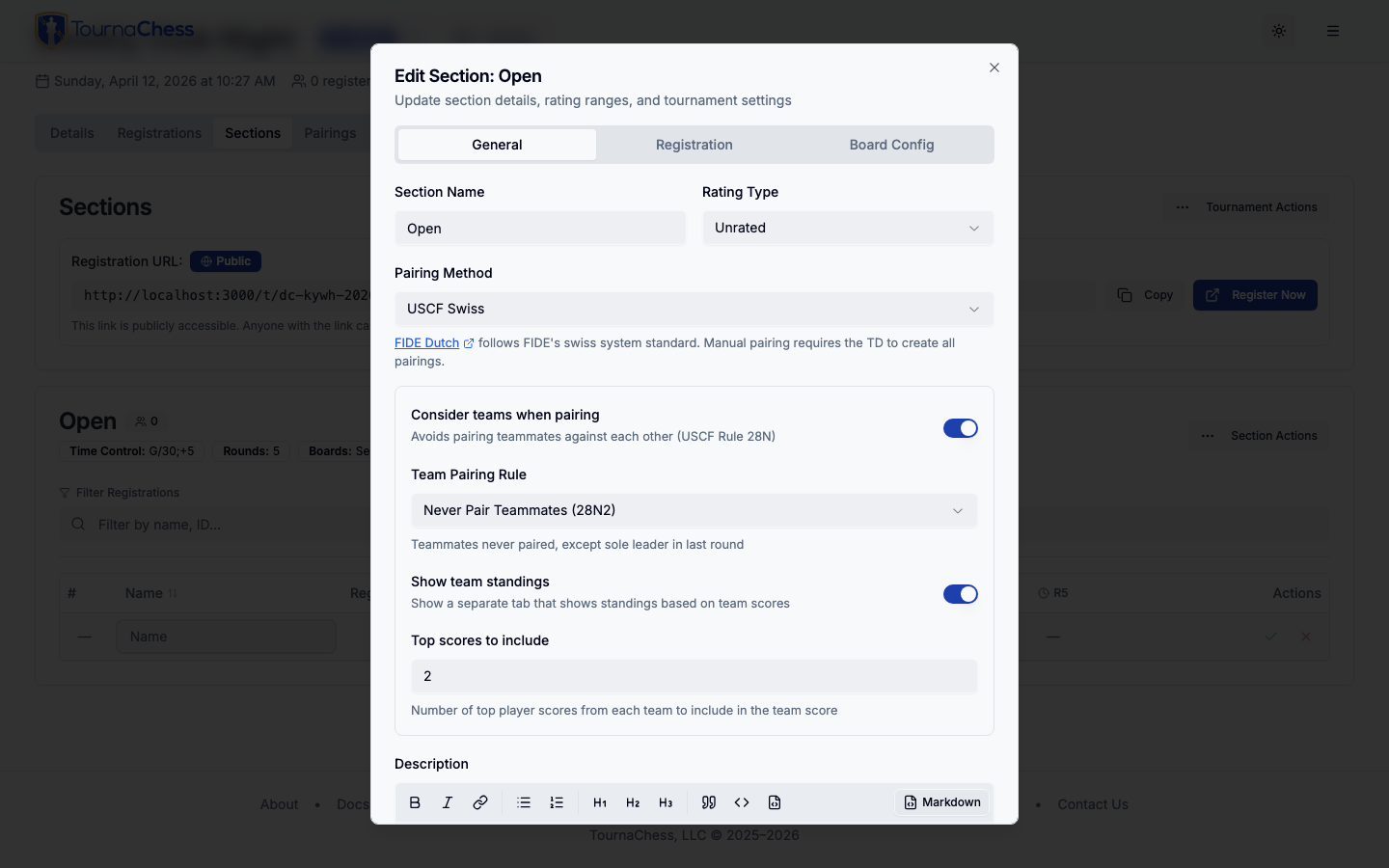
Team pairing avoids pairing teammates against each other, following USCF Rule 28N. It is an instruction to the pairing engine, so it appears only when the section uses the USCF Swiss pairing method. Three variants are supported:
- Plus Two (28N1): The restriction is lifted when a player's wins exceed losses by two or more.
- Never (28N2): Teammates are never paired, except the sole leader in the last round.
- Custom (28N3): Same as Plus Two with a configurable threshold.
Team standings adds aggregated team scores to the Teams tab on the tournament page. It only sums the scores players made, so it is available whatever the section is paired by -- USCF Swiss, FIDE Dutch, USCF Double Swiss or Manual. When enabled, you configure how many top individual scores from each team contribute to the team score (default 4, minimum 2). For example, if set to 4, the team score is the sum of that team's four highest-scoring players. Teams with fewer players than this number still appear with the scores they have.
This setting is also what a Team Place prize is awarded from. Add one on the section's Prizes tab and the top teams get a trophy named on the Prizes tab and the printed payout sheet; with team standings switched off, nothing is awarded. See Team place prizes.
The Teams tab itself appears whenever the team / school field is in use -- through a section's own setting or through a payment option that asks for it -- whether or not team standings are enabled, so you can review and clean up the team names players entered while registration is still open. See Running Tournaments for the roster tools.
Team pairing and team standings are independent settings -- you can enable either or both, and on a section that is not USCF Swiss, team standings is the one you will see. Players enter their team name during registration. On the section's Registration tab, you control whether the field is hidden, optional, or required and can customize its label and inline help text. Team assignments are used for both pairing avoidance and standings aggregation.
Duplicating Tournaments
If you run similar events regularly, duplicating a tournament saves significant setup time. From any existing tournament's management page, you can create a copy with one click.
How Duplication Works
When you duplicate a tournament, choose a copy mode and give the copy a new name. For Settings Only or Roster Only, provide a new start date; Historical Results keeps the source event dates. Settings Only and Roster Only copies start as Draft. Historical Results copies start as Complete so their pairings and standings are visible immediately; directors can reactivate a completed copy if corrections are needed. Every mode copies these settings:
- All sections with their names, round counts, time controls, rating types, and pairing methods
- Rating eligibility ranges and BYE configuration per section
- Board number configuration per section
- All payment options, including section-level pricing
- All promo codes, with their discounts, redemption limits and active state -- redemption counts start over for the new event
- Custom registration fields
- Registration visibility settings (public/private)
- Calendar view title and description
- USCF configuration (affiliate ID, location, TD assignments)
Automatic Date Adjustment
For Settings Only and Roster Only, dates throughout the duplicated tournament are automatically shifted based on the difference between the original and new start dates. Historical Results retains the original event dates. If the original started on January 15 and your duplicate starts on February 15, then:
- Registration deadlines shift forward by one month
- Payment option availability windows (early bird cutoffs, late registration starts) shift forward by one month
- Promo code availability windows shift forward by one month
- End dates shift by the same offset
This means you usually do not need to manually update any dates after duplicating -- everything adjusts proportionally.
Choose a Copy Mode
- Settings Only creates a fresh event with no players, pairings, or results. Use this for a future event with the same setup.
- Roster Only carries currently registered players, guest identities, and custom registration answers into the new event, but not payment, check-in, byes, pairings, standings, or results. Review the unpaid roster before opening registration.
- Historical Results keeps the original dates and copies eligible registered players, completed games, byes, extra games, rebuilt standings, rating details, and recalculated prize awards. It does not carry payment or notifications. Unfinished pairings are omitted. If a scored game includes a withdrawn, no-show, or otherwise excluded player, restore that player or clear the game result in the source before retrying. The historical copy is TD-managed: players cannot self-register, even if it is published. It is not automatically added to the source's Grand Prix, but appears as another entry in players' tournament histories.
The copy gets a new short URL in every mode. Settings-only and roster-only copies retain existing Grand Prix associations; review those associations before using a copy as a separate event.
When to Use Duplication vs Recurring Series
Duplication is best for one-off events that happen to be similar to a past event. You duplicate, adjust the details, and you are ready to go.
If you run the same event on a regular schedule (weekly, biweekly, or monthly), consider setting up a Recurring Series instead. A recurring series automatically generates new tournament instances on your schedule, with all the same settings, so you do not have to duplicate manually each time.
Deleting a Tournament
Deleting a tournament is permanent and is kept deliberately out of the way. Open the tournament, choose Tournament Settings from the Actions menu, and scroll to the bottom of the General tab. The Delete Tournament button lives in a red-bordered Danger Zone card, separated from the Cancel and Update Tournament buttons so it is not clicked by mistake.
Clicking it opens a confirmation dialog that names the tournament, tells you how many registrations will be removed, and asks you to type delete tournament before the Delete Tournament button becomes active.
Deletion removes the tournament and everything attached to it:
- All sections and their settings
- All player registrations, including withdrawn players
- All pairings, results, and round history
- The tournament's short URL and public view page
This cannot be undone. If you only want to stop players from signing up, set Who Can Register to TD managed instead of deleting it -- the event stays visible and everyone already registered stays registered. If the event happened and you want to keep the record, mark it Complete -- results stay available for standings, Grand Prix totals, and player history.
Only Owners and Admins can delete a tournament. Tournament Directors can create and run events but cannot remove them; ask a club Owner or Admin if a tournament needs to be deleted.
Deleting a tournament that belongs to a Recurring Series also tells the series to skip that date, so the event is not automatically regenerated.
Putting It All Together
Here is a typical workflow for creating a tournament:
- Create the tournament with a name, start date, and registration mode.
- Add sections with names, round counts, time controls, and rating types.
- Configure registration: who can register, deadline, and any custom fields.
- Set up entry fees if your club has Stripe Connect, with early bird and regular pricing.
- Review advanced settings: board numbering, tie-breaks, and BYE policies.
- Set the tournament status to Active so the event goes live. Registration opens at the same time unless Who Can Register is set to TD managed.
- Share the registration link with your players -- or, for a TD-managed event, add each player yourself from the Registrations tab.
Once players start registering, you can monitor the entry list and manage registrations. When it is time to play, see Running Tournaments for the complete guide on generating pairings, entering results, and managing rounds.
Still have questions? Visit our Contact page to get in touch with TournaChess support.