

Recurring Series
If your club runs regular events -- a Thursday evening blitz, a biweekly rated classical, a monthly scholastic -- you already know how repetitive it can be to create the same tournament over and over again. A recurring series automates that work for you.
Think of it like a calendar entry that repeats. Choose an existing Event or Tournament as the template, then set a schedule. TournaChess generates independent copies automatically. Tournament series include registration and tournament settings; Event series create simple calendar entries and info pages.
What is a Recurring Series?
A recurring series takes an existing Event or tournament -- your template -- and duplicates it on a schedule. Event templates copy the description, location, map preference, timezone, banner and icon, with the title and dates set by the series. Tournament links are not copied: add them separately on each generated Event if needed. Events with an end date retain their calendar-day span; open-ended Events remain open-ended. For tournament series, everything about the template tournament is copied into each generated instance: sections, time controls, pairing methods, payment options, custom fields, registration settings, and more. The only things that change are the name and date.
Common use cases
- Weekly club nights: A Thursday evening blitz that generates a new 4-round Swiss every week.
- Biweekly rated events: A classical tournament every other Saturday, rated through USCF.
- Monthly scholastic tournaments: A scholastic event on the first Saturday of every month, with separate sections for different age groups.
How it differs from Grand Prix
Recurring Series and Grand Prix are complementary features that solve different problems:
- Recurring Series is about scheduling. It automates the creation of tournaments so you do not have to manually set up the same event every week.
- Grand Prix is about standings tracking. It accumulates player scores across multiple tournaments into a season-long leaderboard.
They work well together. A recurring series can generate tournaments that automatically feed into a Grand Prix, giving you both automated scheduling and cumulative standings without any extra effort.
Creating a Recurring Series
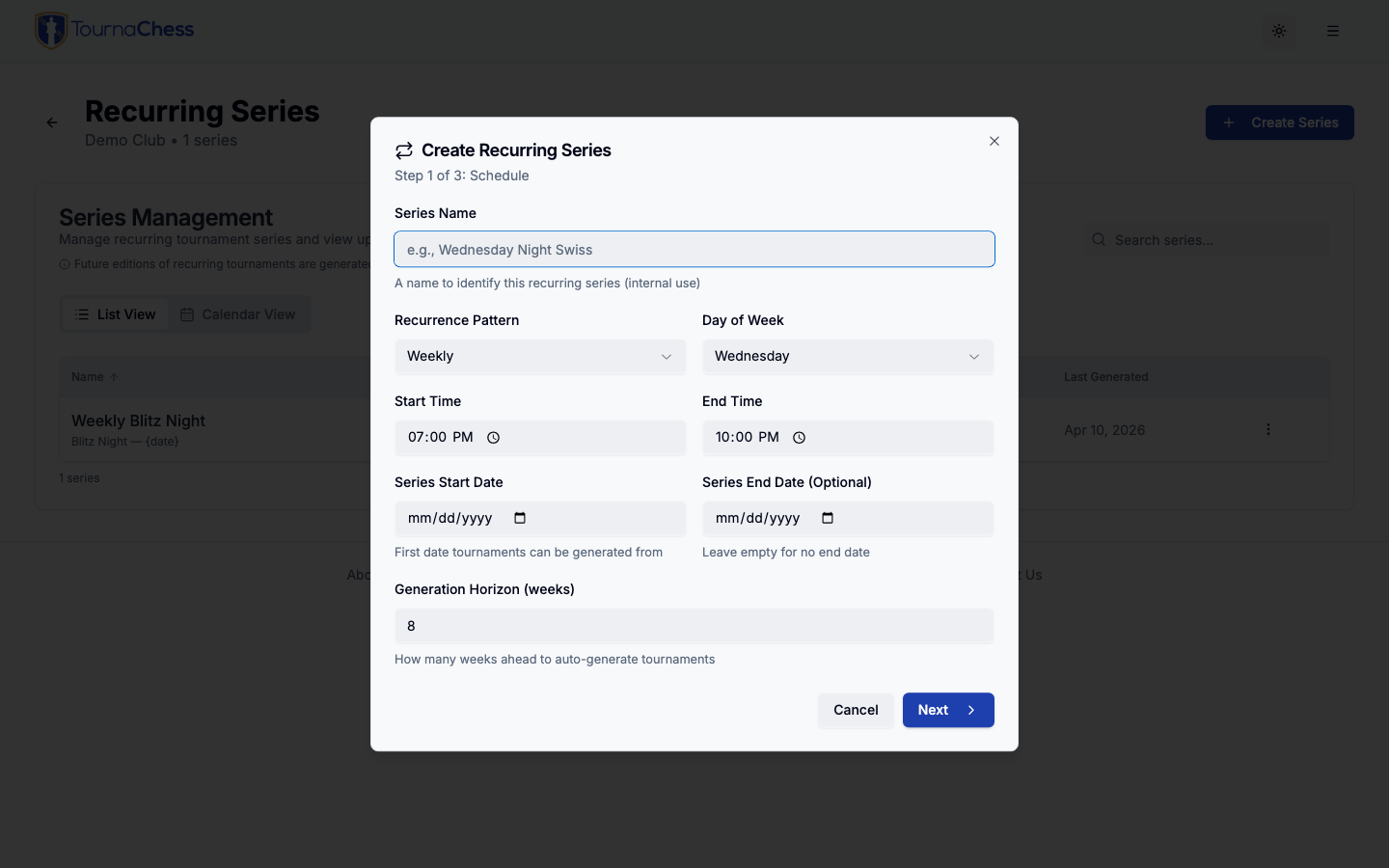
To create a recurring series, go to your club's Recurring Series page and click "Create Recurring Series." The creation wizard walks you through three steps. Choose Event or Tournament under Recurring target, then select an existing template from that club. Event templates may be drafts or published.
Step 1: Select a template
Choose Event or Tournament, then select an existing template from your club. For Events, the copy contains Event details and no tournament links. For tournaments, every setting from this tournament -- sections, time controls, pairing methods, rating types, entry fees, payment options, custom fields, registration settings, and description -- will be copied into each generated tournament.
Search your club's Events or tournaments and click the template you want. If there is no suitable Event, click Create New Event to open the Event editor. After saving, you will be taken to the new Event's page to configure its details and images. Return to Recurring Series to select it as your template. Cancelling Event creation returns to the wizard.
If you do not already have a suitable tournament to use as a template, click Create New Tournament. This opens the tournament creation dialog. After creating the tournament, you will be taken to its settings page where you can configure sections, payment options, and other details exactly how you want them. Once your template tournament is fully configured, return to the Recurring Series page to start the wizard again.
Tip: It is worth taking time to get the template tournament right before creating the series. Every detail you configure on the template -- rating types, BYE settings, entry fees, custom registration fields -- carries over to every generated tournament automatically.
Step 2: Set the schedule
Choose how often you want occurrences to be generated:
| Frequency | Description | Example |
|---|---|---|
| Weekly | Every week on a specific day | Every Thursday |
| Biweekly | Every two weeks on a specific day | Every other Saturday |
| Monthly (by date) | A specific day of the month | The 15th of each month |
| Monthly (by weekday) | A specific weekday occurrence in the month | The 2nd Tuesday of each month |
| Custom | A custom interval in days | Every 10 days |
For weekly and biweekly schedules, you select the day of the week. For monthly schedules, you choose either a fixed date or a weekday pattern (like "the first Saturday" or "the third Wednesday"). The monthly weekday options include "Last" and "All except Last." "Last Friday of the month" always selects the final Friday, whether the month has four or five. "All except Last Friday" schedules every Friday except that final one (the first three in a four-Friday month, or the first four in a five-Friday month).
You also set:
- Start and end times for each generated tournament (in 24-hour format).
- Series start date -- the earliest date tournaments can be generated from.
- Series end date (optional) -- when the series should stop generating. Leave this empty for an open-ended series.
- Generation horizon -- how many weeks ahead to keep tournaments generated (1 to 52 weeks, default 8). For example, with an 8-week horizon, the system always maintains roughly 8 weeks of upcoming tournaments.
Step 3: Name template and options
Define how generated tournaments should be named. You write a name pattern using placeholders that get replaced with the actual date of each tournament:
| Placeholder | Replaced with | Example |
|---|---|---|
{date} | Full date | Jan 15, 2025 |
{month} | Month name | January |
{day} | Day number | 15 |
{year} | Year | 2025 |
For example, a pattern of Thursday Blitz - {date} produces tournaments named "Thursday Blitz - Jan 9, 2025", "Thursday Blitz - Jan 16, 2025", and so on. A live preview shows how the next three occurrences will be named as you type.
By default, the name pattern is pre-filled based on the template tournament's name with - {date} appended. You can change it to whatever you like.
You can choose whether generated occurrences start as drafts. Event copies are Draft (unpublished) when this is checked, and Published otherwise. Published Events appear on the club schedule and calendar feed. For tournament series, the choices are Draft or Active:
- Draft (default): Gives you a chance to review each tournament before making it visible to players. A draft occurrence is also absent from the club's calendar feed, so members who subscribe to it see each club night only once you set that occurrence Active.
- Active: Tournaments go live immediately when generated, and reach the club's calendar feed as they are generated -- provided the template they inherit from is publicly viewable and does not have Hide event in calendar view turned on.
Tip: Start with Draft mode when you first set up a series. Once you are confident the template is configured correctly, you can switch to Active mode to skip the manual review step.
What Gets Copied from the Template
When a new tournament is generated, it inherits all of these settings from the template tournament:
- Section configuration: Names, rating types (Unrated, USCF, FIDE, USCF+FIDE), time controls, pairing methods, rating eligibility ranges, max players, BYE settings (requests, point values, round restrictions), and USCF scholastic settings.
- Payment options: Tournament-level and section-level payment options, including early bird and late registration windows (date offsets are adjusted automatically).
- Promo codes: Every code on the template, with its discount, redemption limit and active state. Availability windows shift with the dates, and each generated tournament starts its redemption counts at zero -- so an active code on the template keeps working, occurrence after occurrence. Deactivate a code on the template if you do not want it carried forward.
- Custom fields: All custom registration fields and their configurations.
- Registration settings: The full Who Can Register access mode -- Anyone, Club members only, or TD managed -- and the registration mode (full tournament or per-round). A series built from a TD-managed template generates TD-managed occurrences, so each one accepts no self-registration and you add every player yourself.
- Tournament details: Description, announcement text, max players.
- USCF settings: Affiliate ID, city, state, zip code.
- Grand Prix settings: If the template is linked to a Grand Prix, generated tournaments inherit that linkage.
The only things that change are the tournament name (from your name pattern) and the dates (calculated from the schedule).
Event occurrences
Only club Owners and Admins can delete recurring Event occurrences. An Event used as a series template cannot be deleted until you end its series or choose another source. Deleting a draft occurrence also skips that date, so generation will not recreate it. Unpublish a recurring Event before deleting it.
Event occurrences are independent: edit or publish each one on its Event page. Sync from Template updates upcoming Events in place with the template details, series title pattern and times. Each Event keeps its link, publication status and any tournaments you have linked to it. Template tournament links are never copied during generation or sync. Past Events are left alone.
The series list, detail page and calendar show generated Events as well as projected future dates. Generate Now, skipped dates, pause/resume, and the generation horizon work for either target type. Ending an Event series can keep every Event or delete drafts only; published Events are kept. Any tournaments linked to a deleted Event remain in the club.
Editing individual tournaments
Each generated tournament is fully independent. After it is generated, you can edit it freely -- change the name, adjust section settings, modify entry fees, or update any other detail. Your changes only affect that specific tournament. Future tournaments generated by the series will continue to use the original template settings.
If instead you want a change to apply to every upcoming tournament in the series, make it on the template and use Sync from Template. Note that a sync overwrites any edits made to an individual tournament.
Managing Your Series
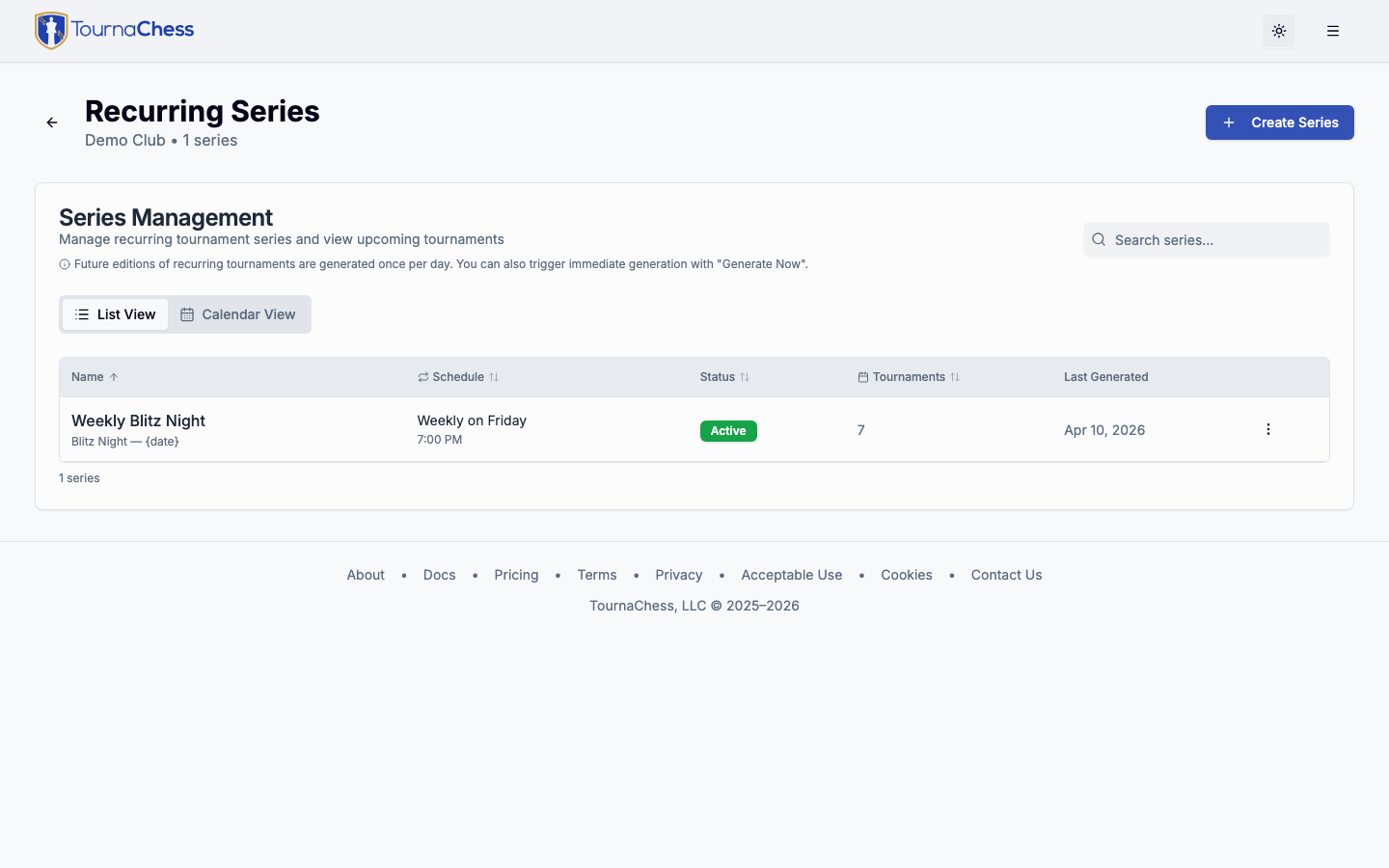
Once your series is running, the series management page gives you tools to control it.
View upcoming and past tournaments
The management page shows all generated tournaments in chronological order, with their current status (Draft, Active, or Complete). You can see at a glance what is coming up and which tournaments need attention.
Skip specific dates
When you need to skip a date -- for a holiday, a venue closure, a special event, or any other reason -- you can mark that date to be skipped. No tournament will be generated for skipped dates, and the series continues normally on the next scheduled occurrence.
For example, if your weekly Thursday series falls on Thanksgiving, you can skip that date. The series will generate tournaments for every other Thursday as usual.
Pause and resume
If you need to take a longer break, you can pause the entire series. While paused, no new tournaments are generated automatically. You can still trigger manual generation if needed. When you are ready to resume, reactivate the series and it picks up where it left off.
| Status | Behavior |
|---|---|
| Active | Generating tournaments on schedule |
| Paused | No automatic generation; can be manually triggered |
| Ended | Series is finished; no more tournaments will be generated |
Generate now
You can manually trigger tournament generation at any time without waiting for the daily automatic run. This is useful after editing a series or when you want to see the next batch of tournaments right away. Manual generation also works while the series is paused.
Edit the series
You can change the schedule, name template, times, horizon, skip dates, and draft/active preference at any time. Changes only affect future tournament generation -- tournaments that have already been generated keep their existing settings unless you sync them to the template.
Sync from template
Once tournaments have been generated, changing the template (or the series' name pattern or times) does not touch them. Deleting them and generating again is not a good option either: the new tournaments get new links, so a registration link you have already put on your club calendar, website or newsletter stops working, and any registrations already taken are lost.
Sync from Template solves this. Make the change once on the template tournament (or on the series), then click Sync from Template on the series page. Every upcoming tournament in the series is updated in place to match:
- Kept as-is: each tournament's date, link and short code, status (draft or active), registrations, and anything already played or paid.
- Updated to match the template and series: the name (from the name pattern), start and end times, description and announcement, location, registration settings and deadline, sections and their settings, entry fees and payment options, prizes, promo codes, custom registration fields, USCF settings, and Grand Prix links.
Sections, payment options and custom fields are matched to the template by name, so renaming a section on the template creates a new section on each tournament rather than renaming the old one. Anything that is no longer on the template is removed from a tournament only if nothing depends on it: a section with registered players (or answered registration fields), a payment option someone has paid with, a custom field players have answered, or a promo code that has been redeemed is kept instead (a redeemed promo code is deactivated). A few settings follow the same rules as editing a tournament directly: the registration mode (full tournament or per-round) only changes on a draft with no registrations, a round that is already in use is never removed, and board numbering is left alone once DGT boards are bound. After the sync, a summary lists anything that was kept this way so you can sort it out on those tournaments by hand -- for example by moving the registered players into the new section.
Only tournaments that have not started yet are synced. Past and completed tournaments are never changed, and syncing works even while the series is paused.
Tip: The sync replaces the settings of every upcoming tournament, including any you customized individually. If one occurrence is meant to be different -- a holiday special, say -- re-apply its customizations after syncing.
End the series
When you are done with a series, you can end it. Ending a series gives you options for what happens to existing tournaments:
- Keep all tournaments: Tournaments remain in your club, just unlinked from the series.
- Delete drafts: Owners and administrators can remove generated Draft tournaments. Active and Complete tournaments are always kept.
How Auto-Generation Works
TournaChess runs a daily process that checks all active recurring series. For each series, it calculates what tournament dates fall within the generation horizon and creates any that do not already exist.
For example, with a weekly series starting March 6 and an 8-week horizon:
- On March 2, the system generates tournaments for March 6 through April 23 (8 weeks out).
- Each day, the horizon extends forward by one day, and new tournaments are created as dates come into range.
- The system never creates duplicates -- if a tournament already exists for a given date, it is skipped.
If the series has a defined end date and that date has passed, the series is automatically transitioned to Ended status and no further tournaments are generated.
Frequently Asked Questions
Can I change the schedule after creating a series?
Yes. You can change the frequency, day of week, or time at any point. The changes apply to future tournament generation only. Tournaments that have already been generated keep their original dates. A new start or end time can be applied to them with Sync from Template, which keeps each tournament on its existing date.
How far in advance are tournaments generated?
This is controlled by the generation horizon, which defaults to 8 weeks. You can set it anywhere from 1 to 52 weeks. The system checks daily and generates new tournaments as needed to keep the schedule filled out to the horizon.
Can I have multiple recurring series in the same club?
Yes. A club can have as many active series as it needs. For example, you might have a weekly blitz series on Thursdays and a monthly classical series on the first Saturday of each month.
What if two series generate tournaments on the same day?
That is perfectly fine. Each series generates its own independent tournaments. If your Thursday blitz and your monthly classical both fall on the same day, you will have two separate tournaments for that date.
Can I change the template tournament after creating the series?
The target type (Event or Tournament) is set when the series is created. If you need a different template, you can end the current series and create a new one pointing at a different tournament.
What if I edit the template tournament directly?
Changes you make to the template tournament will be reflected in future generated tournaments, since the system duplicates the template at generation time. Tournaments that were already generated are not affected until you click Sync from Template on the series page, which updates all of the upcoming ones to match without changing their links or losing their registrations.
Still have questions? Visit our Contact page to get in touch with TournaChess support.