

TV & Projector Displays
TournaChess provides dedicated display views optimized for TVs, projectors, and large monitors at your tournament venue. Instead of printing pairings sheets or crowding players around a single laptop, you can put live pairings, standings, and entry lists on a screen where everyone can see them. Displays update automatically in real time, so there is nothing for you to refresh or manage once they are running.
Three display views are available:
- Sections -- Shows registered players, their ratings, and section assignments. Useful before the tournament starts and between rounds as new players register.
- Pairings -- Shows board assignments, player matchups, and color assignments for the current round.
- Standings -- Shows cumulative scores, tie-break values, and rankings after each round.
You can run all three on a single screen or split them across multiple displays at your venue.
In a Per Round tournament, the Sections display lists only the players the next pairing will actually include, and labels each card with that round number. That means players signed up for the round being played or coming up next, minus anyone taking a BYE for it -- so the count on screen is the real field, and you can glance at the screen to spot a section that will pair odd. Players on a BYE are not listed for that round; they reappear on the rounds they are playing. Full Tournament events list every registered player, as they always have.
Once a round is paired, the list switches to the players actually paired into it -- including anyone you added by hand while editing the pairings, and the player given a BYE because the field was odd. Each card is labelled with the round it is showing, and note that the Pairings display stays on the previous round until you start the new one, so between rounds the two cards can be labelled with different round numbers.
If you finish an event before all of its rounds are played, the display keeps showing the last round that was actually played rather than jumping to a round nobody will play.
If your venue uses DGT electronic boards, there is also a Boards display that shows the actual games move by move, with live positions and clocks. See Live Boards below.
Setting Up a Display
Getting a display running takes about 30 seconds. You do not need any special software -- just a web browser on whatever device is connected to your TV or projector.
Open the display view
- Navigate to your tournament page on TournaChess.
- Choose the tab for the type of display you want to run: Sections, Pairings, or Standings.
- Click the TV/Project View button. This opens the display view in a new browser tab.
Connect to your venue screen
Open the display URL in a browser on the device connected to your TV or projector. This can be a laptop plugged into a projector via HDMI, a smart TV with a built-in browser, or a dedicated media device like a Chromecast or Fire Stick with a browser app.
Enter full-screen mode
For the best visual experience, put the browser into full-screen mode. Full-screen mode hides the browser toolbar and address bar, giving you the full screen area for pairings and standings.
Tip: If you are setting up the display from a different device than the one you use to manage the tournament, the display view does not require logging in as long as the tournament is publicly viewable (Make tournament publicly viewable on the General settings tab). For a tournament that is not, sign in on the display device with an account that can see it.
Display Customization
The display view includes a settings panel that lets you control exactly what appears on screen. Click the gear icon in the top corner of the display to open it.
Show or hide sections
If your tournament has multiple sections, you can choose which ones appear on the display. Toggle each section on or off using the checkboxes in the settings panel.
Reorder sections
Switch the Display menu to Grid, then drag section card headers to change the order they appear on screen. The same order is used when you switch back to Carousel or Auto-scroll. Put the section with the most players first, or arrange sections to match the physical layout of your venue.
Adjust zoom
Use the zoom slider to scale the display content up or down. This is helpful when your screen is unusually large or small, or when you need the text to be readable from farther away. Increase the zoom for large venues where players are viewing from a distance. Decrease it if you need to fit more information on screen at once.
Tip: Arrive at your venue early to dial in the zoom level. Walk to the farthest point where players will be standing and make sure names and board numbers are legible.
Rotate or scroll large displays
Use the Display menu when the tournament has more cards or rows than the screen can show at once:
- Grid keeps the standard layout and splits an overflowing section into numbered cards.
- Carousel rotates through every enabled card and overflow page. Cards per slide and Width are maximums: TournaChess may show fewer cards when needed to keep names and results readable, or when taller cards let each section fit whole instead of splitting into numbered pages. Cards are grouped by section, and a section stays together on one slide whenever all of its enabled views and overflow pages fit. Sections that are too large continue across consecutive slides. Use the footer to move to the previous or next slide or to pause and resume automatic rotation. Long announcements and Live Boards grids scroll through completely before the next slide appears. If an overflowing announcement or Live Boards grid is the only slide, it loops back to the beginning; the footer shows Pause or Resume so you can control that motion.
- Auto-scroll keeps each section in one card and loops through long player, pairing, standing, or announcement content. Content pauses at the top and bottom so viewers have time to read it. When multiple views are enabled, each section's Pairings, Standings, Registrations, and Live Boards cards stay together before the next section begins.
When a standings card is too narrow for every round, Carousel presents each labeled round group as a card in rotation. Auto-scroll stacks the labeled groups inside the section's single card and scrolls through them. Rank, Player, and Score repeat in every group, so viewers can identify each row while all round results cycle through.
Carousel displays below 640px use one column and at most two cards per slide.
Larger zoom levels increase readability without leaving unused screen space; TournaChess automatically reduces the number of cards on a Carousel slide when needed. Browsers configured for reduced motion start Carousel paused. Press Resume carousel if you want that display to begin moving automatically.
The selected display mode and carousel size remain in the display URL, so reloading the screen keeps the same setup. Whether Carousel is paused is not saved.
QR Codes
The display can show a QR code in the corner of the screen. Open the Views menu on the display and turn on QR Code. This is a practical feature that can help reduce congestion at your venue.
How it works
The QR code links directly to the public tournament page on TournaChess. When a player scans it with their phone camera, they are taken straight to the tournament where they can view:
- Their board assignment and opponent for the current round
- Live standings and their current position
- The full entry list with ratings
- Pairings for all rounds (past and current)
Why it matters
At a traditional tournament, players crowd around a single printed pairings sheet to find their board assignment. With the QR code, players scan once and have all the information on their own phone for the entire event. This eliminates bottlenecks between rounds and lets players check their pairing from wherever they are in the venue -- sitting at their board, getting food, or arriving late.
Players do not need a TournaChess account to view the tournament page (unless the tournament has been changed to private).
Tip: Mention the QR code during your pre-tournament announcements. A quick "Scan the QR code on the screen to follow along on your phone" saves you from answering the same question all day.
Clock
The display can also show the current time in the corner of the screen. Open the Views menu and turn on Clock.
With the time on the same screen as the pairings, players have a shared reference for the round schedule. Anyone coming back from a break or a walk around the venue can see at a glance how long they have before the next round is called, which saves you from being asked.
The clock reads the local time of the device running the display, so check that device's own clock is correct before the event starts. When both overlays are turned on, the clock sits to the left of the QR code, aligned along the bottom so the overlays cover less content above them. Like the other display settings, whether the clock is showing is kept in the display URL, so reloading the screen brings it back.
Note: This is a wall clock for the venue, not a game clock. It does not count down and it has no connection to the tournament's time control.
Entering Results from the Display
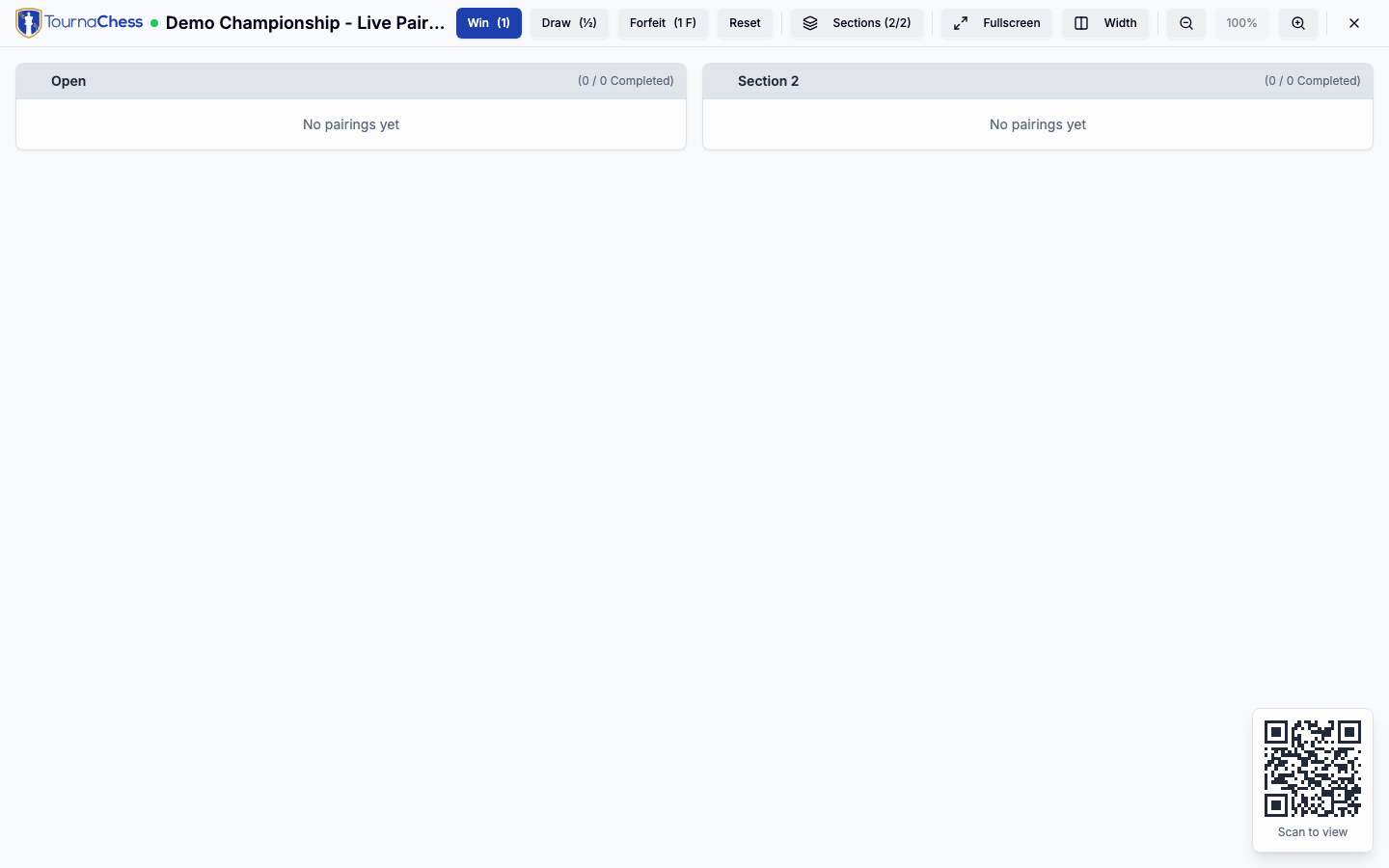
If you are logged in as a tournament director, you can enter game results directly on the pairings display for convenience.
How it works
When a TD is signed in on the device running the display, a row of score mode buttons appears at the top of the pairings view:
- Win (1) -- Click on a player's score box to record a win for that player.
- Draw (1/2) -- Click either player's score box to record a draw.
- Forfeit (1 F) -- Click on the winning player's score box to record a forfeit win.
- Double Forfeit (0 F) -- Click either player's score box when neither player showed up; both are scored 0.
- Reset -- Click on a game's score box to clear an existing result.
To enter a result: select a score mode, then click the score box next to the winning player (or either player for a draw). The result appears immediately on the display, and all other connected displays update within seconds.
After entering a draw, forfeit, double forfeit, or reset, the score mode automatically returns to Win so you are ready for the next result without an extra click.
Tip: If multiple TDs are entering results at the same time -- one on the display and another on the management page -- TournaChess detects the changes and keeps both views in sync.
Who can enter results
Result entry buttons appear only for users with tournament management permissions: club owners, administrators, and tournament directors. Regular visitors and players see the standard read-only pairings display with no score buttons.
If your club uses guest TD accounts, a guest TD can sign in on the display device to enable result entry without needing a personal TournaChess account. Navigate to your club's guest TD login page, enter the club's TD password, and the display will activate TD mode.
Visual feedback
- Amber border: The game is in progress and ready for a result.
- Yellow pulse: A result has been submitted and is being saved.
- Gray border: The game already has a recorded result.
Bye games cannot be edited from the display and do not show interactive score boxes.
Real-Time Updates
Display views update automatically as you manage your tournament. A manual refresh is not required.
What updates automatically
- Results: As you enter game results -- whether from the management page or directly on the display -- the standings update within seconds.
- New pairings: When you start a new round, the display switches to show the new pairings immediately. Players see their next board assignment as soon as the round begins.
- Registration changes: If a player registers or withdraws, the entry list display reflects the change right away. In Per Round events this includes adding or removing a player from a single round, and the display rolls forward to the next round's entry list as soon as you complete the current round.
- Standings recalculation: Tie-breaks and rankings recalculate live as results come in. Players watching the display can see their position change in real time.
No action required from you
Once the display is open and connected, you do not need to touch it again. Focus entirely on running the tournament from your management device. The display takes care of itself.
If the display device loses its internet connection temporarily, it will reconnect and sync automatically when the connection is restored. You do not need to reload the page.
Live Boards from DGT Electronic Boards
If your venue uses DGT electronic chess boards, TournaChess can put the actual games on screen -- not just the pairings, but the live positions, move by move, with running clocks. On the projector this appears as a Boards display alongside Sections, Pairings, and Standings, showing the current round's games as large tiles.
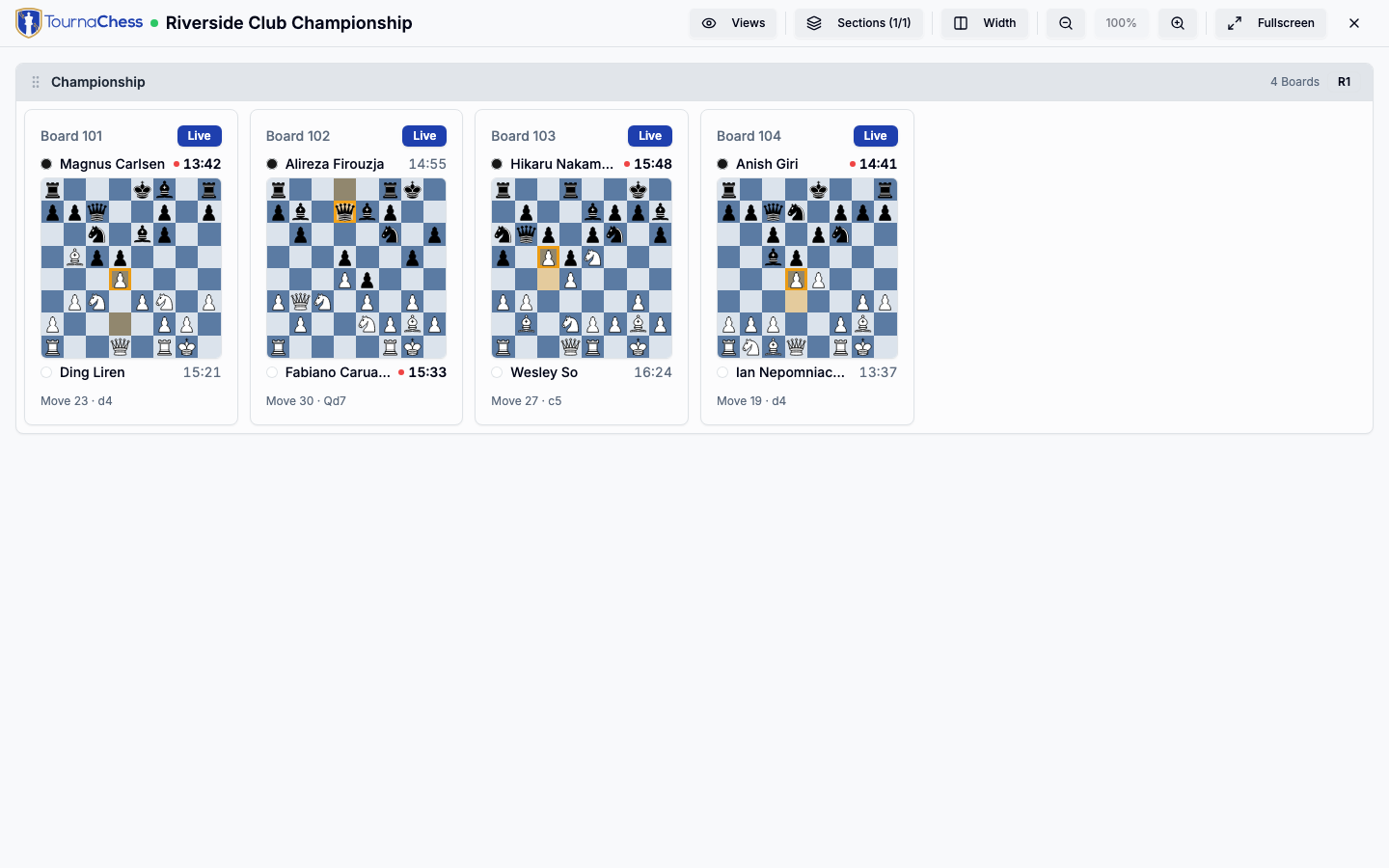
Spectators can also watch from the tournament's Live Boards tab on their own devices, opening any board for a full game view with an interactive move list. Every game is captured into a permanent archive as it's played.
Setting this up takes a LiveChess Cloud feed from the DGT LiveChess desktop app and a few minutes to bind each board. The complete walkthrough -- prerequisites, connecting your boards, watching live, and troubleshooting -- is in the dedicated Live Boards guide.
Hardware Tips
You do not need specialized equipment to run a display. Any screen with a web browser will work. Here are some recommendations to get the best experience.
Running multiple displays
You can open different display views on different screens throughout your venue. Some common setups include:
- Two-screen setup: Pairings on one TV, standings on another.
- Entry hall display: A screen near the registration table showing the entry list so players can confirm their registration as they arrive. In a Per Round event this list covers the current or next round only, so players signed up for a later date will not appear on it.
Troubleshooting
If you run into issues with your display, here are the most common problems and solutions.
Display is not updating
- Check the internet connection on the display device. Open a new tab and try loading any website.
- Reload the page. While the display reconnects automatically after brief interruptions, a full page reload solves most connectivity issues.
- Check your management device. Make sure the results or pairings you entered were actually saved -- look for confirmation on the tournament management page.
Text is too small or too large
- Use the zoom buttons in the display settings to adjust the scale.
- You can also use the browser's built-in zoom (Ctrl + Plus / Ctrl + Minus on Windows/Linux, Cmd + Plus / Cmd + Minus on macOS) as a fallback.
Still have questions? Visit our Contact page to get in touch with TournaChess support.