

Getting Started
Welcome to TournaChess. This guide walks you through creating your account, setting up your profile, and getting ready to participate in or organize chess tournaments. By the end, you will know how to sign up, link your chess ratings, manage player profiles for family members, and join your first club.
What is TournaChess?
TournaChess is a modern web platform for chess club organization and tournament management. It brings together the tools that clubs, tournament directors, and players need into a single, streamlined experience.
Who is TournaChess for?
- Club organizers who want to create and manage a chess club online, handle membership, and coordinate events
- Tournament directors who need to create tournaments, generate Swiss pairings, enter results, and export data for USCF submission
- Players who want to register for tournaments, view pairings and standings in real time, and track their results across events
- Parents and guardians who manage tournament participation for their children through a single family account
Key capabilities
- Club management with role-based permissions for owners, admins, tournament directors, and members
- Tournament creation and operation supporting Swiss and manual pairing formats with configurable sections, time controls, and tie-break rules
- USCF and FIDE rated events with automatic rating lookups, membership validation, and results export for official submission
- Grand Prix series that track cumulative standings across multiple tournaments with configurable scoring, and custom bonus points for special achievements
- Online registration and payments through Stripe, with support for entry fees, early-bird pricing, and in-person payment tracking
- Recurring tournament series for weekly, biweekly, or monthly club events
- A subscribable club calendar that members add to Google Calendar, Apple Calendar, or Outlook and that keeps itself up to date as the schedule changes
- Live venue displays with auto-refreshing pairings and standings for TVs and projectors, complete with QR codes for players
Just registering for a tournament? You do not need to create a TournaChess account for an event that is open to anyone. Follow the event's public registration link and register as a guest. Accounts are useful for saved player details, registration history, and club membership, but they are optional for public registration.
Creating Your Account
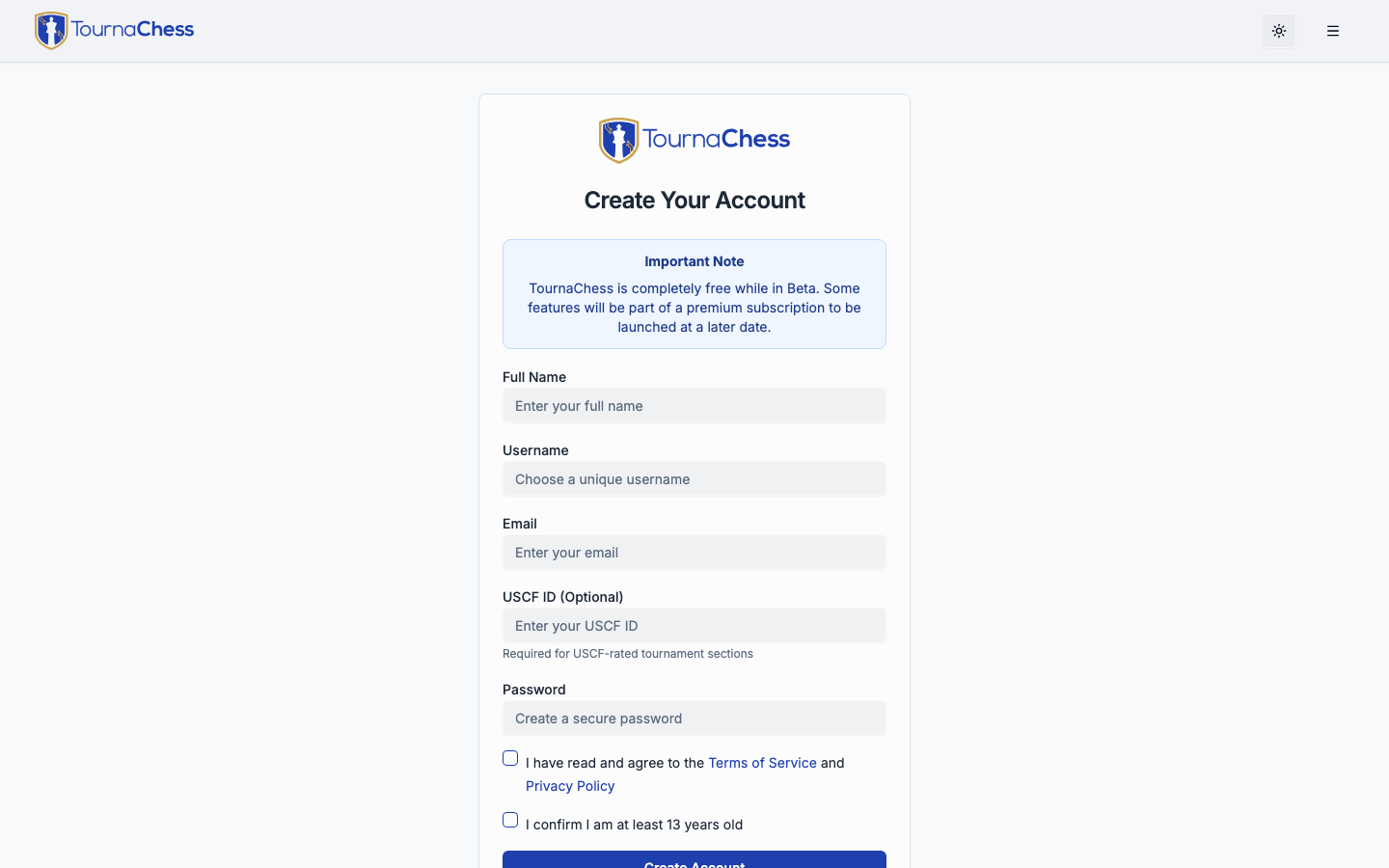
You can create a TournaChess account using either an email address with a password or your Google account.
Sign up with email and password
- Navigate to the TournaChess registration page.
- Enter your first name, last name, and email address.
- Choose a password.
- Select a username (see requirements below).
- Optionally tell us whether you are using TournaChess as a player, a tournament organizer, or both, and how you heard about us. Both questions can be left blank, and neither affects what your account can do.
- Click Sign Up to create your account.
Sign up with Google
- Click Sign in with Google on the registration page.
- Select your Google account and authorize TournaChess.
- Your account is created using the name and email from your Google profile.
- You will be prompted to choose a username to complete your profile.
Tip: Signing up with Google automatically verifies your email address, so you can skip the verification step and start using all platform features right away.
Email verification
After signing up with an email and password, you will receive a verification email with a confirmation link. Click the link to verify your email address.
Until your email is verified, you can still browse public tournaments and register as a participant. However, creating clubs, creating tournaments, and joining clubs require a verified email. The verification link expires after 3 days, but you can request a new one from the banner that appears when you are logged in.
That banner also shows the address we sent the link to. Check it against the address you meant to use -- if you mistyped it at signup, the link went to an address you cannot read, and resending will not help. Choose Change email address on the banner to open your account settings, then enter the correct address. We send a fresh confirmation link to the new address, and clicking it verifies your account. If you signed in through Chess.com and have never set a password, the Security page asks you to set one first -- we confirm an email change against your password, so your account needs one before it can be changed.
Choosing your username
Your username is your unique identity on TournaChess. It appears in URLs and is how other users can identify your account.
- Must be globally unique across the platform
- Can contain letters, numbers, hyphens, and underscores
- You can change your username later in your account settings, as long as the new name is available
Linking Your Chess IDs
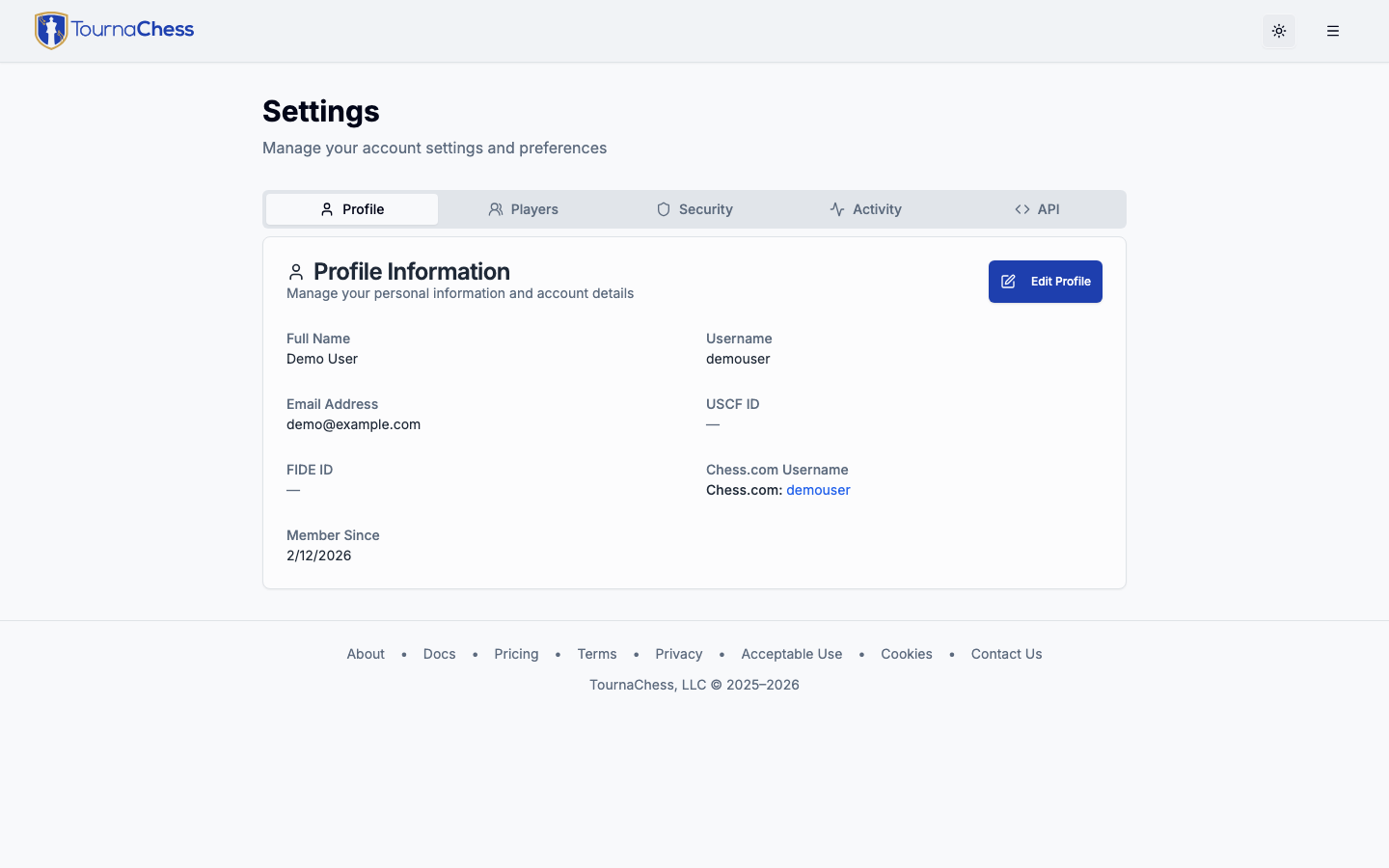
After creating your account, you can link your chess federation IDs and online accounts to your TournaChess profile. This step is optional but highly recommended if you plan to participate in rated tournaments.
Adding your USCF ID
- Go to Settings from the navigation menu.
- Find the USCF ID field in your profile settings.
- Enter your USCF member number.
- TournaChess validates your ID against the USCF database and retrieves your current rating.
Once linked, your USCF rating is automatically displayed when you register for tournaments. Tournament directors can see your rating in entry lists and pairings, and it is used for Swiss pairing seeding.
Tip: If you do not have a USCF membership, you can still participate in unrated tournaments. For USCF-rated events, your tournament director can help you get set up.
Adding your FIDE ID
- Go to Settings from the navigation menu.
- Find the FIDE ID field in your profile settings.
- Enter your FIDE ID number.
Your FIDE ID is used for FIDE-rated sections and dual-rated (USCF+FIDE) events. If you need a FIDE ID, your national federation can assist with the registration process.
Linking your Chess.com account
TournaChess supports linking your Chess.com account through a secure OAuth connection.
- Go to Settings and navigate to the Security section.
- Click Link Chess.com Account.
- You will be redirected to Chess.com to authorize the connection.
- Once authorized, your Chess.com username is automatically saved to your TournaChess profile.
Your Chess.com username stays in sync. If you change your handle on Chess.com, it updates on TournaChess the next time you sign in with Chess.com.
Note: If you already have a TournaChess account, always sign in with your existing credentials first, then link Chess.com from Settings. This ensures your accounts are connected correctly.
Why linking matters
Linking your chess IDs provides several benefits throughout the platform:
- Automatic rating display: Your current USCF or FIDE rating appears on entry lists, pairings, and standings without any manual entry by you or the tournament director.
- Faster registration: When you register for rated tournaments, your rating information is pre-filled.
- Player identification: Tournament directors and the Grand Prix tracking system use your chess IDs to identify you consistently across events, even if your name varies slightly between registrations.
- Title display: If you hold a chess title (NM, FM, IM, GM, or other FIDE titles), it is displayed alongside your name throughout the platform.
Managing Player Profiles (Family Accounts)
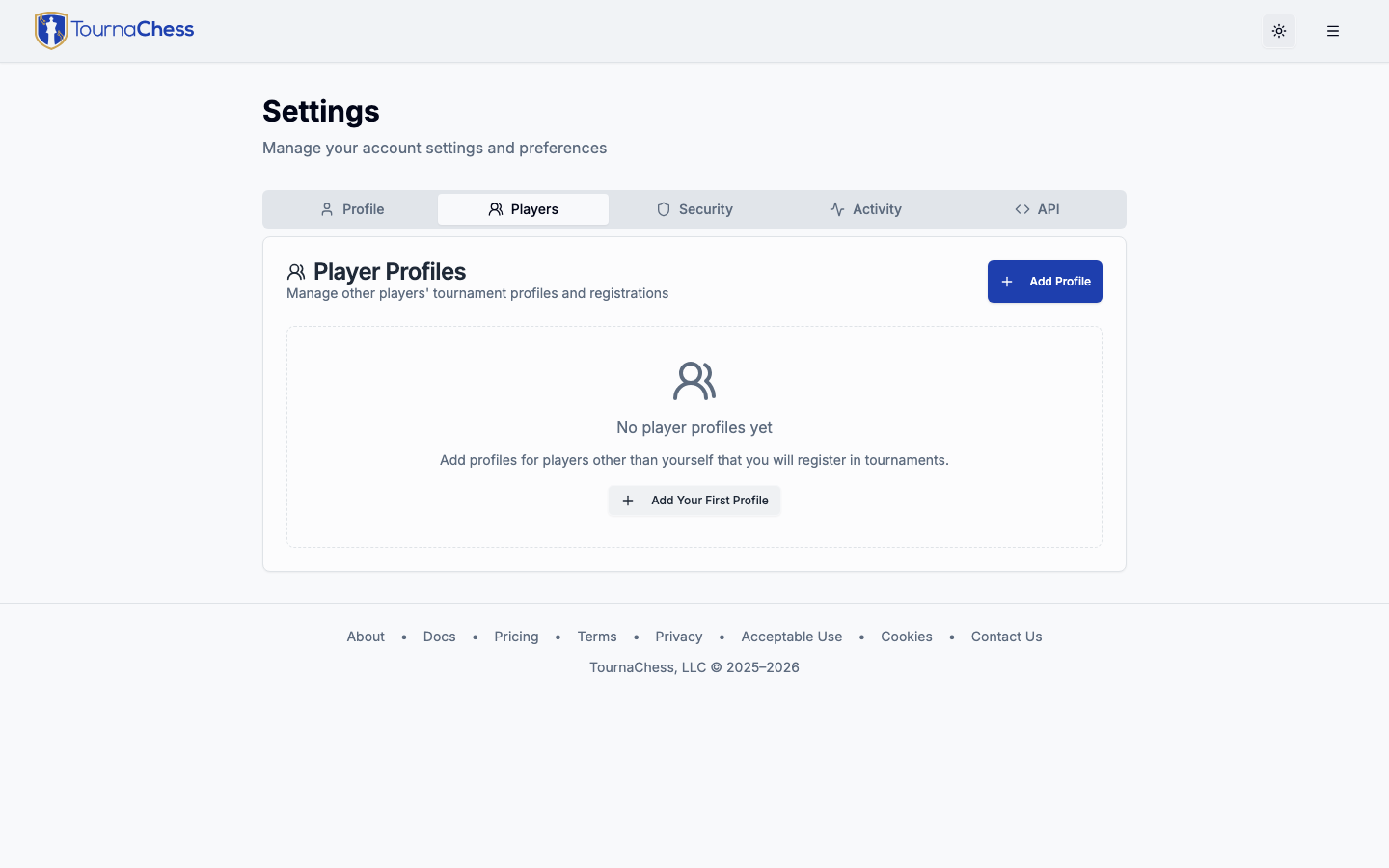
TournaChess allows a single account to manage multiple player profiles. This is designed for parents who register their children for tournaments, coaches managing students, or anyone who handles tournament participation on behalf of others.
How it works
- Your main account represents you as a player.
- You can create additional managed profiles, each representing a separate player (such as a child or student).
- Each managed profile has its own name, optional USCF ID, optional FIDE ID, tournament history, and ratings.
- When registering for a tournament, you choose whether to register yourself or one of your managed profiles.
Creating a managed profile
- Go to Settings from the navigation menu.
- Navigate to the Managed Profiles section.
- Click Add Profile.
- Enter the player's name and, optionally, their USCF ID and FIDE ID.
- Save the profile.
Registering managed profiles for tournaments
When you open a tournament registration form, you will see the option to select which profile you are registering. Choose the appropriate managed profile, and the registration is created under that player's name and ratings. The managed profile accumulates its own tournament history, separate from your personal results.
Tip: Managed profiles are ideal for families with multiple players. Instead of creating separate accounts for each child, one parent account can handle all registrations, payments, and tournament tracking in one place.
Finding and Joining a Club
Clubs on TournaChess are invite-only. There is not currently a public directory of clubs. In most cases, it is not necessary to join a club to participate in a tournament. If you need to join a private tournament, or need to have special permissions (like a Tournament Director role), you will need to be a member of the club that organizes the event. A club admin can invite you to join the club in that case.
Follow a public club
Sign in and open a public club’s page to select Follow club. Followed public clubs appear alongside your memberships in My Clubs, both on your Home page and the Clubs page. Clubs you only follow are labeled Following; a club you also belong to appears once with your membership role. The separate Followed Clubs page lets you view and manage your follows. Following is separate from membership and does not grant a club role or access to private content.
When you register yourself or someone else for a public club’s tournament while signed in, your account automatically follows the organizer unless you already have a member, tournament director, admin, or owner role in that club. For paid registrations, this happens when payment completes or a director activates your pending registration. Anonymous guests do not have a followed-clubs list.
Select Unfollow club on the club’s page at any time. If a followed club becomes private or inactive, your list shows a generic unavailable entry with Remove follow, without exposing its details.
How to join a club
A club owner or admin invites you by entering your email address on the club's member management page. You must already have a TournaChess account registered with that email address for the invitation to be created. Once the invitation is sent, it appears on your home page when you sign in.
Accepting an invitation
- Sign in to TournaChess and go to your home page.
- Pending club invitations appear in the My Clubs section, highlighted in orange.
- Review the club name, the person who invited you, and the role you have been assigned.
- Click Accept to join the club, or Decline to dismiss the invitation.
Once you are a member, you can see the club's tournaments, register for events, view the member list, and access the club's tournament history. Your club organizer may later promote you to a Tournament Director or Admin role if needed.
Note: Invitations expire after 30 days. If you do not accept in time, the club admin will need to send a new invitation.
Your clubs
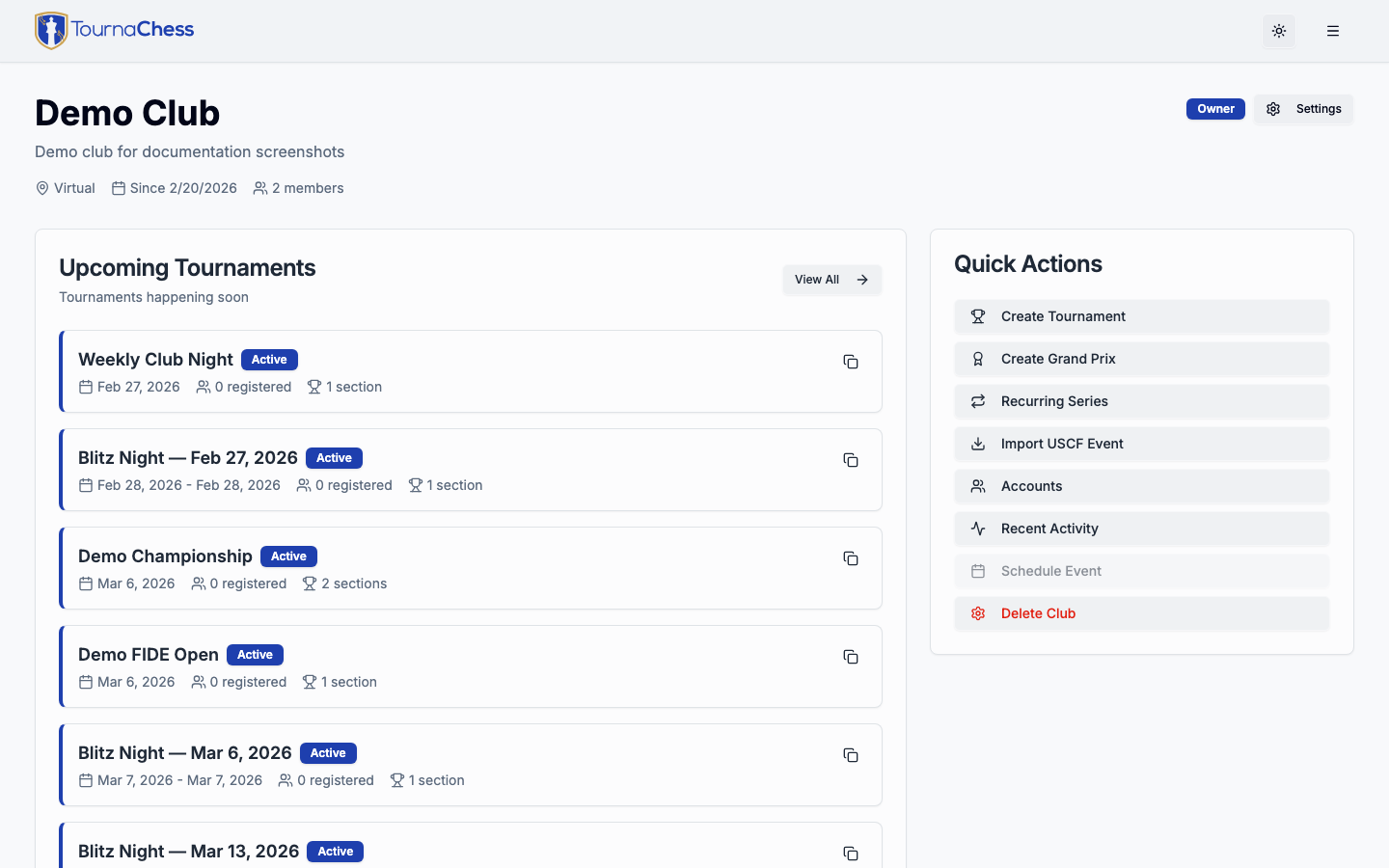
View your memberships and followed public clubs from My Clubs on your Home page or the Clubs page in the main navigation. Each club shows its upcoming Events and tournaments together, plus recent activity. You can be a member of multiple clubs simultaneously, with a separate role in each.
Next Steps
Now that your account is set up and you have joined a club, here is where to go next depending on your role:
-
Playing in tournaments? Read the Player Guide for everything you need to know about registering for events, viewing pairings, understanding standings, and getting the most out of your tournament experience.
-
Starting a club? The Club Management guide covers creating a club, inviting members, and configuring settings.
-
Running tournaments? Start with Creating Tournaments for setup, then Running Tournaments for pairings, results, and round management.
-
Managing a club? The Club Management guide covers club settings, member management, Stripe payment setup, and role administration in detail.
Still have questions? Visit our Contact page to get in touch with TournaChess support.