

Live Boards
Live Boards streams the games on your DGT electronic chess boards straight into TournaChess. Spectators watch every move as it happens -- with a real board, running clocks, and a full move list -- and every game is captured into a permanent, on-platform archive you can review long after the round is over.
There is nothing to install on the TournaChess side and no plugin to run. You point TournaChess at the same LiveChess Cloud feed your boards already publish, tell it which physical board sits at which pairing, and the live games appear for everyone.
A few things that make this different from a raw board feed:
- Games are archived permanently. Moves are captured continuously and turned into a PGN game record that lives on the tournament, so a finished game stays fully reviewable.
- Boards are matched by hardware, never by name. Each game is attributed to a board by its serial number, so the archive can't be fooled by a name typo -- but it does mean you are responsible for seating the right players at the right board (more on that below).
What You Need
Before you can turn on Live Boards, you'll need:
- DGT electronic boards at your venue, set up as you normally would for broadcasting.
- The DGT LiveChess desktop application, running on a computer at the venue and connected to your boards. This is DGT's own software -- TournaChess does not replace it.
- A LiveChess Cloud connection. In the DGT LiveChess app, click "to Cloud" to publish your tournament. LiveChess gives you a public tournament URL that looks like
https://view.livechesscloud.com/#/...-- that's the link you'll paste into TournaChess. - Tournament Director access (or higher) on the tournament, to run the setup. Spectators need nothing but the tournament page.
Tip: You can connect the feed and configure your boards ahead of time -- even before they're publishing -- so everything is ready the moment the round starts (see Setting up before your boards are online). It's still worth confirming the feed works in DGT's own viewer first: live games only appear once the boards are actually reaching the cloud.
Connecting Your Boards
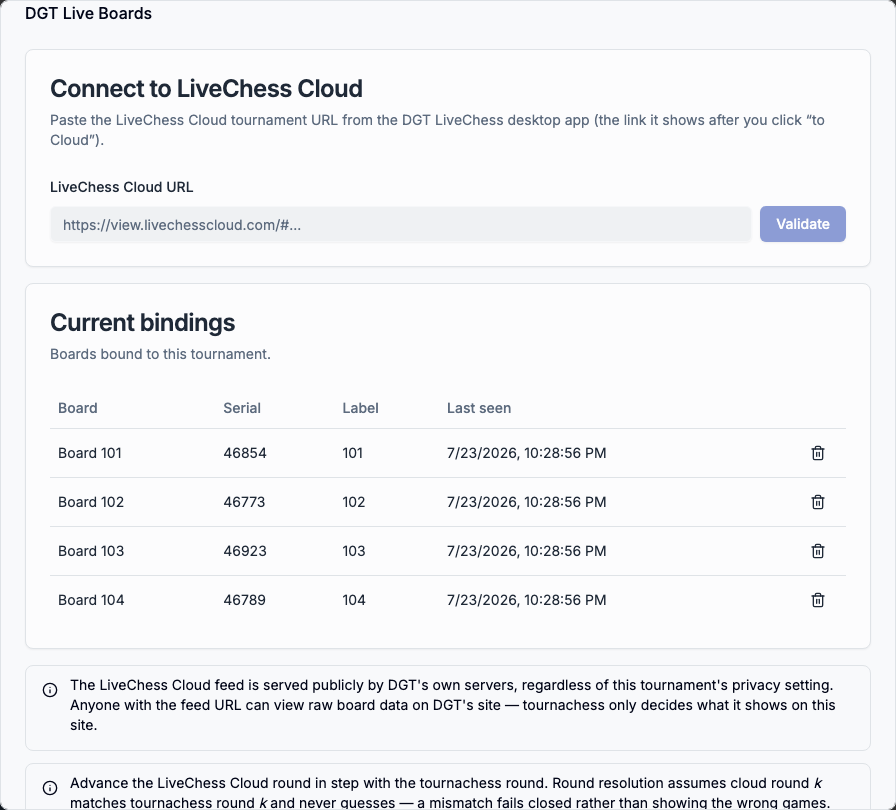
Setup lives in the tournament's settings, and it only has to be done once per event. Open your tournament, choose Tournament Settings from the Actions menu, and go to the Boards tab. Scroll to the DGT Live Boards section.
1. Connect the feed
Paste your LiveChess Cloud tournament URL into the field and click Validate. TournaChess reads the feed, confirms it can reach it, and reports back the feed name and how many boards it found -- for example, "Connected to 'Spring Open' -- found 8 board(s)."
Only the tournament identifier in the link is used; the rest of the URL is discarded. One LiveChess Cloud feed connects to one TournaChess tournament.
2. Name each board
Each board is discovered by its hardware serial number. The first time you see a board, give it a friendly name -- "Board A", "DGT Pegasus 3", whatever helps you recognize it. Named boards are saved to your club, so the next time you run an event with the same equipment they're already there.
If a board you expect isn't listed -- common when you connect before the round starts -- you can add it by hand instead of waiting; see Setting up before your boards are online.
3. Bind boards to the tournament
Binding tells TournaChess which physical board is playing which game. Bind each board to its board label -- the board number the pairing is on, like 1 or A3. If you use a board pool, bind it to the corresponding pool slot. Manually paired games also match that slot by its label: a game on board 101 uses the DGT board bound to the slot labeled 101, even when the game has no pool-slot assignment. Pool labels must be unique regardless of capitalization or surrounding spaces (A3 and a3 identify the same label). If an older pool contains such duplicates, give the slots distinct labels before using manually numbered games. Each DGT board must correspond to only one game per round. Changing a pool label changes which manually numbered games match that slot. TournaChess clears affected unfinished captures and fetches them again from the newly matched board; finalized game archives are preserved.
Once a board is bound, it appears in the Current bindings table with its name, serial number, label, and when it was last seen reporting data. You can remove a binding at any time with the trash icon.
Tip: Bindings are by board identity, not by player. You set them up once; you do not need to re-bind between rounds as pairings change. TournaChess follows the round automatically.
Setting up before your boards are online
You don't have to wait until the boards are live to configure them. LiveChess Cloud only lists a board's serial number once that board is actually online and reporting -- so if you connect the feed early, before the first round or before the venue app is publishing, TournaChess reports "found 0 boards on the feed." That's expected, not a fault.
When it happens, you can set everything up by entering serial numbers by hand. Under the connect field, type a board's serial number into Enter a board serial manually and click Add serial. The board appears in the list -- flagged Not on feed yet -- and you name and bind it exactly like a discovered board. You'll find each board's serial number in the DGT LiveChess app.
Boards added this way sit idle until they come online. The moment a board with that serial starts reporting, TournaChess picks it up and begins capturing automatically -- there's nothing to come back and re-link. And if a serial you typed later appears on the feed on its own, it simply merges with the row you already created rather than showing up twice.
Tip: Serials you've used before are remembered by your club. Enter one that's already in your club's board registry and TournaChess skips straight to binding -- no need to name it again.
Watching Live
Once boards are connected and a round is under way, a Live Boards tab appears on the tournament page for everyone -- spectators included. (A green ● Live boards badge also shows in the tournament header from any tab; click it to jump straight there.)
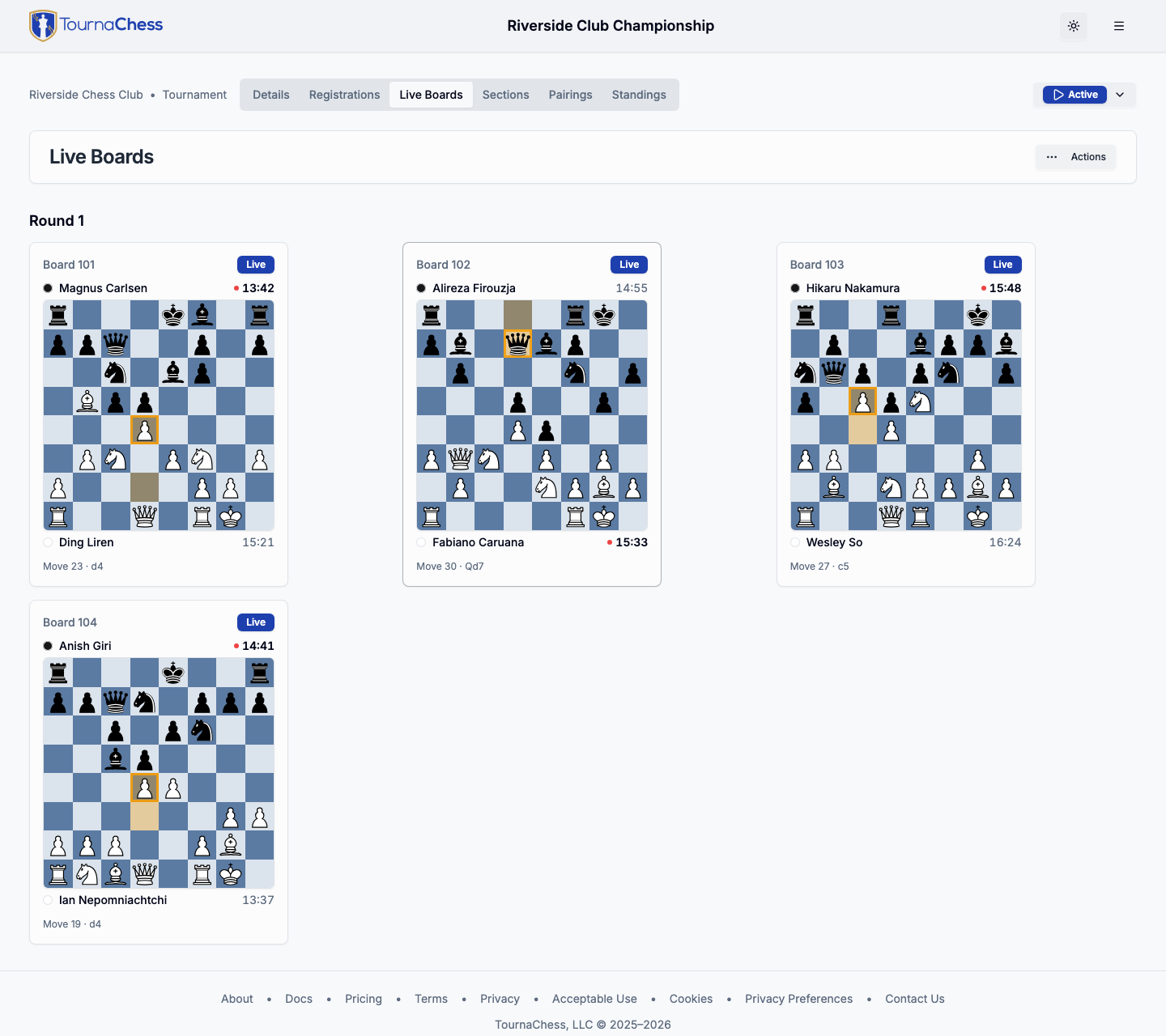
The tab has two areas:
- Live -- every in-progress round that has boards on it, shown as a grid of compact board cards. Each card shows the board number, a Live badge, both players, their clocks, and the latest move. Positions refresh from the feed every few seconds, while the active clock counts down smoothly on your screen between updates. When either player drops under a minute, the boards start refreshing about once a second so a time scramble stays current.
- Browse -- once a round finishes, its boards stay reviewable here. When there's more than one finished round to look back on, a View round dropdown lets you pick which one to review, so a game that just ended doesn't disappear the moment the round closes.
Click any board card to open the full game.
The live game view
The game view shows a full board with the last move highlighted, a running move list, and both players' clocks -- the side to move counts down live. TournaChess keeps a running clock smooth between feed updates instead of repeatedly resetting it from every poll. When the physical clock pauses, resumes, or changes sides, the latest DGT reading becomes authoritative, so you may see one small correction at that boundary.
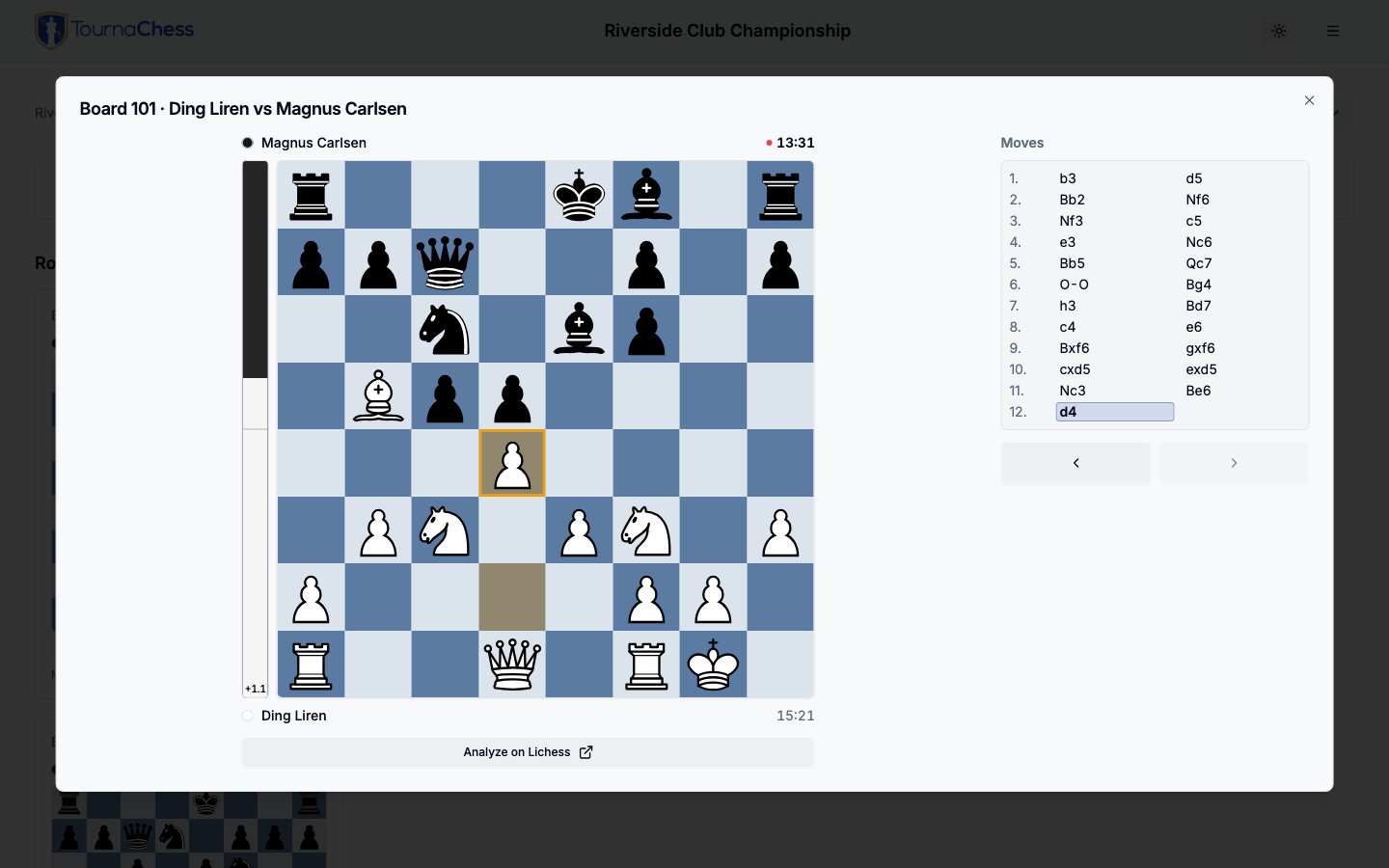
- Browse the moves. Click any move in the list to jump to that position, or use the arrow keys (Left/Right to step, Home/End to jump to the start or the latest move). The board follows along.
- Jump back to live. If you've scrolled back into the game's history, a Jump to live button brings you to the current position.
- Analyze on Lichess. Open the current position in Lichess's analysis board in a new tab.
On the projector
Live Boards also plug into the venue display. Open the projector view from the Actions menu (View on projector) and choose the Boards display -- the current round's boards appear as large tiles, perfect for a screen in the playing hall or skittles room.
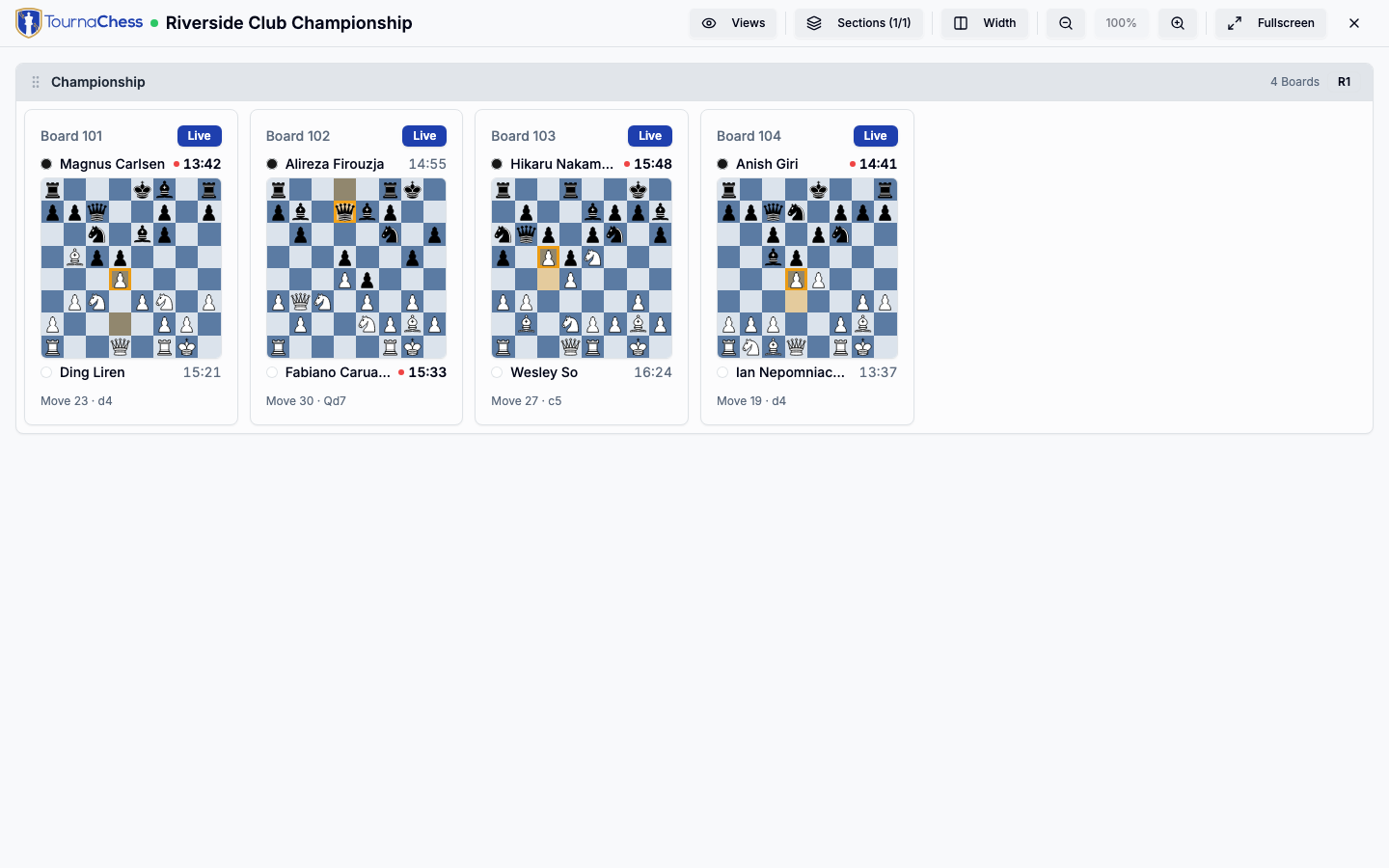
For everything else about venue screens -- full-screen mode, zoom, QR codes, and multi-screen setups -- see the TV & Projector Displays guide.
From the pairings
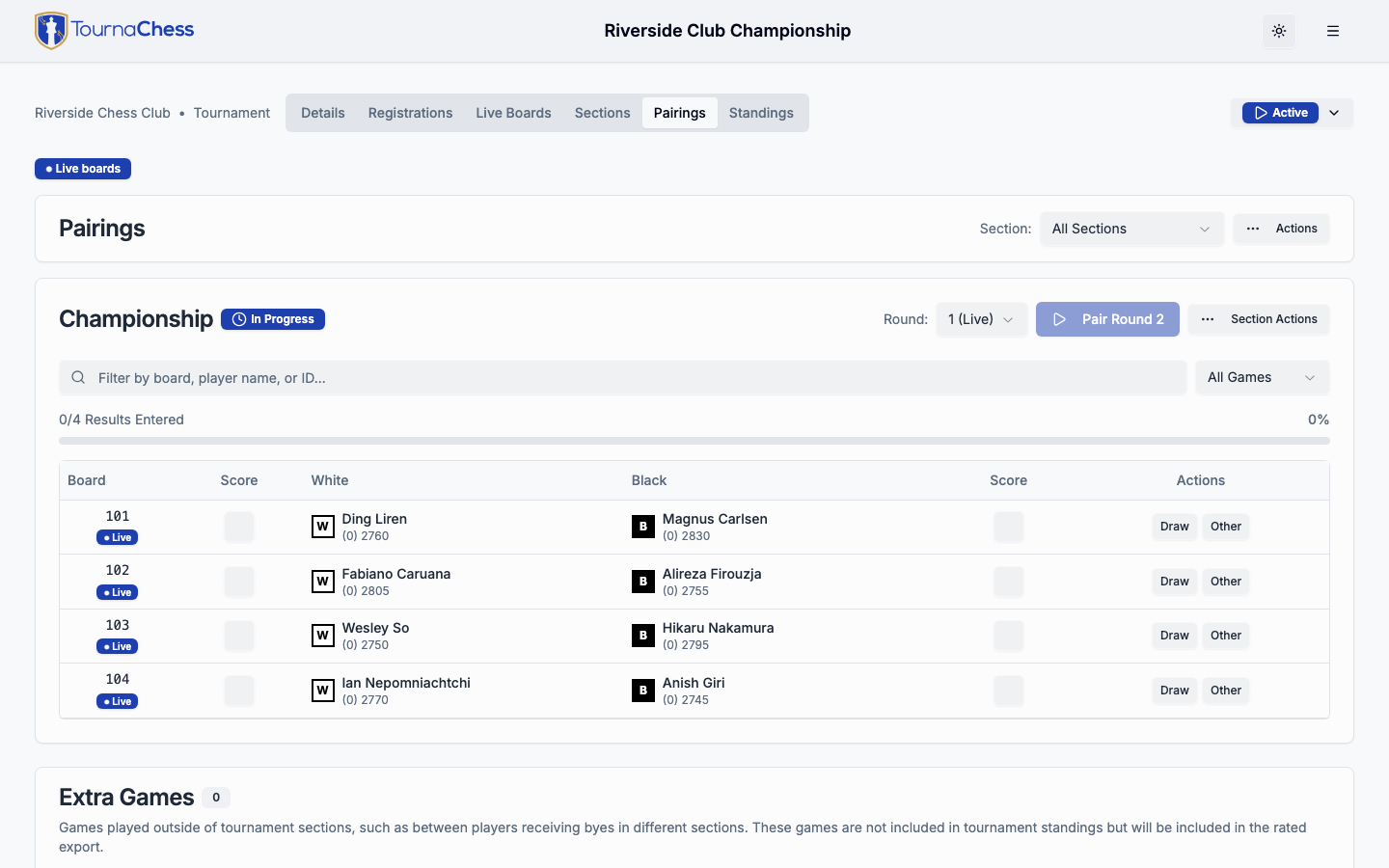
In the Pairings tab, any board that's wired up for live viewing shows a clickable ● Live badge next to its board number. It's a quick way to jump from a pairing straight to that game's live board.
Entering Results
Live Boards never records an official result on its own -- a director always confirms the score. But when a DGT board reports that its game has finished, TournaChess uses that as a helping hand: when you open the result-entry dialog for that pairing, the outcome the board reported is pre-selected for you. Confirm it (or change it) and enter the result as you normally would.
This keeps result entry fast without ever letting the board overrule the director.
Board Status at a Glance
Each board card carries a small status badge:
- Live -- the game is in progress and updating.
- Final -- the game is finished and its result is recorded in TournaChess.
- Incomplete -- capture stopped before a result was recorded (for example, the board stopped reporting).
- Needs review -- the result the board reported and the result in TournaChess disagree. Check the game and enter the correct official result.
- Suppressed -- a director has hidden this board's live data from spectators.
You may also see a game marked unofficial -- awaiting TD result: the board reported an outcome, but no director has entered the official result yet.
Getting Attribution Right
Because a game is matched to a board by the board's serial number, TournaChess trusts your physical setup completely. That trust puts a few responsibilities on you and your floor staff:
- Check the first move. Right after a game starts capturing, glance at the board on screen and confirm the first move shown matches the move actually played. A board set up with reversed orientation will mirror its moves (a played
d4can read ase4) -- catching it on move one saves the whole game. - Advance rounds in step. TournaChess expects LiveChess Cloud round k to line up with tournament round k. If the LiveChess round and the tournament round get out of sync, TournaChess shows nothing for the affected boards rather than guessing -- it will catch up once they line up again.
- Move all sections together. A tournament has one feed, so if your event has multiple sections, advance their rounds together. A section left a round behind won't resolve its boards until it catches up.
Tip: The safest routine is: start the round on the floor, start the round in TournaChess, then open the Live Boards tab and eyeball the first move on each board. Thirty seconds of checking prevents a round's worth of mislabeled games.
A Note on Privacy
The LiveChess Cloud feed is public on DGT's servers, regardless of whether your TournaChess tournament is public or private. Anyone who has the feed URL can view the raw board data directly on DGT's site. TournaChess only controls what it shows on this site -- for a private tournament it still restricts the Live Boards tab to authorized viewers -- but it cannot make DGT's own feed private. Treat the LiveChess Cloud URL accordingly.
Troubleshooting
Validate says "found 0 boards on the feed"
No boards are online and reporting to LiveChess Cloud yet -- the feed doesn't list a board's serial number until it connects, so this is normal before the round starts. Either wait until the boards are publishing and click Validate again, or set them up right now by entering their serial numbers by hand -- see Setting up before your boards are online.
The Live Boards tab says "No live boards right now"
- Is a round actually in progress? Live Boards only shows boards for a round that has started in TournaChess.
- Are the boards bound? Check Settings → Boards → DGT Live Boards -- each playing board needs a binding to its board label.
- Do the labels match? A board must be bound to the same board number the pairing is on. If you bound "1" but the pairing is on board "101", they won't connect.
- Is the DGT LiveChess app still publishing to the cloud? If the venue app stopped, the feed goes quiet. Confirm it's still running and connected to the boards.
A board shows the wrong game, or moves look mirrored
This is almost always a physical setup issue: either the players are seated at a board bound to a different pairing, or the board's orientation is reversed. Fix the seating or the board orientation at the venue -- see Getting Attribution Right above.
A board is stuck on "Needs review"
The result the board reported doesn't match what's recorded in TournaChess. Open the game, confirm what actually happened, and enter the correct official result.
The round changed but the boards didn't follow
Make sure the LiveChess Cloud round was advanced in step with the tournament round, and that every section moved to the new round together. TournaChess resolves the boards again as soon as the rounds line up.
Still have questions? Visit our Contact page to get in touch with TournaChess support.