

Chess Tournament Software for Mac, Windows, Linux, and iPad
Any device, nothing to install.
Much of the established tournament software is a Windows desktop program with a license file, and directors on a Mac, a Chromebook, or an iPad have had to borrow a laptop or run a virtual machine. TournaChess is a web application. This guide answers the questions that come up when a club evaluates it on those terms: what has to be installed, which devices a director can run an event from, how several directors work on the same event at once, and what depends on an internet connection.
The short version
- Nothing to install. TournaChess runs in Safari, Chrome, Firefox, or Edge on macOS, Windows, ChromeOS, Linux, iPad, and phones. There is no download, no license file, and no Windows-only component.
- Any device, any mix of devices. Set up on a laptop, enter results from a phone, and put pairings on a TV from whatever is plugged into it.
- Directors work together. Every director in the club can manage every club event, and during a running event each other's pairings, results, registrations, and standings appear within seconds. Helpers use a shared Guest TD login.
- The venue needs internet. Pairings are computed by TournaChess's servers, so there is no offline mode.
What you need to install
Nothing. Open tournachess.com in a browser, sign in, and you are running the current version. Updates arrive on their own and there is nothing to keep patched on a club laptop.
For a Mac specifically, that means Safari or Chrome on macOS is a complete tournament setup. The only Mac-specific detail in the product is that the display view's zoom shortcut is Cmd and plus or minus rather than Ctrl.
There is also no TournaChess app to install on a phone or tablet. The site is built to work on small screens, so the tournament page in a mobile browser is the mobile app. Add it to the home screen if you want an icon.
Which devices directors use
A typical event uses several devices at once, none of them special:
- A laptop or desktop for creating the event, reviewing pairings, and anything with a lot of columns. The management pages are responsive, so a tablet works here too.
- A phone at the boards for 1-click result entry as games finish. The registrations list and pairings adapt to narrow screens.
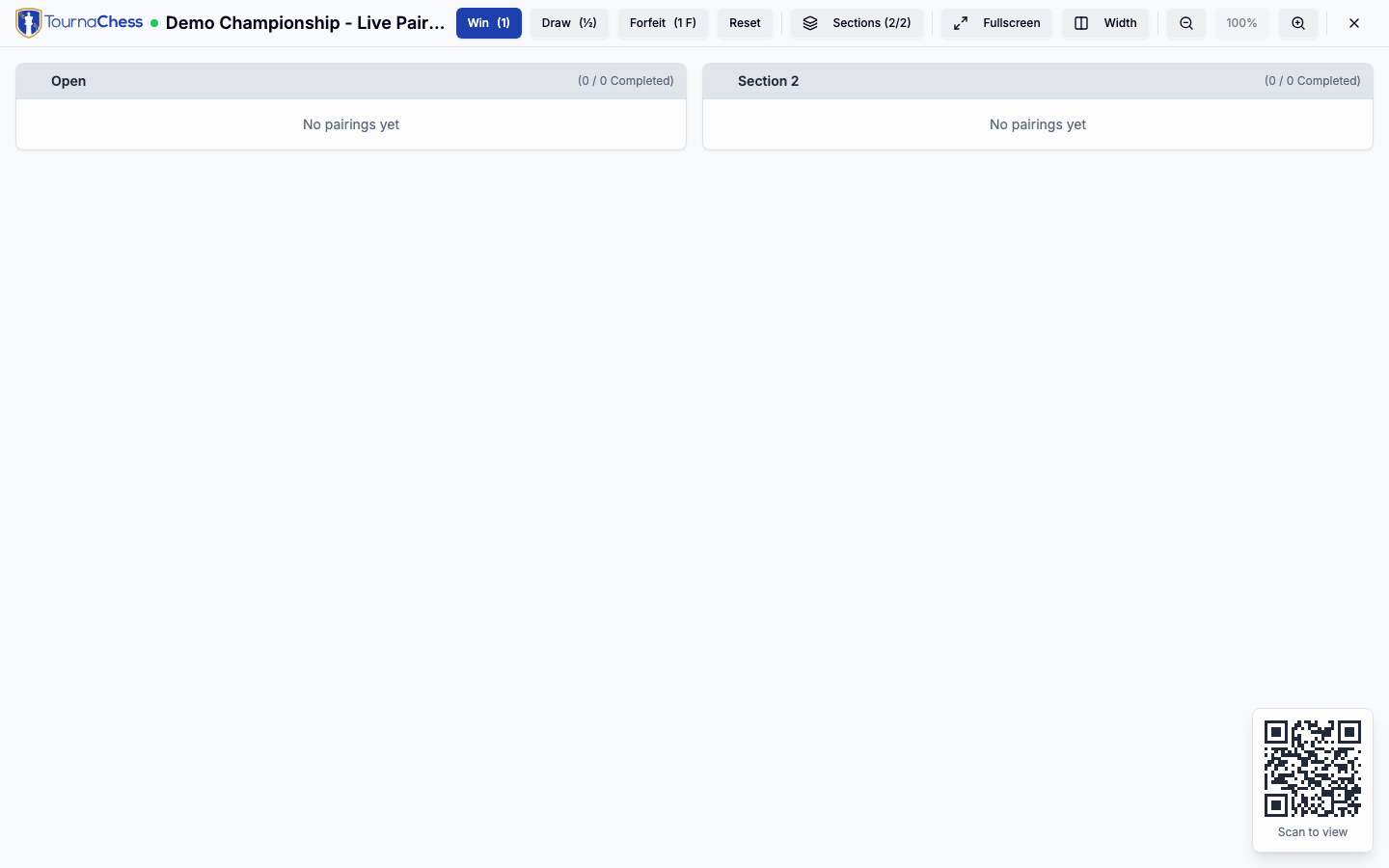
- Whatever drives the venue screen. The display view is a web page. A laptop on HDMI, a smart TV's own browser, or a Chromecast or Fire Stick with a browser app all work, and several screens can show different views. For a publicly viewable tournament the display needs no login; for a private one, sign in on the display device first. A signed-in director can enter results directly on the display.
- Players' own phones. Pairings and standings are on the public tournament page, so a QR code on the screen replaces most trips to the director's table.
Working with several directors
Permissions are set per club, with four roles: Owner, Admin, Tournament Director, and Member. Anyone with the Tournament Director role or above can create and run any of the club's tournaments, and the club's subscription covers as many directors as you want to add. See Roles & Permissions.
On the day, that means:
- Several directors on one event. One can pair the Open section while another pairs the Under 1200 section. Two can enter results at once, one on the management page and one on the display, and each sees the other's results within seconds. Standings, pairings, and the display all update the same way.
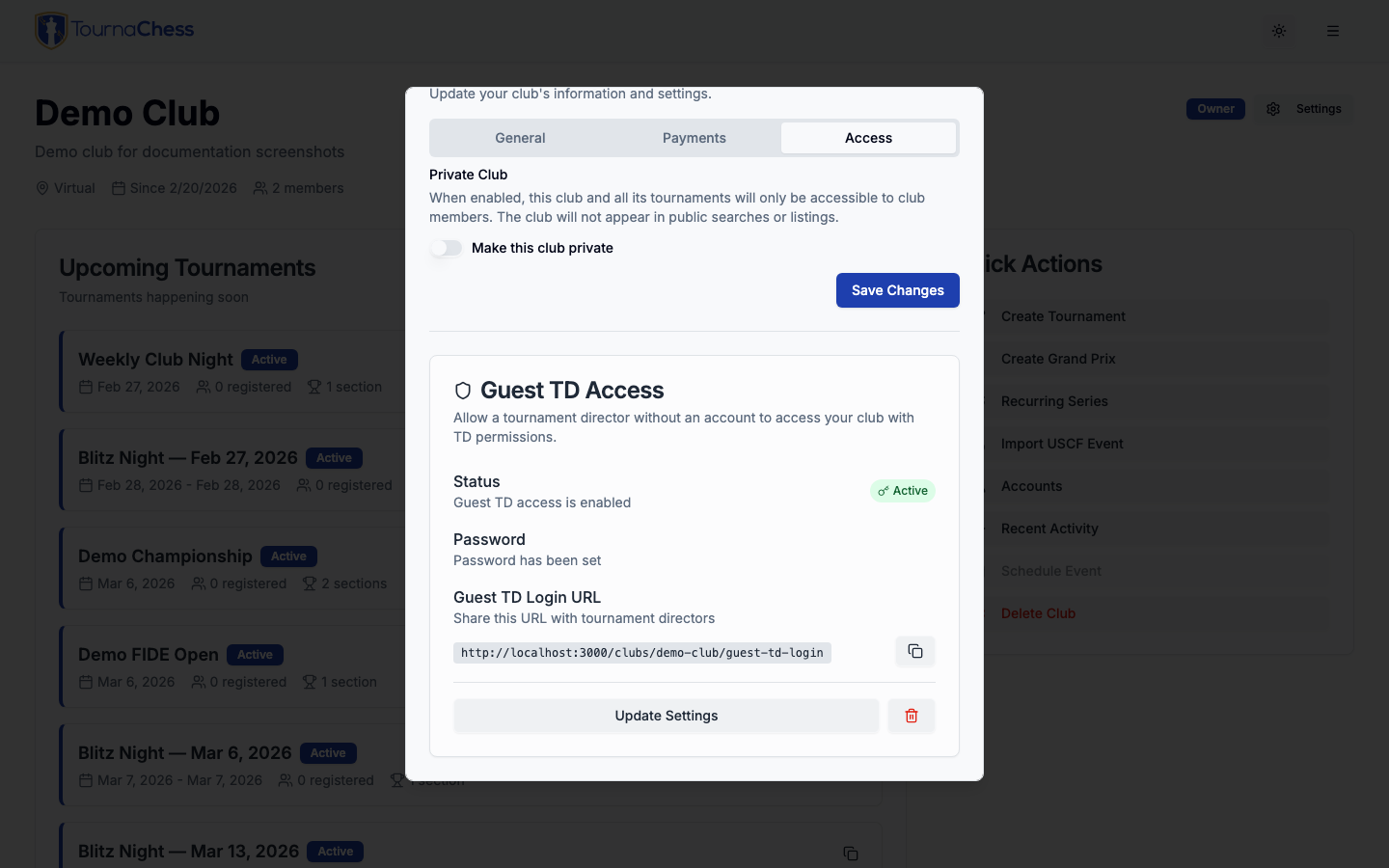
- Helpers without accounts. A Guest TD login is a shared, password-protected credential for the club. A friend covering one section can sign in on their own phone and enter results without creating an account, and several helpers can use it at the same time. It grants broad, club-wide access to existing tournaments, subject to the shared-account restrictions in the linked guide: it cannot use normal tournament creation or duplication, create recurring or Grand Prix series, or email players on any plan, but it can add tournaments through imports. Every helper sharing the password can view sensitive participant data across the club -- contact details, gender where available, payment metadata (not card numbers or security codes), and administrative notes -- and download player records and registration exports, including collected custom-field answers in registration exports. Use a personal club account for Grand Prix bonus-point management; disabling Guest TD deletes any manual bonus-point awards made by the shared account and can change standings. Share the password only with people you would trust at the director's table. To cut that access off afterwards, turn Guest TD access off in club settings rather than just changing the password. When access is disabled, past Recent Activity entries lose the Guest TD actor label; the shared login never identifies individual helpers. Changing the password stops new sign-ins but does not sign out a helper who is still logged in; turning the access off removes the shared account altogether.
- Directors in different places. Because the event lives on the server rather than on one laptop, a director at home can review the entry list the night before, and the chief director at the venue picks up exactly where they left off.
Two things to be clear about. Roles are club-wide, not per tournament: there is no way to give someone access to one event but not another in the same club. And the Chief TD and Assistant TD names you enter on a tournament's USCF settings are for the rating report; they do not grant anyone access.
What needs an internet connection
Everything. TournaChess is a hosted service, and there is no offline or local mode. In particular:
- Pairings are computed on TournaChess's servers, not in your browser. Without a connection you cannot pair a round.
- Result entry, standings, and the display all go through the server. The display reconnects and catches up by itself when a dropped connection returns, but nothing new can be entered while it is down.
- Rating lookups for USCF, FIDE, NWSRS, Chess.com, and Lichess are live, as are membership checks.
- Payments through Stripe, confirmation and pairing emails, and text messages.
The connection does not need to be fast. A phone's hotspot is enough to run an event, and worth having as a backup at a venue with unreliable Wi-Fi. If you are running a large event somewhere without any connectivity, TournaChess is the wrong tool for that day; print the pairings sheets from the previous round before you lose the signal, and consider a desktop program for the rest.
Getting data in and out
Nothing is trapped in the browser:
- Rosters in. Import registrations from a CSV exported from any spreadsheet, or add players one at a time. Whole events can be imported from Chess.com, Lichess, Caissa, or a past USCF event.
- Rating submissions out. USCF DBF files, FIDE TRF16, and SJSON for NWSRS or for loading into SwissSys. See Results Export.
- Spreadsheets out. Registrations and club player records export as CSV.
- Paper. Entry lists, pairings, standings, team standings, and prize sheets print from the browser's print dialog, formatted for letter paper. Choose Save as PDF in that dialog to get a PDF; there is no separate PDF export.
The one piece of desktop software: DGT boards
If your venue uses DGT electronic boards, TournaChess can show the games live on the tournament page and the display. That feature relies on DGT's own LiveChess software running on a computer at the venue, which publishes the boards to LiveChess Cloud; TournaChess reads that feed. TournaChess itself still installs nothing, but the DGT setup does. See Live Boards.
Limitations to know before you start
- No offline mode. See What needs an internet connection.
- No native Mac, Windows, iOS, or Android app. The browser is the app.
- Permissions are per club, not per tournament.
- Changes propagate within seconds, not instantly. Screens check for updates every few seconds, and a browser tab in the background pauses checking until it is in front again. This live updating covers a running event's rounds, results, registrations, and standings. It does not cover a draft you are still setting up, or a settings form two directors happen to have open at once, where each needs to reload to see the other's edits.
- Printing is browser printing. Output is consistent, but a PDF comes from the print dialog rather than a download button.
- Text-message notifications use prepaid club credits and reach US and Canadian numbers; email notifications are free everywhere.
Related guides
- Roles & Permissions -- The role hierarchy and Guest TD accounts.
- TV & Projector Displays -- Setting up venue screens on any device.
- Running Tournaments -- Pairing, results, and printing.
- Ratings Overview -- Rating lookups and export formats.
- Weekly Club Tournaments and School & Scholastic Chess Clubs -- The other two use-case guides.
Still have questions? Visit our Contact page to get in touch with TournaChess support.