

Arena Tournaments
Arena sections pair players continuously instead of sharing rounds. Players return to a waiting pool after each game, ready for another opponent as players and boards become available. This guide covers running an arena on the tournament page and showing it on a venue screen.
To configure an Arena section, start with Creating Tournaments. For round-based sections in the same event, see Running Tournaments.
Start the arena and assign boards
Activate the tournament first, then on Pairings, choose the arena section and use Start arena to begin its countdown. Starting or resuming requires an active tournament. Once any arena starts, the tournament cannot return to Draft. Boards follow the section's board settings; there is no separate board-count setting. Sequential arenas stop growing before the next sequential section's starting board, and extra players wait for a free board.
When a batch creates multiple games, higher-ranked pairs get the first available boards in the section’s configured order, while fixed board preferences still take priority. Waiting time still determines who gets to play when boards are scarce.
Manage the waiting pool
The compact Waiting pool above the games shows players not currently in a game. Search by name or use Ready and Paused to filter it. Choose Pause or Resume beside a waiting player, including before the arena starts. A player paused before the start stays out of pairings until you resume them. Clicking a player's name in the pool, a game, or game history opens the same player actions. For a player already playing, Pause after this game prevents their next pairing without stopping the current game.
Ready players show Waiting, and individually paused players show Paused; detailed matching diagnostics do not change these labels. Arena-wide paused or closed states are still shown explicitly.
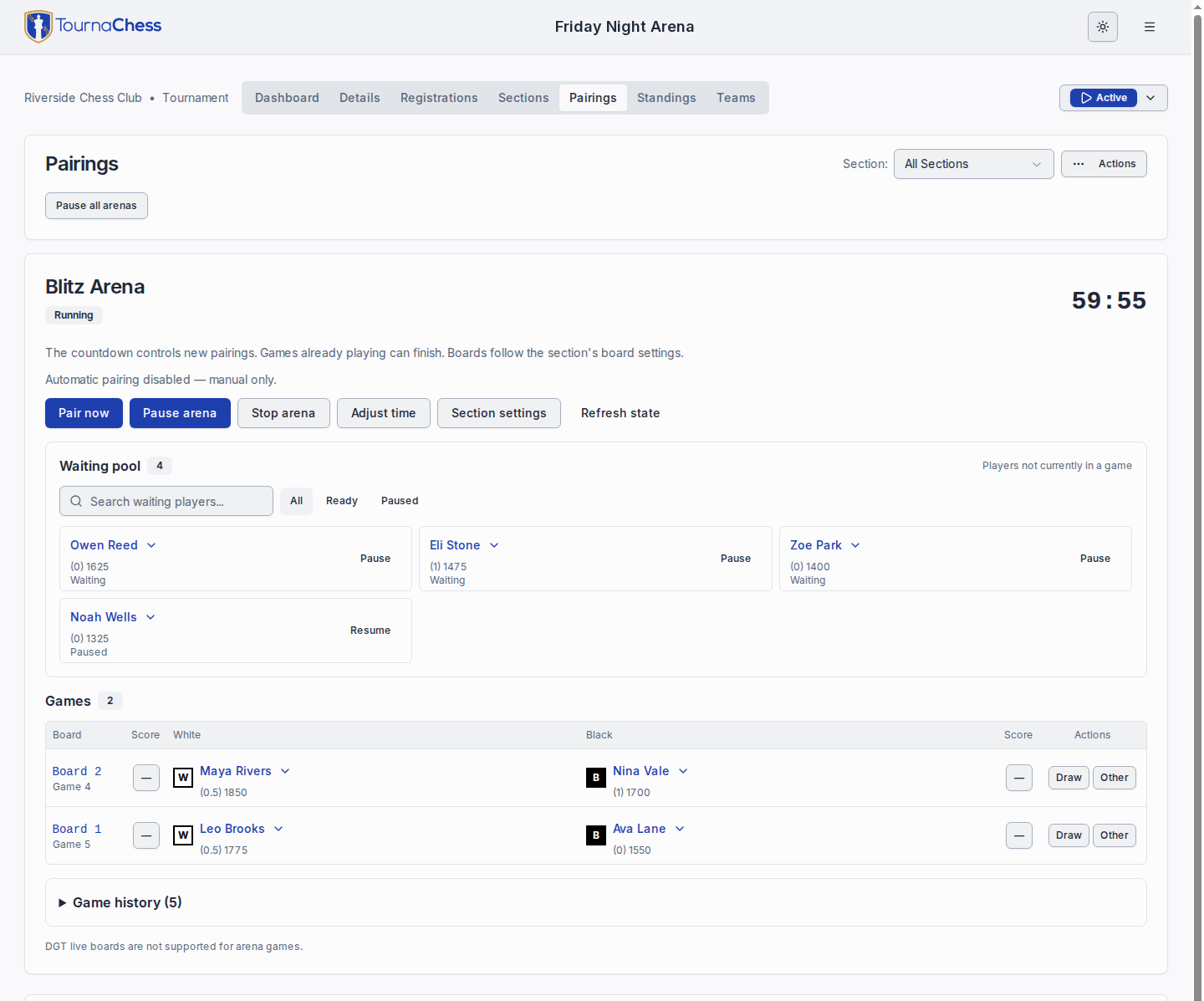
The tournament page keeps waiting players and active games together so directors can manage the next pairings while recording results.
Enter and correct results
Games use the same score boxes and player layout as Swiss pairings. Each player’s current Arena score and section rating appear below their name in the game rows and waiting pool. Click the score box beside White or Black to record that player as the winner, or choose Draw. Clicking the board label opens the standard winner chooser. Other contains forfeit, cancel, void, and correction controls; finished games can be reopened from Other in game history. Arena results do not support custom manual scores. Players return to the waiting pool when their game finishes unless paused or no longer participating.
Control pairing pace
Automatic pairing
Automatic pairing batches use the section’s Automatic pairing cooldown (seconds), defaulting to 15 seconds regardless of time control. Choose a whole number from 1 to 3600 in section settings. The opening batch and small fields with most players waiting can still pair sooner.
Manual-only pairing
Select Disable automatic pairing (manual only) in section settings to take full control of when games start. This disables all automatic batches, including the opening batch. While the arena is running, a director can select Pair now to create one fresh batch from available players and boards. It does not start an automatic pairing loop; players who become available afterward wait for another click. No available match or board is a safe no-op. The countdown still runs and prevents new games when it expires. You can switch between manual-only and automatic pairing in section settings during play.
Pause, stop, and finalize
Pause arena suspends the countdown and new pairings; existing games can finish. Stop arena closes new pairings. Resolve remaining games before finalizing standings.
After finalization, you can still edit the section's name, description, and registration-page visibility. Reopen the arena before changing results, Custom tiebreak values, or settings that affect standings. Finalized arenas with a USCF rating source can be included in Export Results → USCF Export. The export groups completed games into report rounds with at most one game per player per round; these do not change arena standings. SJSON and TRF exports for arenas remain unsupported. See USCF results export.
Follow arena standings
The Standings tab and projector show each player’s score out of their own completed games, such as 1.5 / 3 for a win, a draw, and a loss. Unfinished, cancelled, and voided games do not increase the possible score.
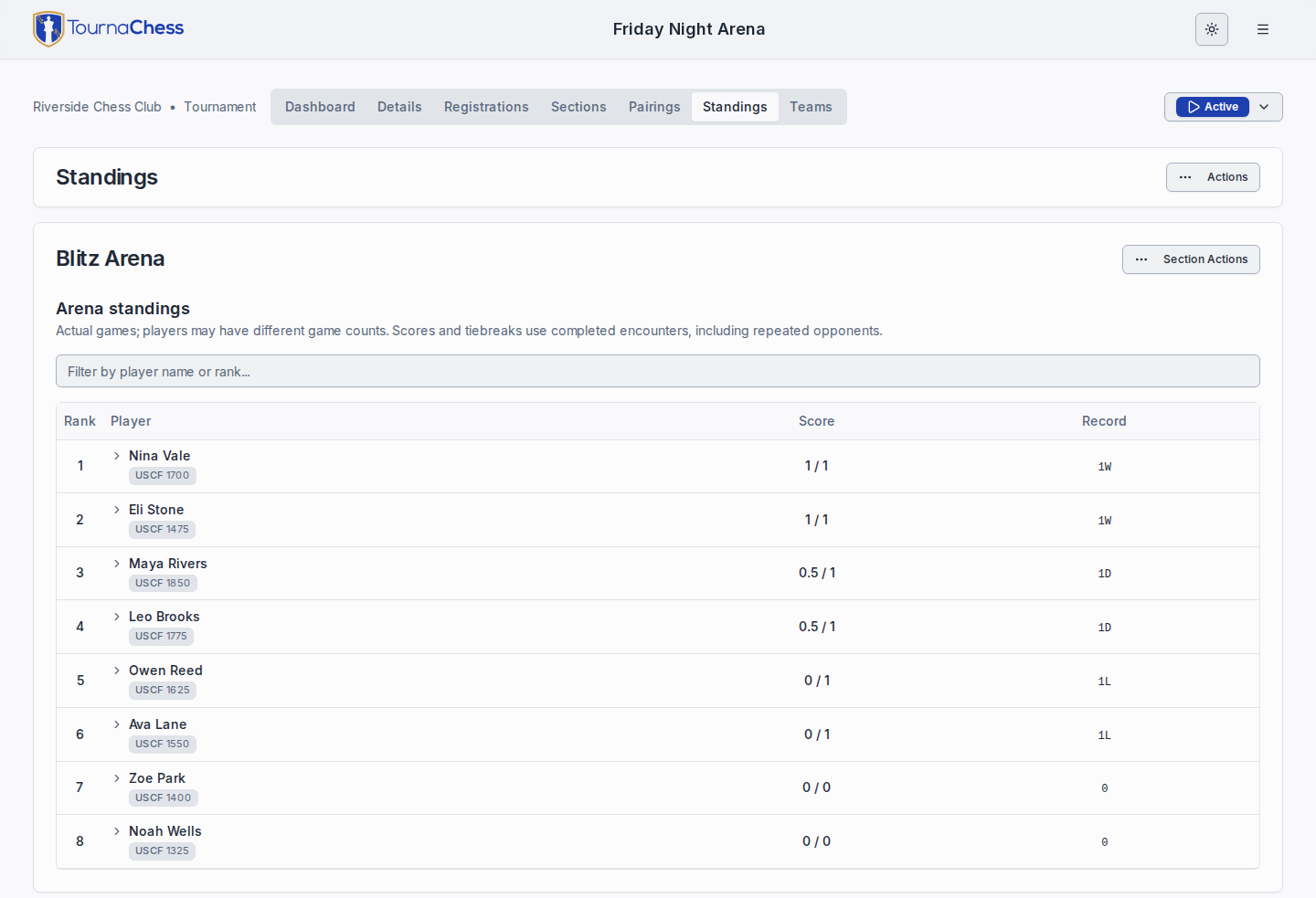
Arena standings show points earned and possible points from each player’s own completed games, rather than a shared round count.
Arena sections have no round-status columns in their section roster. In a mixed tournament, the combined Registrations table keeps round columns for ordinary sections and leaves arena players' round cells blank.
Show the arena on a projector
From the tournament page, open Actions → TV/Projector View. Use Views → Pairings for board assignments and Views → Standings for rankings.

The arena Pairings display gives players a venue-sized view of their current opponents and boards.
To put the pool on a venue screen, open the projector display and select Views → Waiting Pool. It shows each Arena section's waiting players and statuses, including paused players, and updates as games finish and new pairings are assigned.
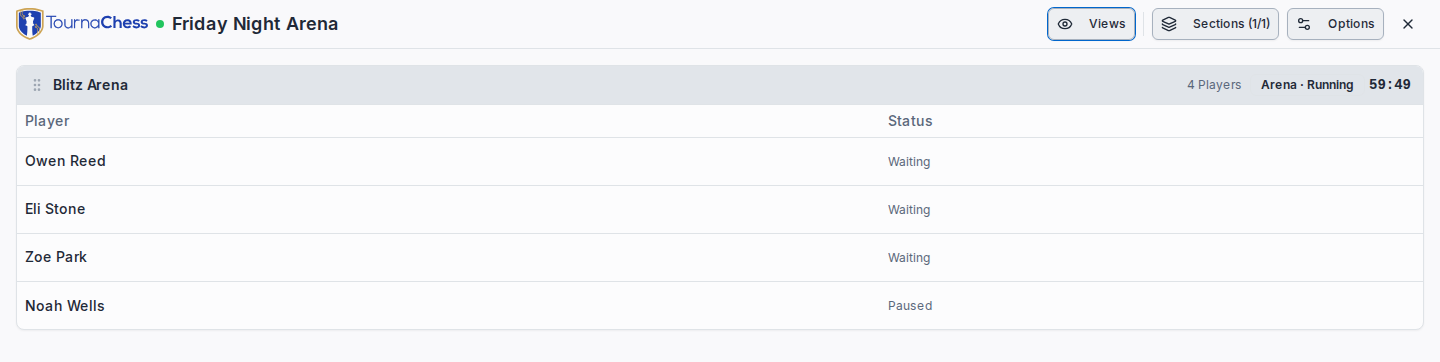
The Waiting Pool display shows who is waiting or paused; players already in a game are not listed.
For screen layout, fullscreen, zoom, QR codes, and multiple displays, see TV & Projector Displays.